






















As a long-time Mac user, ClickUp is my go-to tool for a fully customized workspace, from the Cmd+K Command Bar to a desktop app that keeps me out of the browser. But when it comes to working with teams, I lean toward Asana and monday.com for their intuitive, visual workflows. These providers offer native desktop apps, keyboard shortcuts, and integrations that complement Apple workflows. Below, I compare the best project management software for Mac to help you choose the right option for your team.
| Best for | Monthly starting price | |
|---|---|---|
| ClickUp | Best customizable all-in-one workspace | Free or $7/user |
| Asana | Best for coordinating work across departments | Free or $10.99/user |
| Wrike | Best for managing team workloads | Free or $10/user |
| monday work management | Best for visual workflow management | $9/user |
| Smartsheet | Best for spreadsheet-based resource planning | $9/user |
| Zoho Projects | Best for low-cost project planning | Free or $5/user |
| Jira | Best for agile software delivery | Free or $9.05/user |
| Notion | Best for combining docs and tasks | $10/user |
Why you should trust Project-management.com
As a tech analyst for project management software, I have personally tested nearly 20 platforms over the past five years, and several have become part of my workflow. I have written dozens of buyer’s guides covering a wide range of use cases and company sizes, which gave me a broader understanding of what project professionals need from these tools.
Marianne Sison
Senior Staff Writer for Project Management

- Project management software for Mac compared
- 1. ClickUp: Best customizable all-in-one workspace
- 2. Asana: Best for coordinating work across departments
- 3. Wrike: Best for managing team workloads
- 4. monday work management: Best for visual workflow management
- 5. Smartsheet: Best for spreadsheet-based resource planning
- 6. Zoho Projects: Best low-cost project planning
- 7. Jira: Best for agile software delivery
- 8. Notion: Best for combining docs and tasks
- How I evaluated the best project management software for Mac
- How to choose the best project management software for Mac
- FAQs
Project management software for Mac compared
| Provider | Key Mac features | Siri support | My rating |
|---|---|---|---|
| ClickUp | Dedicated Mac app, global AI Command Bar, desktop shortcuts, and Clipboard History | ✓ | 4.87/5 |
| Asana | Dedicated Mac app, menu bar task access, focus timers, and notification snoozing | ✓ | 4.79/5 |
| Wrike | Dedicated Mac app for Intel and Apple silicon, desktop notifications, and direct Wrike link opening | ✓ | 4.50/5 |
| monday.com | Dedicated Mac app with board access, project tracking, collaboration, and offline support | ✕ | 4.46/5 |
| Smartsheet | Dedicated Mac app with tabs, multiple windows, Dock access, and desktop notifications | ✕ | 4.32/5 |
| Zoho Projects | Browser-based Mac access plus iOS project management for tasks, timesheets, and project updates | ✓ | 4.29/5 |
| Jira | Browser-based Mac access | ✕ | 4.25/5 |
| Notion | Dedicated Mac app with tabs, menu bar Command Search, push notifications, and Notion AI access | ✓ | 4.18/5 |

1. ClickUp: Best customizable all-in-one workspace
Overall score: 4.87 out of 5
Works on Mac? ClickUp offers a dedicated Mac desktop app for all plans, with support for Mac-specific shortcuts that let users create tasks or open the AI Command Bar from any app. The Mac desktop app also includes Clipboard History with screenshot support, while some Chrome extension integrations and embedded content still require a browser.
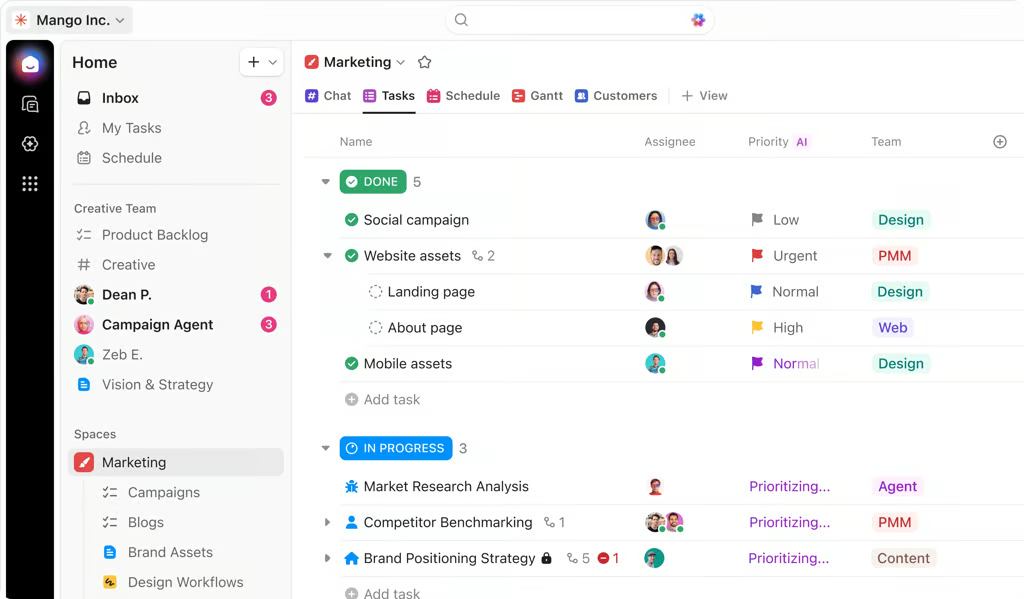
Status groups and priority fields help teams compare active tasks and ownership at a glance. (Source: ClickUp)

Why I chose ClickUp
ClickUp works well for Mac users who want more control over their workspace. Its Hierarchy supports up to six levels, from the Workspace down to individual tasks, while Spaces can use Folders for complex projects or omit them when fewer levels are needed.
On Mac, the Cmd+K shortcut opens the Command Bar on any screen, letting me find or create tasks without reaching for the mouse. Private views use the same sort and filter controls as a shared view, ensuring the results are visible only to me.
One thing to note is that customizing permissions is limited on lower-priced plans. Custom roles are reserved for Business Plus and Enterprise, leaving smaller teams and solo users with four predefined roles. Notion offers more granular access controls at a lower entry point because every plan, including Free, allows page owners to set view or edit permissions for individual pages.
Pros
 One task can appear in multiple Lists
- Custom task types separate different work categories
- AI turns meeting notes into action items
Cons
 Large workspaces can load slowly
- Workspace setup can overwhelm new users
- Mobile tools lack some desktop functions
Key features
 Gantt view: Place tasks on a timeline, map dependencies, and use critical path or slack time to identify schedule constraints.
- Workload view: Compare assigned work with team capacity across daily, weekly, or monthly periods using tasks, estimates, points, or custom fields.
- Dashboards: Convert workspace data into visual reports for project performance and time tracking.
- Automations: Build workflows with triggers, conditions, and actions that assign work, update tasks, or send messages automatically.
Pricing
- Free plan: $0 and includes unlimited tasks and members, Kanban boards, sprint management, and collaborative Docs.
- Unlimited: $7/user/mo. Includes expanded project management capabilities, Gantt charts, integrations, and resource management.
- Business: $12/user/mo. Includes advanced dashboards, sprint reporting, portfolio workload management, and 5,000 monthly automations.
- Enterprise: Custom pricing. Includes enterprise administration and security capabilities, with higher usage limits.
AI pricing note: ClickUp sells AI separately through Brain AI and Everything AI plans; AI Super Credits cost $10 per 10,000 credits, while each AI plan includes a monthly credit allowance.
Read our full ClickUp review.

2. Asana: Best for coordinating work across departments
Overall score: 4.79 out of 5
Works on Mac? Asana offers a dedicated Mac desktop app that syncs work in real time across desktop, web, and mobile. Mac users can also access priority tasks from the menu bar, use focus timers, and open recent pages without returning to a browser.
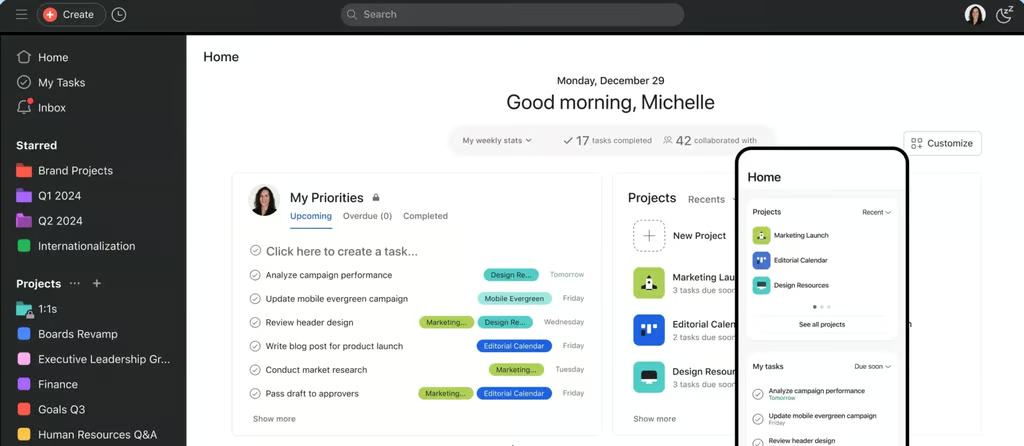
My Tasks and project shortcuts help users prioritize active work from one home screen. (Source: Asana)

Why I chose Asana
Asana separates departmental work into dedicated teams, helping organizations avoid putting every project into a single shared workspace. Each team page can surface related portfolios and project templates, as well as external documents.
Since a single user can belong to multiple teams, employees who work across departments can access each team workspace. Every team also has a calendar that consolidates tasks from all projects owned by that team, giving department leads one place to review upcoming work. If ownership changes, a project can be moved to another team from the project details menu.
Deciding who can create and share work with a team is configurable only on Enterprise and Enterprise+ plans. On lower plans, departments rely on Asana’s standard roles for those permissions. Notion provides page-level view and edit permissions on every plan, including Free, so departments can restrict access without moving to an enterprise subscription.
Pros
- Portfolio dashboards track costs across multiple projects
- AI workflows can create projects from submitted requests
- Rules support advanced conditional logic
Cons
- Teams need consistent workspace conventions
- Inability to assign multiple owners per task
- Capacity planning only accounts for tasks within Asana
Key features
- Portfolios: Group related projects in one place to track status, progress, due dates, owners, and selected custom fields
- Workload: Compare team capacity across projects using task count or effort, then set individual limits to identify overloaded or available team members.
- Goals: Connect company or team objectives with projects, portfolios, or milestones so progress reflects related work.
- Rules: Automate project updates with trigger-and-action rules that run when specified conditions are met.
Pricing
- Free plan: $0 for up to two users and includes unlimited tasks and projects with list, board, and calendar views.
- Starter: $10.99/user/mo. Includes timeline and Gantt views, reporting dashboards, and unlimited automations.
- Advanced: $24.99/user/mo. Includes portfolios, goals, and workload management.
- Enterprise: Custom pricing. Includes capacity planning and enterprise administration.
- Enterprise+: Custom pricing. Includes Asana’s highest level of enterprise security and compliance controls.
AI pricing note: AI Studio Basic credits are included with paid plans, while AI Teammates are a separate add-on with custom pricing.
Read our full Asana review

3. Wrike: Best for managing team workloads
Overall score: 4.5 out of 5
Works on Mac? Wrike offers a Mac desktop app with most of the same functionality as the browser version, including task updates, calendars, notifications, and separate task windows. Mac users can pin Wrike to the Dock, launch it at startup, and install versions for either Intel or Apple silicon Macs.
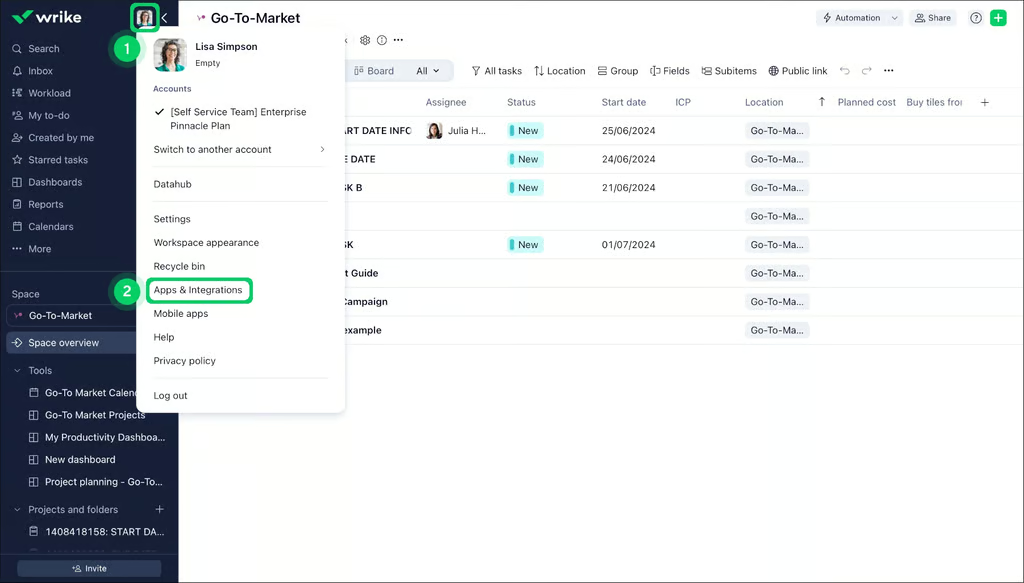
Workspace navigation keeps project tools and integrations accessible from the same account view. (Source: Wrike)

Why I chose Wrike
Wrike calculates workload based on each person’s actual schedule rather than applying a single standard calendar to the entire team. Managers can define working hours, non-working days, and vacation time for individual users, providing capacity estimates with more context across departments and time zones.
Weekly Workload charts show planned effort by person and use color indicators to flag overbooking. Unassigned tasks can stay in the Backlog Box until a manager sees who has room to take them on. Wrike Copilot can also answer questions about who is overloaded or available, saving time when reviewing a large team.
The tradeoff is that resource planning comes at an extra cost. The Resources view and department allocation dashboard require a paid add-on on Business plans and above. Teams on lower tiers still get Workload charts, but they do not get the same forecasting capabilities. Smartsheet includes workload tracking across sheets within its Business plan, without requiring a separate purchase.
Pros
- Dependency changes automatically reschedule downstream tasks
- Workload views show available team capacity
- Extensive dependency chains for Gantt charts
Cons
- Advanced workflows require ongoing administration
- Smaller teams may face more configuration than necessary
- Steep price jump between paid plans
Key features
- Workload Charts: Compare assigned effort with available capacity, then distribute unassigned work from the backlog based on team availability.
- Request Forms: Turn submissions into tasks, projects, custom item types, or blueprints with predefined owners and workflow data.
- Dashboards: Use configurable widgets and filters to monitor project activity and KPIs
- Resources View: Review effort allocation by project and use bookings to plan resource needs before tasks are assigned.
Pricing
- Free plan: $0/user/mo. Includes essential task and project management with board and table views.
- Free trial for paid plans: 14 days.
- Team: $10/user/mo. Includes interactive Gantt charts and shareable dashboards for teams of two to 15 users.
- Business: $25/user/mo. Includes customizable workflows, reporting, and standard integrations.
- Pinnacle: Custom pricing. Includes advanced resource planning, budgeting, and advanced reporting.
- Apex: Custom pricing. Includes expanded AI agent capacity and unlimited Whiteboards, plus Wrike Integrate and Sync capabilities.
AI pricing note: AI Essentials is included with Team, while Business and higher plans provide AI Elite capabilities with plan-based action allowances; additional AI Elite action packs are available separately.
Read our full Wrike review

4. monday work management: Best for visual workflow management
Overall score: 4.46 out of 5
Works on Mac? monday.com features a Mac desktop app that lets users manage boards and track project progress. The app supports online and offline work, as well as project views such as Gantt, Kanban, Timeline, and dashboards.
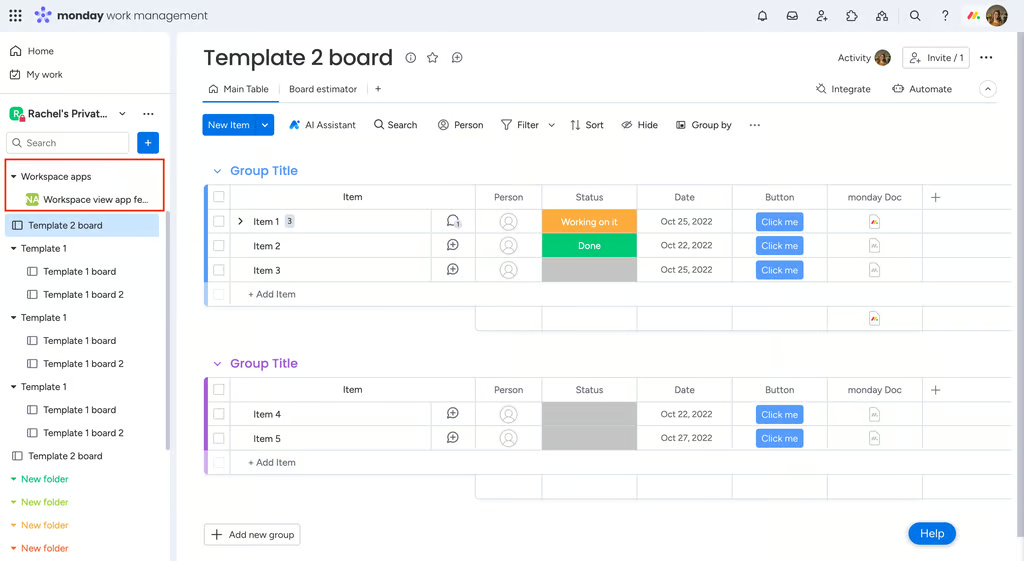
Board columns help teams compare task status, ownership, and dates within one project view. (Source: monday.com)

Why I chose monday work management
monday work management gives teams several ways to examine the same project without digging into the underlying data. A single board can hold up to 100 views, including a Gantt chart for scheduling, Kanban for status checks, and another view for reporting, while every layout reflects the same underlying tasks.
AI Sidekick, monday’s smart assistant, streamlines setup by creating supported views from a plain-language request. Once the team settles on the views it uses most, a board owner can pin them for quicker access or lock them to prevent edits. Dashboards then pull data from multiple boards into one visual summary for status meetings.
One main catch is that data exporting is more restrictive. Only table views can be exported to Excel, and settings such as grouping or sorting do not carry over. Other view types cannot be exported to Excel at all. Smartsheet offers a better alternative because it can export grid-based project data as a spreadsheet with formulas and formatting preserved.
Pros
- AI identifies potential portfolio delivery risks
- Visual boards make project status easier to review
- Intuitive drag-and-drop columns
Cons
- Advanced automations require more configuration
- Managing automations across multiple boards requires strict monitoring
- Dependency features vary across workflows and views
Key features
- Portfolio solution: Bring multiple project boards into one portfolio view to track status, health, timelines, and risks across active work.
- Workload Widget: Compare assigned work with each person’s available capacity using data from one board or several connected boards.
- monday automations: Create trigger-based rules that update items, send alerts, or move work when set conditions are met.
- Dashboards: Pull data from connected boards into configurable widgets that report progress, blockers, and selected project metrics.
Pricing
- Free plan: $0 for up to two seats and includes up to three boards, three Docs, templates, and basic work management.
- Basic: $9/seat/mo. Includes unlimited items and free viewers, with AI features available.
- Standard: $12/seat/mo. Includes timeline and Gantt views, guest access, integrations, and 250 monthly automation actions.
- Pro: $19/seat/mo. Includes advanced work management capabilities with higher automation limits and expanded workflows.
- Enterprise: Custom pricing. Includes portfolio and resource management, enterprise security, multi-level permissions, and enterprise-scale automation.
AI pricing note: AI features are available from Basic, while Standard includes AI Essentials with 2,000 AI credits per month; Enterprise uses plan-specific AI allocations.
Read our full monday work management

5. Smartsheet: Best for spreadsheet-based resource planning
Overall score: 4.32 out of 5
Works on Mac? Smartsheet has a Mac desktop app, with tabs for organizing sheets and other project assets. Mac users can also open Smartsheet items across multiple windows and receive unread notification alerts from the desktop app.
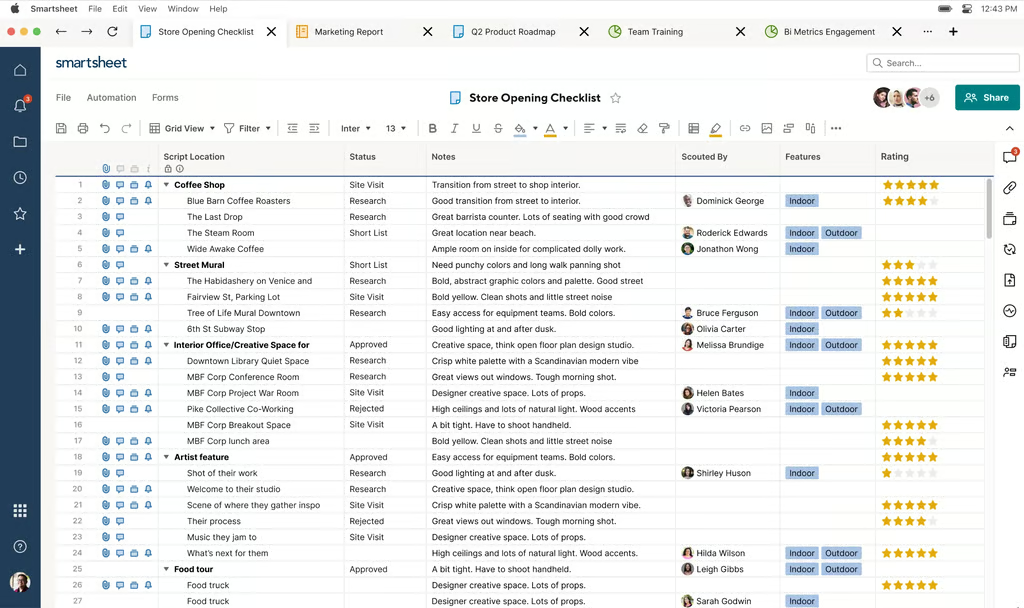
Grid view helps teams review task status and project details within a spreadsheet-style workspace. (Source: Smartsheet)

Why I chose Smartsheet
Smartsheet lets resource planners calculate workload and capacity within project sheets using spreadsheet formulas. Formulas use familiar cell references and standard operators, so a user can use SUM to total booked hours or an IF formula to flag workloads that exceed capacity.
For projects with several levels of tasks, CHILDREN and ANCESTORS can roll allocations into parent rows and show a person’s total workload in one place. A cross-sheet formula can pull a person’s hourly rate or weekly capacity from a separate resource sheet into another project sheet. Column formulas also apply automatically to new rows, so newly added resources follow the same calculation without requiring the formula to be entered again.
Contact List cells are used to assign people in Smartsheet Resource Management, but these cells cannot contain formulas. You can automate workload or capacity calculations around an assignment, but you still have to select the assignee manually. Asana can automate the assignment itself through rules that read a custom field and assign the task when specified conditions are met.
Pros
- Timeline tasks can be rescheduled through drag-and-drop
- Grid views flag resource overallocation
- Portfolios centralize status across multiple projects
Cons
- Complex dependency chains can slow sheet loading
- Advanced configurations have a steeper learning curve
- Complex portfolios require careful initial configuration
Key features
- Control Center: Create projects from approved blueprints, roll data into portfolio reports, and apply program-wide changes across repeated project processes.
- Dynamic View: Share selected sheet or report data for viewing or editing without exposing the full source.
- Workload tracking: Calculate availability from assignments across enabled project sheets, then review capacity through a heatmap or schedule.
- Critical path: Highlight tasks that affect the project finish date and update the path automatically when dates or predecessor relationships change.
Pricing
- Pro: $9/member/mo. Includes unlimited sheets and reports, multiple project views, 250 monthly automations, and conversational AI capabilities.
- Business: $19/member/mo. Includes timeline views, workload tracking, unlimited automations, and admin controls
- Enterprise: Custom pricing. Includes portfolio management, SAML-based SSO, directory integrations, and company-wide security controls
- Advanced Work Management: Custom pricing. Includes premium capabilities for enterprise portfolio and process management.
AI pricing note: Conversational AI features are included with Pro, while Business adds connections to external AI tools through MCP-enabled integrations.
Read our full Smartsheet review.

6. Zoho Projects: Best low-cost project planning
Overall score: 4.29 out of 5
Works on Mac? Zoho Projects does not offer a dedicated Mac desktop app, so Mac users must access the platform through a web browser. Zoho provides mobile apps, but the lack of a native desktop client also means there is no comparable offline Mac experience for project management.
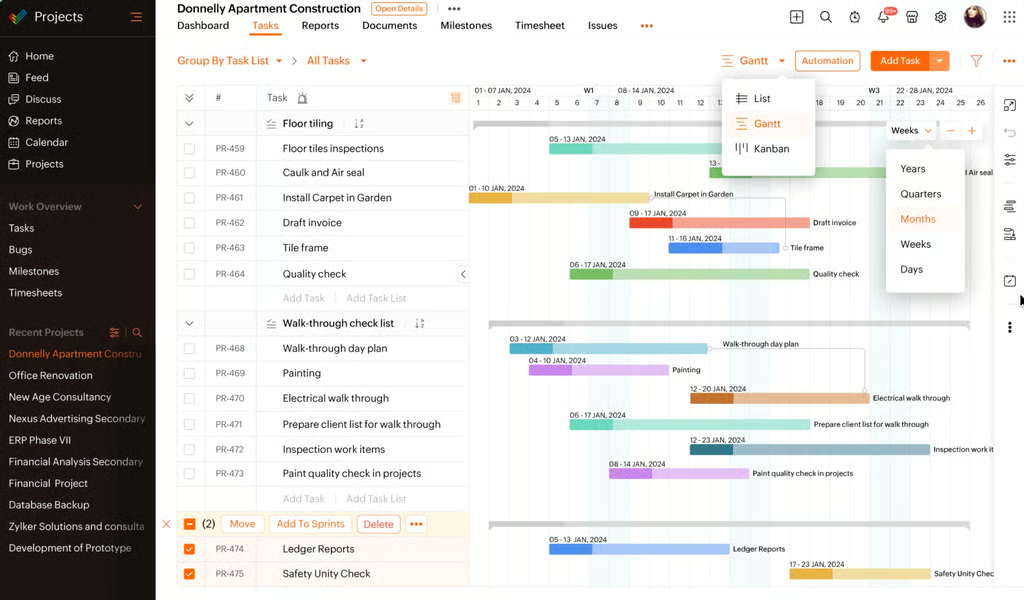
Gantt view helps teams compare task schedules and dependencies across a shared project timeline. (Source: Zoho Projects)

Why I chose Zoho Projects
Zoho Projects suits budget-conscious teams, since the paid tier starts at $4 per user. The free plan alone covers up to five users and three projects, with 5 GB of storage.
Even the free plan includes a Gantt chart and task dependencies–features that most competitors in this list reserve for advanced tiers. Premium, the lowest-priced tier, provides all four dependency types, plus Task Blueprint for creating reusable templates. If you need higher automation credits, workflow actions jump from 50 executions a month on Free to 5,000 on Premium.
Zoho Projects does not offer a native desktop app for Mac, so you need to access it through a browser or use its mobile and tablet apps on Apple devices. ClickUp offers a dedicated Mac desktop app with a Cmd+K Command Bar, which gives Mac users a desktop experience designed for the platform rather than one adapted from mobile.
Pros
- Zia suggests weekly timesheet entries
- Zoho apps connect project and financial data
- Dependencies can link tasks across projects
Cons
- Large projects can load slowly
- Doesn’t have a native Mac desktop app
- MCP cannot perform several project actions
Key features
- Blueprint: Define task workflows with statuses and transitions, then use criteria and actions to control how work flows between stages.
- Baseline: Compare the current schedule with saved baseline snapshots to measure changes from the original plan.
- Critical Path: Show the longest sequence of dependent activities on the Gantt chart so managers can identify tasks that affect the finish date.
- Timesheets: Group logged hours for review and approval, with project, user, task, customer, and billing details attached to each entry.
Pricing
- Free plan: $0 for up to five users and includes three projects, subtasks, basic workflow automation, and 5 GB of storage.
- Free trial for paid plans: 15 days.
- Premium: $4/user/mo. Includes unlimited projects and project budgeting, timesheets, expanded workflow automation.
- Enterprise: $9/user/mo. Includes cross-project resource management, portfolio dashboards, baselines and SSO.
- Ultimate: $14/user/mo. Includes unlimited custom dashboards, expanded resource capacity, higher workflow automation credits.
AI pricing note: Zoho Projects includes Zia AI capabilities in its paid plans, while the Free plan provides Zoho MCP Server access for connecting external AI models.
Read our full Zoho Projects review.

7. Jira: Best for agile software delivery
Overall score: 4.25 out of 5
Works on Mac? Jira’s native Mac app was discontinued, so Mac users must now access Jira through a web browser or mobile app. Atlassian cited feature-parity issues with the web version and reliability problems with the Mac Catalyst technology behind the app.
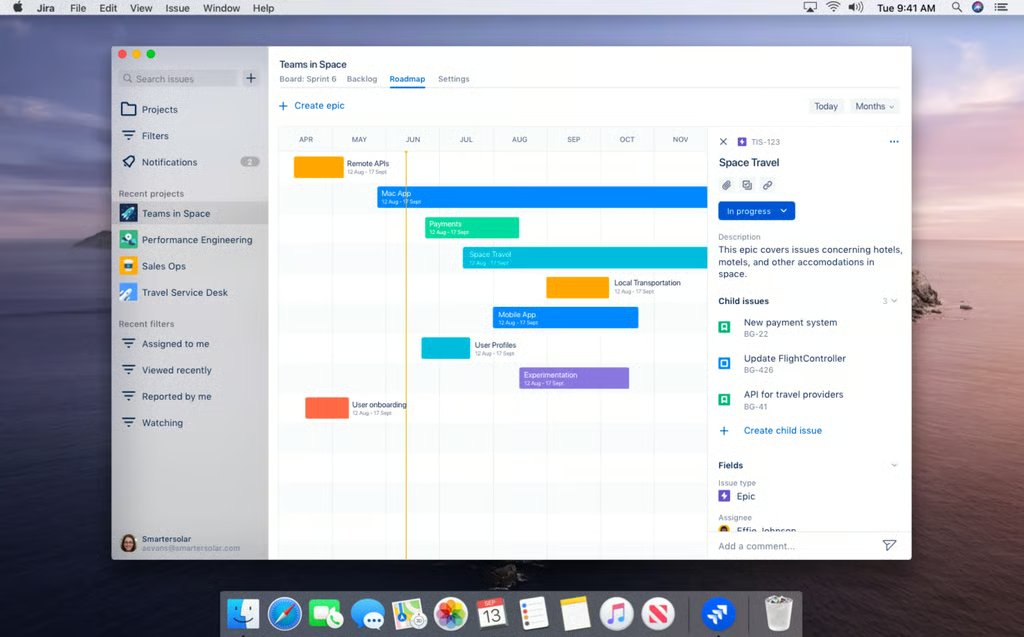
Roadmap view helps teams compare epic schedules and related work across a shared timeline. (Source: Jira)

Why I chose Jira
Jira suits software teams that run delivery on Scrum or Kanban cycles, since the platform is built around agile ceremonies rather than a generic task list. A Scrum board lets developers drag cards from the backlog into a sprint, and swimlanes split the board by epic or assignee.
A burndown chart tracks work still open against days left in a sprint, so a team can see early whether the sprint goal is realistic. A velocity chart plots completed story points sprint over sprint. That sets a baseline for future commitments. Kanban teams get different reports built around continuous flow: a cumulative flow diagram and a control chart replace the sprint report.
Jira’s velocity chart lives on a single board, with no built-in way to roll several teams’ story points into one view. Combining teams into one capacity picture requires Advanced Roadmaps, a feature reserved for Premium and Enterprise plans. Smartsheet handles this differently: workload tracking across every sheet is included on its Business plan, one tier below Enterprise, with no extra module to add.
Pros
- Boards handle larger backlogs more efficiently
- Formula fields calculate live project metrics
- AI can summarize work item activity
Cons
- Large configurations can slow navigation
- Nontechnical teams may struggle with setup
- Jira-specific jargon increases the learning curve
Key features
- Scrum backlog: Organize work into a backlog and sprints, then rank items or assign them to specific sprints and versions.
- Kanban board: Track continuous work through columns, apply work-in-progress limits, and pull new tasks as capacity becomes available.
- Jira automation: Build workflows with triggers and conditions that respond to events, schedules, or field changes before actions run.
- Plans: Coordinate work across multiple Jira spaces and review sprint or team capacity through timeline, summary, program board, or calendar views.
Pricing
- Free plan: $0 for up to 10 users and includes unlimited project boards, backlog and timeline capabilities, and reporting.
- Standard: $9.05/user/mo. Includes user roles and permissions, audit logs, data residency, and basic automation.
- Premium: $18.30/user/mo. Includes advanced planning and customizable issue hierarchies, and unlimited storage
- Enterprise: Custom pricing. Includes multiple sites and centralized administration, enterprise security controls, and unlimited automation.
AI pricing note: Atlassian Intelligence AI capabilities are included with Premium and Enterprise.
Read our full Jira review

8. Notion: Best for combining docs and tasks
Overall score: 4.18 out of 5
Work on Mac? Notion offers a Mac desktop app with tabbed navigation, push notifications, and automatic updates for bug fixes and performance improvements. Mac users can also launch Command Search from the menu bar or a keyboard shortcut to find pages or access Notion AI outside the main app window.
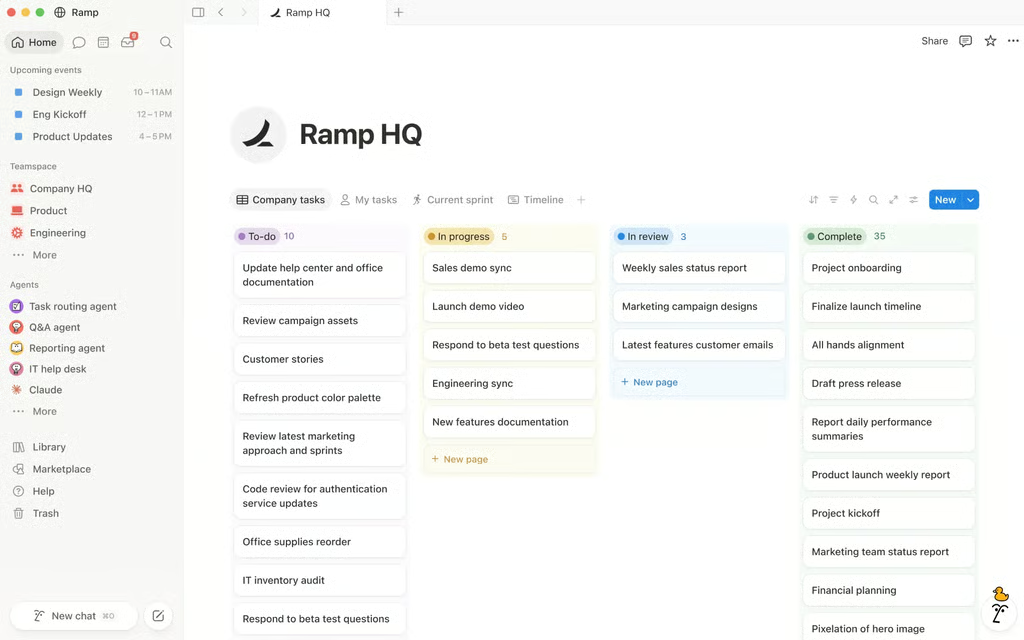
Board view helps teams compare project tasks across workflows from a shared workspace. (Source: Notion)

Why I chose Notion
For individual users who frequently switch between planning tasks and writing project documentation, Notion keeps both types of work in the same workspace. Docs support code snippets with syntax highlighting and collapsible toggles for longer sections. A table of contents also updates automatically when headings change, so documentation remains easier to navigate as content evolves.
For development work, GitHub can bring pull requests and issues into a Notion database, while Jira integrations can surface bug updates or import an entire project as a database. For task coordination, you can @mention a teammate in a comment on a task or document to bring them into the discussion.
Notion’s database automations have a narrower scope. A rule created in one database cannot automatically perform actions in a linked document or separate project database, so workflows that cross databases require manual setup or a third-party connector. ClickUp supports broader automation across its workspace, with rules that can trigger actions in a different List or Space.
Pros
- Agents can complete assigned database tasks
- Project work can live beside documentation
- Databases support different project views
Cons
- Automations cannot initiate other automations
- Separate databases cannot natively merge their records
- Advanced project reporting requires manual configuration
Key features
- Timeline view: Plot database items across a chronological timeline, adjust project durations directly, and switch time scales from hours to years.
- Dependencies: Link related tasks and control how downstream dates shift when predecessor timing changes.
- Database automations: Create trigger-and-action workflows that update records or send notifications when database conditions change.
- Chart view: Turn database data into charts, then combine several charts and database views into a reporting dashboard.
Pricing
- Free plan: $0/member/mo. Includes databases for projects and tasks, subtasks, and dependencies.
- Plus: $10/member/mo. Includes expanded team collaboration and unlimited content, and custom forms.
- Business: $20/member/mo. Includes advanced integrations, private teamspaces, and additional security controls.
- Enterprise: Custom pricing. Includes advanced security, admin controls, audit logs, compliance capabilities.
AI pricing note: Free and Plus provide trial AI capabilities, while Business includes expanded Notion AI access.
How I evaluated the best project management software for Mac
I scored each platform on a five-point scale, with the final rating based on weighted category scores from my evaluation rubric.
- Pricing (20%): I compared annual per-user costs with the project management capabilities included at each plan. The free plan also factored into the score, along with paid upgrades or add-ons required for core features.
- General features (25%): I looked at the standard features for planning and managing work. Mac-specific access also influenced the score, particularly when a platform offered more than browser-based use.
- Advanced and niche features (20%): I looked at capabilities for more complex project environments, such as resource management, portfolio oversight, and advanced automation. Products scored higher when core capabilities were available natively rather than requiring additional tools or workarounds.
- Ease of use (10%): For usability, I considered setup, navigation, and the effort required to complete common project tasks. I also reviewed user feedback from G2 and Capterra to account for users’ experiences with each platform.
- Support (10%): I examined the support channels available and how access changes between plans. Current user reviews provided additional context on the quality of customer support.
- Expert score (15%): My assessment considered overall value and the quality of official product documentation. Current third-party ratings also contributed to the score, particularly as an indicator of how products perform for existing customers.
How to choose the best project management software for Mac
The best project management software for Mac should offer more than browser access. Look for a maintained native app, useful keyboard shortcuts, and desktop features that support the way you work on macOS. Before choosing a platform, check the following:
- Look for a native Mac app: Tools like ClickUp and Wrike ship dedicated Mac apps with real OS integration, including keyboard shortcuts and dock support. Others, like Zoho Projects, run through Safari or Chrome only, or through a mobile app installed on Apple Silicon.
- Check what happens without a browser open: A native app can mean fewer tabs, offline access, and desktop notifications. Wrike’s Mac app works without a browser and shows unread Inbox counts on its icon, while monday.com’s app does the same for boards.
- Watch for discontinued Mac support: Atlassian built and then sunset a dedicated Jira Mac app, so that tool now runs through the browser only. Confirm a vendor’s Mac app is still maintained before counting on it.
- Consider keyboard-driven navigation: ClickUp’s Cmd+K Command Bar and Notion’s Command Search allow users to jump between features, a time-saver for anyone who works mostly from the keyboard.
- Match the tool to your team’s workflows: A Mac user who thinks in spreadsheets may prefer Smartsheet’s formula-driven grid; one who wants tasks and documentation on the same page may prefer Notion; one who needs sprint boards may prefer Jira.
- Factor in price alongside Mac support. A low-cost plan, like Zoho Projects’ free or $4-a-seat Premium tier, may still lack a native Mac client, so budget and platform support don’t always align.
FAQs
What is the best project management software for Mac?
The best project management software for Mac depends on your workflow. monday work management suits visual workflows, ClickUp supports highly customized workflows, while Smartsheet works best for spreadsheet users.
Is there free project management software for Mac?
Yes. Several Mac-compatible project management platforms offer free plans, including ClickUp, monday work management, Wrike, and Zoho Projects. Free plans usually restrict storage, advanced reporting, automation usage, or certain project views.
Do project management tools need a native Mac app?
No. Many project management platforms work through Safari or Chrome, while others also offer dedicated macOS apps. A desktop app can provide easier access, native notifications, keyboard shortcuts, and fewer browser tabs.