





















Key takeaway
 Wrike is an enterprise project management platform with web and desktop versions for Windows and macOS, Android and iOS mobile apps, and API support. It offers AI-powered workflow capabilities and supports over 400 native integrations with popular apps for messaging, file storage, CRM, IT, and business intelligence.
I have been using Wrike since 2023, and what drew me to the platform was its early adoption of AI features and the breadth of features and integrations that support complex project requirements. Today, Wrike has grown into an enterprise project software for organizing tasks, automating workflows, visualizing data, and managing resources. In this article, I walk you through my experience using Wrike and show how it goes beyond its well-known Gantt charts, along with features like resource planning, approval workflows, and cross-tagging.
| Wrike overview | |
|---|---|
| Best for | Teams managing complex projects and multiple workstreams |
| Who uses it | Project managers, professional services teams, marketing teams, and enterprise organizations |
| Project views | List, table, board, Gantt chart, calendar, and workload views |
| Core features | Task management, project planning, resource management, and reporting |
| AI capabilities | Work Intelligence features for AI-assisted work, automation, and project insights |
| Resource management | Workload views, capacity planning, time tracking, and effort allocation |
| Collaboration | Comments, proofing and approvals, request forms, and shared workspaces |
| Automation | Custom automation rules and automated workflows |
| Reporting | Dashboards, reports, and project analytics |
| Integrations | Connects with over 400 business apps, including Microsoft 365, Google Workspace, and Salesforce |
What is Wrike?
Wrike is an industry-leading project management platform launched in 2006 used by more than 1.65 million people each year across 20,000 organizations. It was among the early project management solutions to integrate AI into its platform, focusing on task generation and predictive analytics to reduce repetitive work and support productivity.
Wrike now uses its proprietary machine learning technology, Work Intelligence, to automate routine processes and surface insights from project data. With AI, Wrike extends these capabilities across everyday project features such as automations and request forms, while also supporting dashboards and the mobile inbox for more efficient work management.
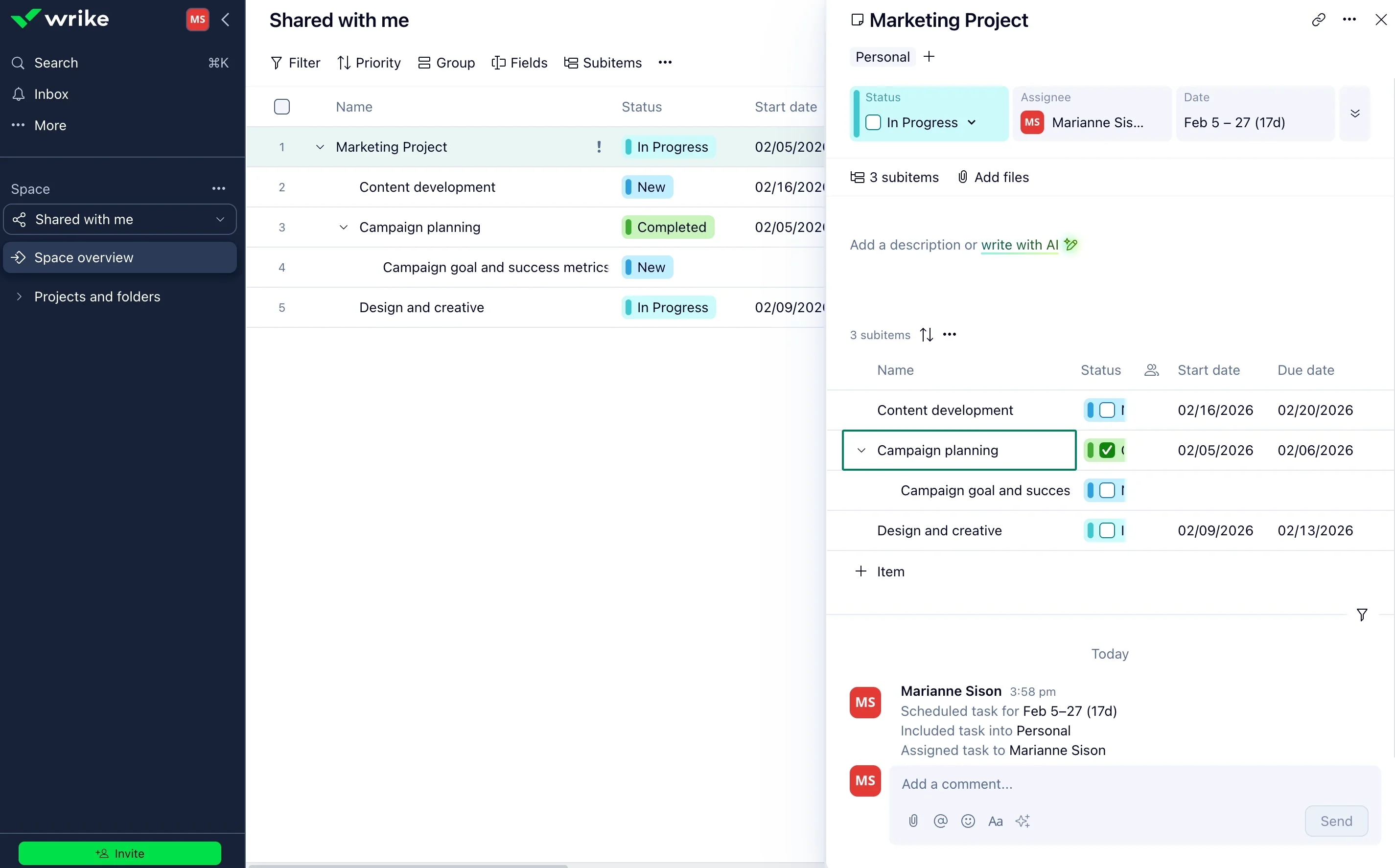
Read our complete Wrike review.
Key features of Wrike
Wrike offers a comprehensive set of features to support project planning, app integrations, and team collaboration. The platform focuses on managing complex work at scale while supporting different workflows and team roles.
Project views
Wrike lets me build and customize project views based on my workflow or team preferences. I can adjust filters and sorting options, then share those views with my team. Within each view, I can manage settings such as switching it to private, assigning a name, or duplicating it to other locations.
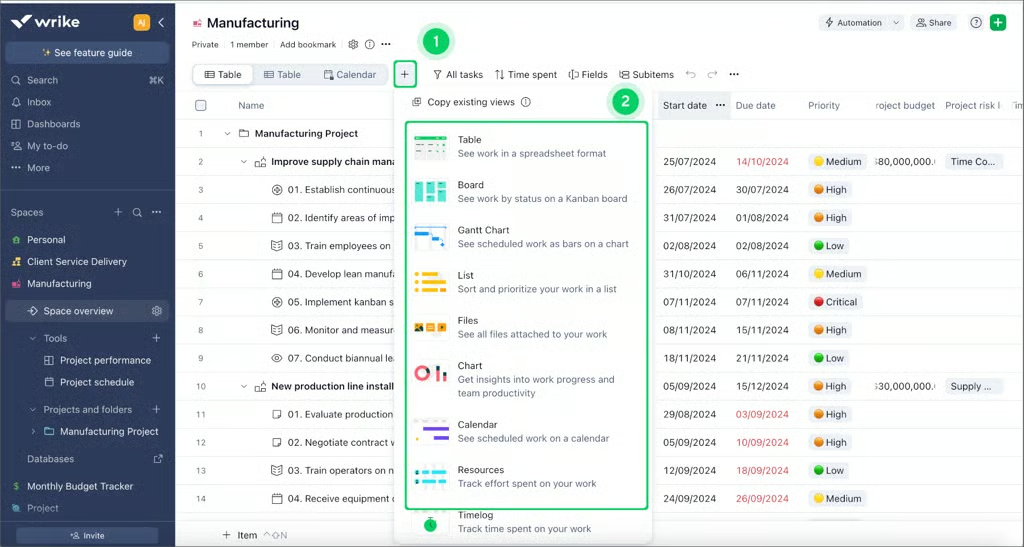
Depending on the plan, teams can choose from up to nine different views, including the following:
| Wrike project views | Function |
|---|---|
| Table | See work items in a spreadsheet format |
| Board | View task items on a Kanban board |
| Gantt chart | See the scheduling order of tasks and their connections in color-coded bars |
| Files | View all the files within a folder, project, or space |
| Chart view | Add your own metrics and view them in charts |
| Calendar | Display your work items on a timeline |
| Resources | See all users who currently work on a specific project, and their effort allocation |
| Timelog | View timelog entries for all tasks and subtasks |
| Stream | Get updates related to tasks and subtasks |
Workflow automation
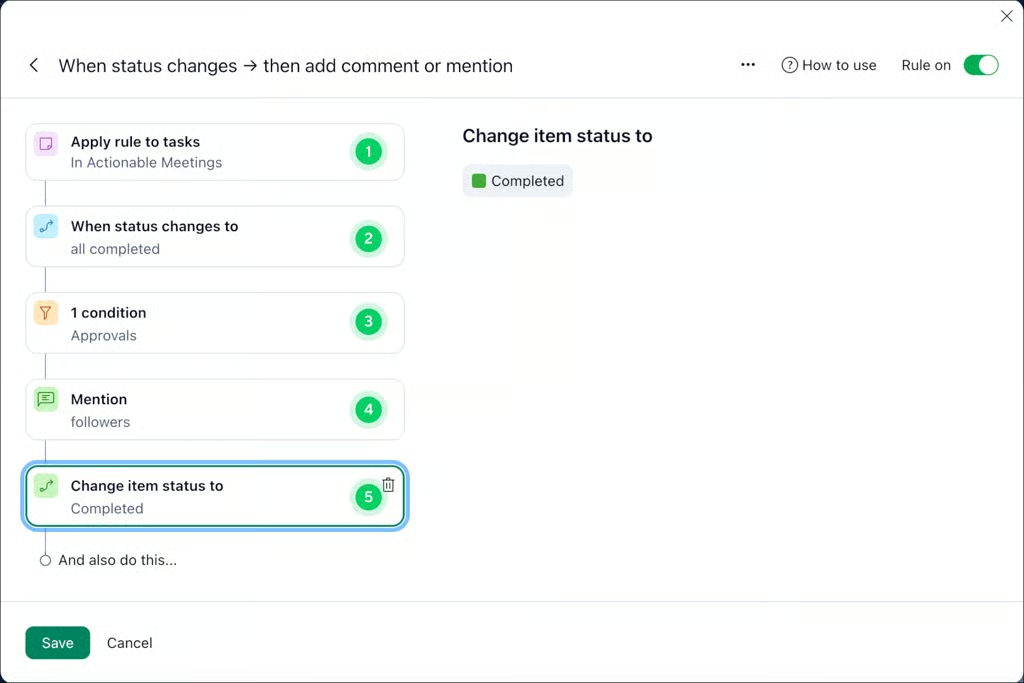
Wrike’s automation engine lets me set up rules, triggers, and actions to handle the most repetitive parts of my workflow. I can configure custom reminders and notifications that fire when a task is completed or when a potential blocker comes up.
Rules follow a simple “when, then” format with guided setup, and I can apply them to tasks, projects, or custom items across up to ten selected folders, projects, or spaces within my account. Depending on the size and scope of a project, Wrike’s automation capabilities can save my team a significant amount of time that would otherwise go toward manual follow-ups and status updates.
Project templates
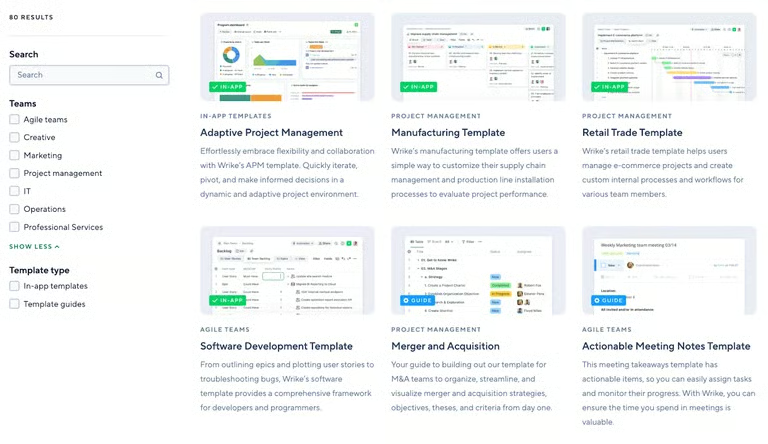
Wrike includes a large library of customizable project management templates that let me create task boards without building everything from scratch. There are more than 70 templates available, with options designed for specific industries and team roles, such as marketing and software development.
Templates are offered in two formats: in-app templates and template guides. In-app templates are pre-built assets available inside the platform, while template guides provide step-by-step instructions for applying or building those templates.
Collaborative proofing
Wrike provides online proofing tools for managing frequent reviews and approvals. This setup works particularly well for creative and marketing teams collaborating on visual assets and looking to centralize feedback.
I usually compare file versions side by side, which makes it easier to identify changes and flag issues. I also leave comments to images, videos, PDFs, folders, or projects, with visual markers placed on the file so I can link feedback to a specific area.
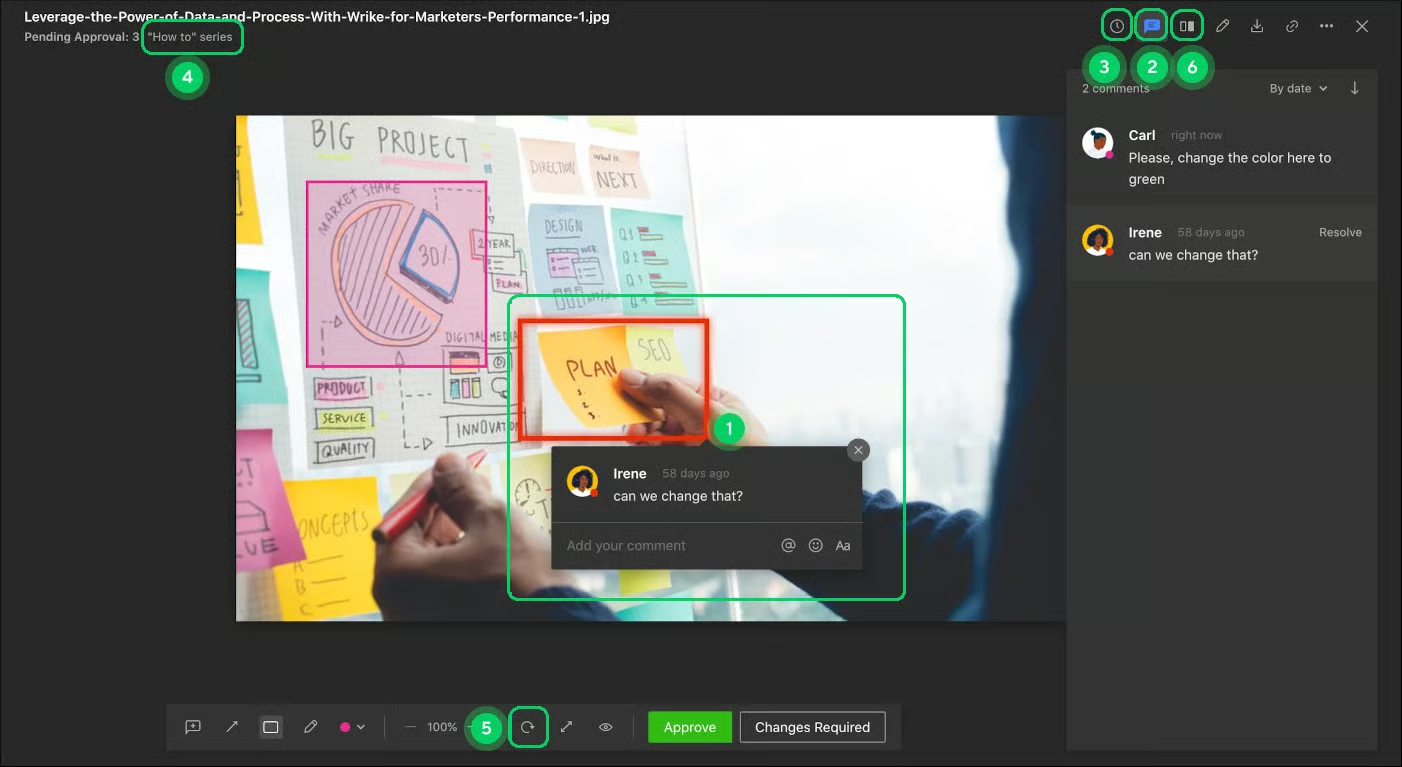
All comments appear both in the file and in a dedicated panel on the right side of the screen. I can run approvals manually or through automation, and administrators can invite external reviewers to collaborate and leave feedback without full account access.
Read more: Wrike for marketers buyer’s guide
Requests & approvals
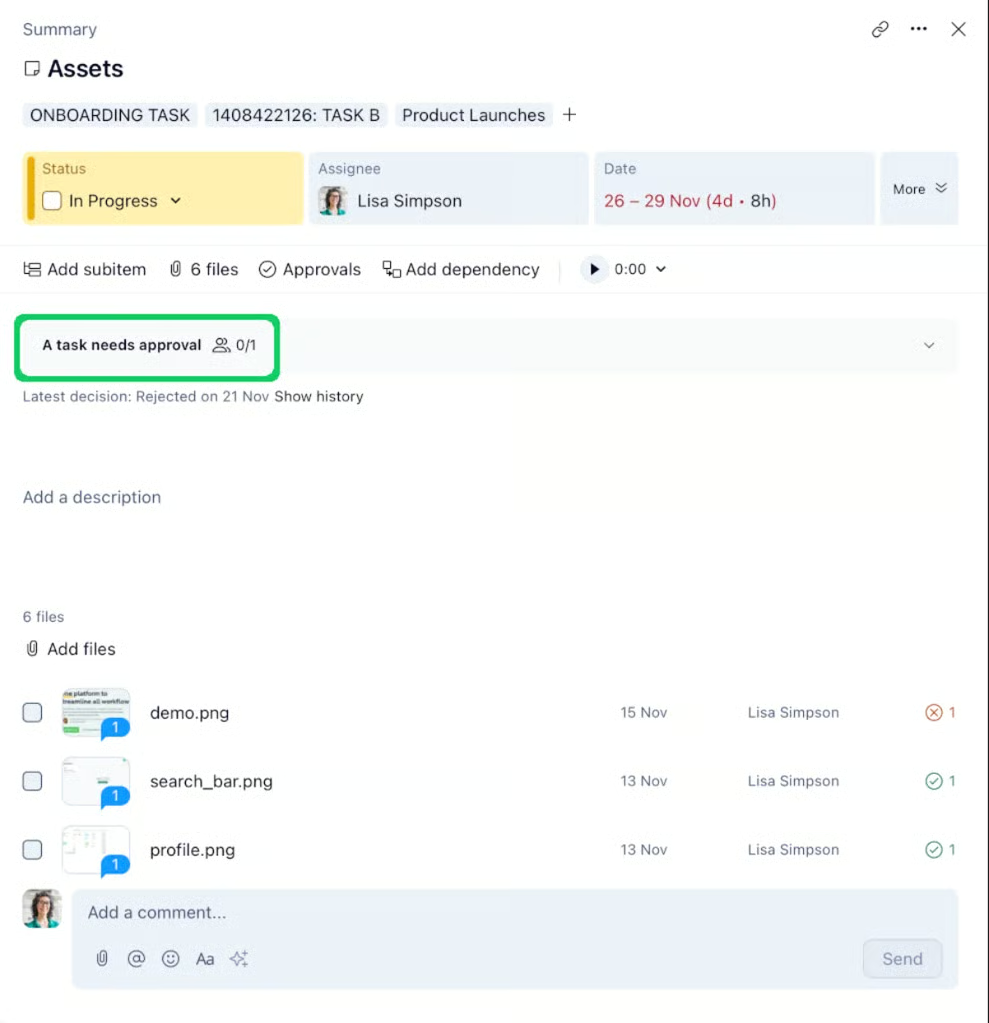
Wrike’s approvals tool lets me track items for review and see which users are assigned as approvers. I can trigger approvals automatically when a user submits a request form, and then track every decision within a work item, including pending approvals that may affect project timelines.
Within the project dashboard, I filter tasks, folders, and projects by approval status, approvers, or dates. I can also create a dedicated widget for outstanding approvals, which makes it easier for me to identify items that still need action.
Cross-tagging
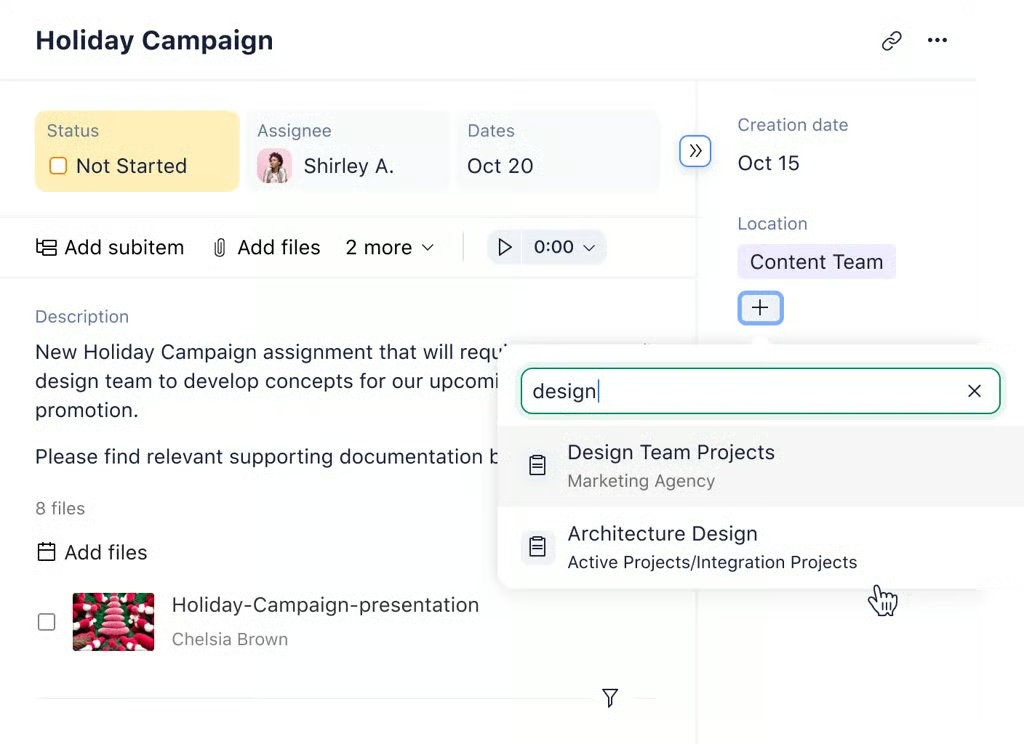
Tracking a single task across multiple departments or campaigns can be time-consuming, especially when each group has different priorities and timelines. Using the cross-tagging feature lets me tag tasks, folders, phases, or entire projects so the same item can exist in multiple workflows. This approach allows several departments to access the same task while keeping track of those specific to my team’s needs.
Integrations
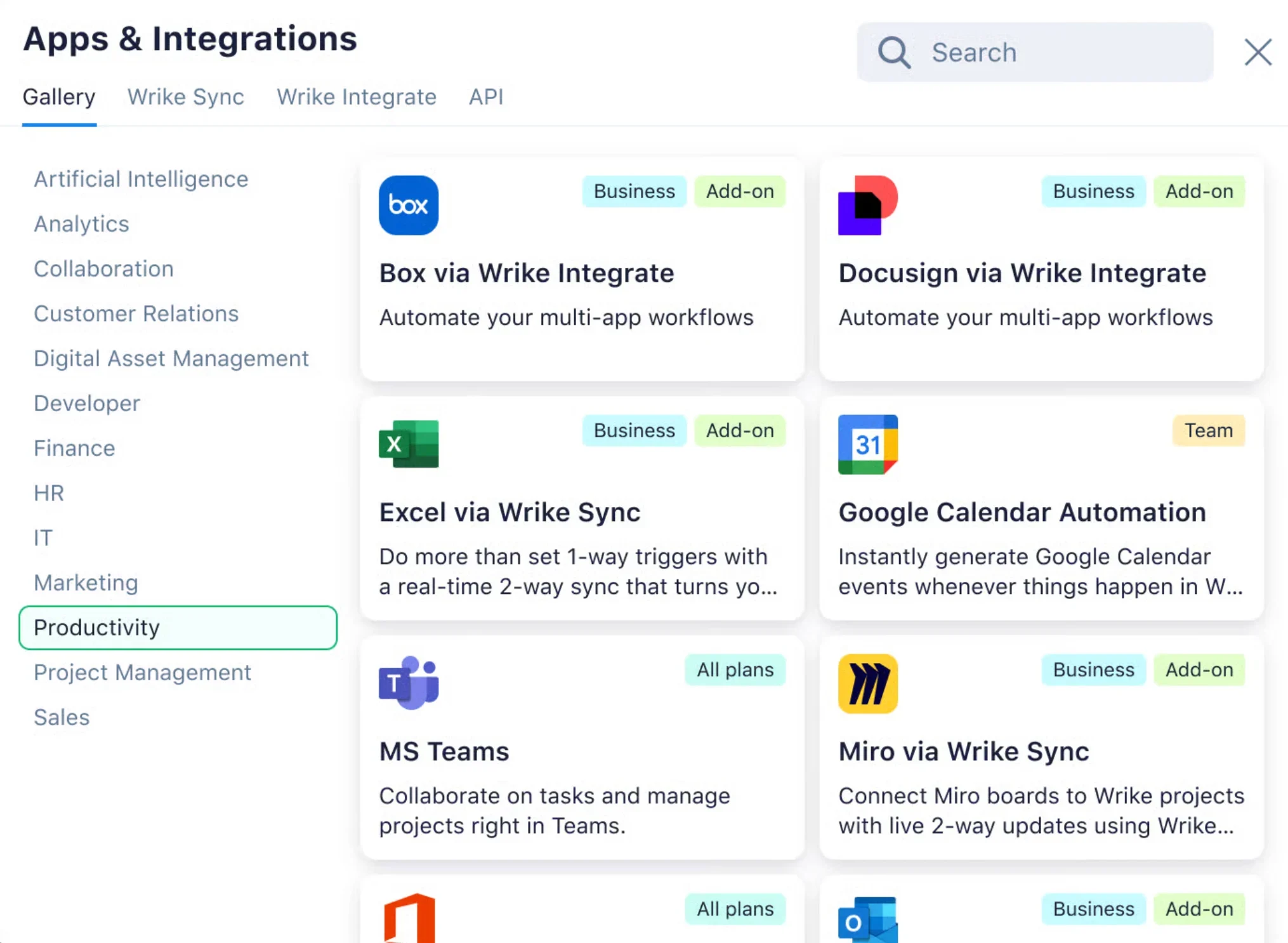
Wrike aims to reduce context switching that comes from using multiple business apps to complete projects. Instead of moving from one application to another, I can access and manage data across different Wrike integrations.
Another reason why I like Wrike is its integration with over 400 third-party applications. Available integrations span categories such as CRM systems and file storage tools, along with messaging platforms, IT tools, business intelligence software, and visual collaboration apps.
Wrike plans and pricing
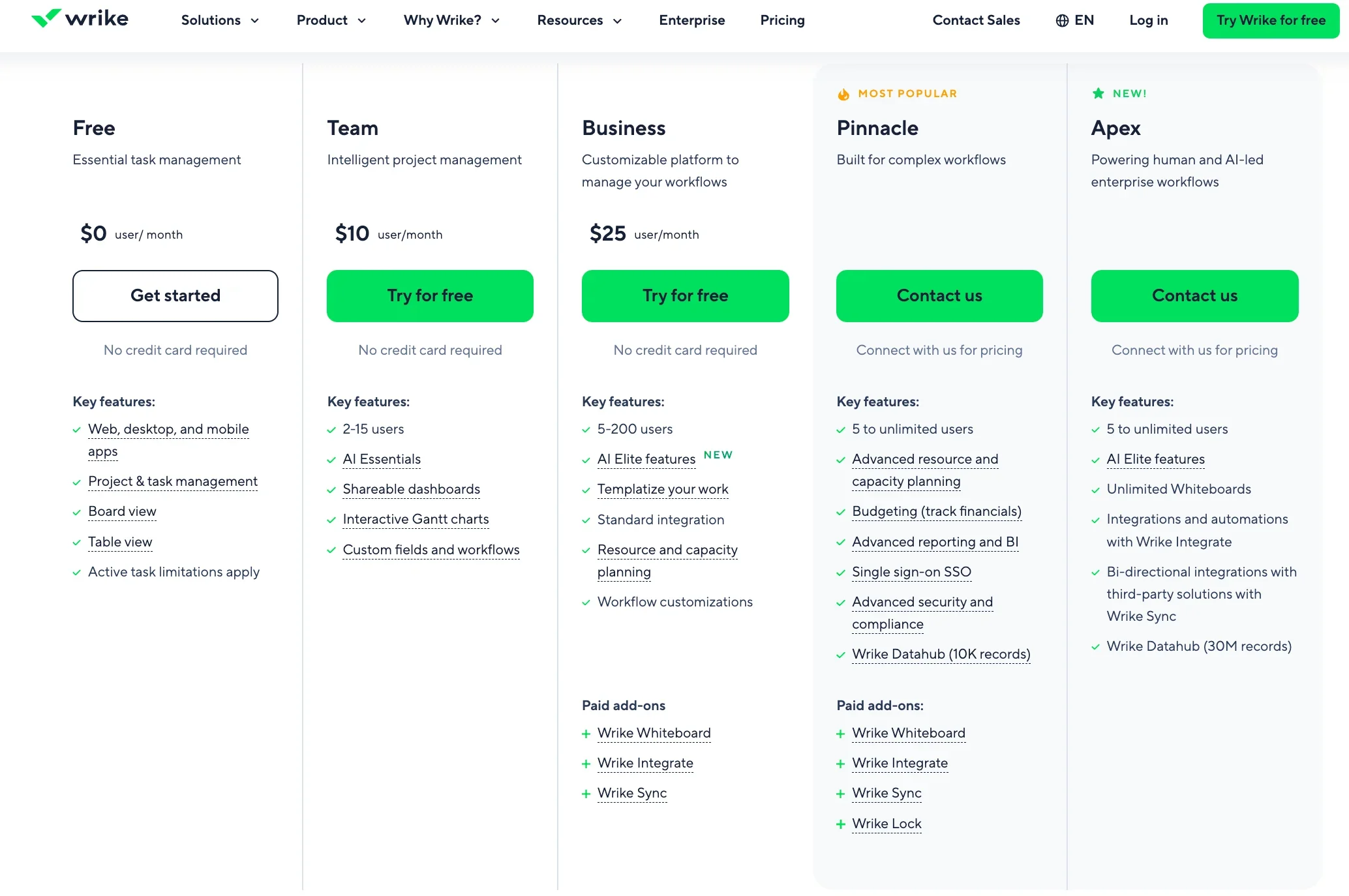
The Wrike app offers five subscription plans that scale from basic task tracking to enterprise-grade workflow management. Each tier accommodates the needs of varying team sizes and adds functionality that supports more users, complex workflows, and tighter admin control.
Free
The Free plan supports basic task management for individuals or very small teams. Users can create tasks and manage projects on web and mobile apps, and access boards and table views, though active task limits apply and advanced collaboration features are not available.
For those who want to try Wrike’s advanced project management tools, premium plans are available to try for 14 days and require no credit card. If your team can make a decision quickly, this may be plenty of time.
Team
The Team plan is built for small teams needing more customization controls and access to AI features. It adds AI Essentials, shareable dashboards, interactive Gantt charts, and support for custom fields and workflows for up to 15 users.
Business
The Business plan targets growing teams with multiple projects and shared resources. It expands user capacity up to 200 users and adds workflow customization, template creation, standard integrations, and resource and capacity planning, along with access to custom AI agents.
Pinnacle
Pinnacle is built for large organizations that manage complex workflows across departments. It introduces advanced reporting and BI, budgeting and financial tracking, resource and capacity planning at scale, single sign-on, and higher Databub limits, with pricing available by quote.
Apex
Apex is Wrike’s most advanced enterprise offering, designed for organizations that require deep integrations, automation at scale, and strong governance mechanisms. It includes bi-directional integrations, expanded AI Elite capabilities, unlimited whiteboards, and the highest Databub limits, with pricing customized through sales.
User training & onboarding
Based on Wrike’s research, employees experience a 102% increase in productivity when they attend at least one Wrike Discovery course as part of their initial onboarding. While not required, most courses can be completed in minutes, making them worth the extra time and effort.
Navigating Wrike’s online help center is like a one-stop shop where I get full access to its training courses, informational videos, product release notes, and the user community. If I need to upskill, I can make the most of my time on Wrike with a comprehensive list of common best practices and live monthly webinars.
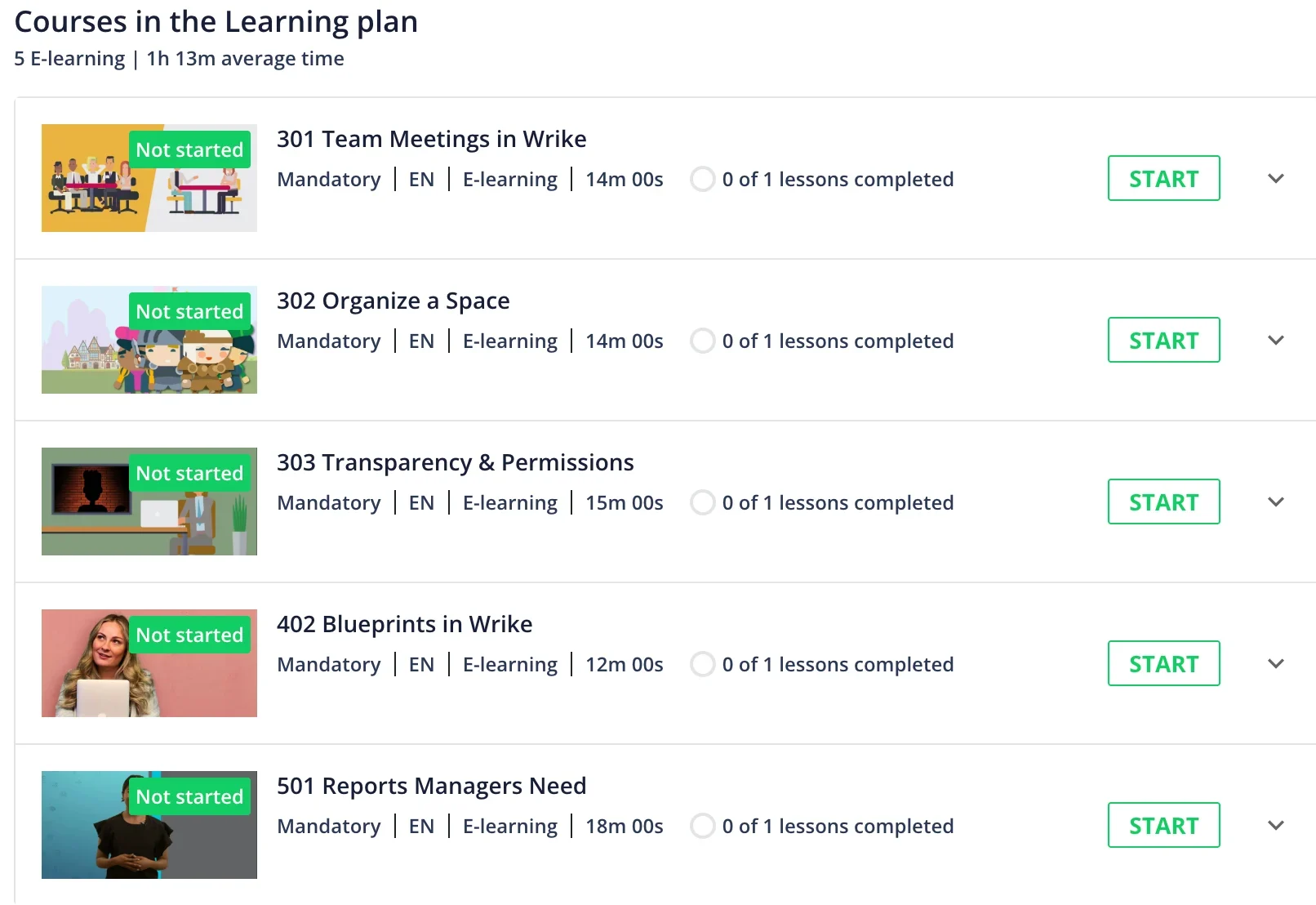
Wrike has courses designed for beginners, individuals, project leaders, and experienced administrators, so you’re sure to find a training program for your team. The knowledge base covers everything from getting started to advanced project management strategies with tips and tricks to enhance collaboration and productivity.
Also read: Top 10 Best Wrike Tutorials – Training and Courses
Customer support
Wrike includes basic support with its Free plan, while paid subscriptions unlock higher service levels. Depending on the plan, support can include round-the-clock availability with a guaranteed response time of one hour and access through phone, web form, or live chat.
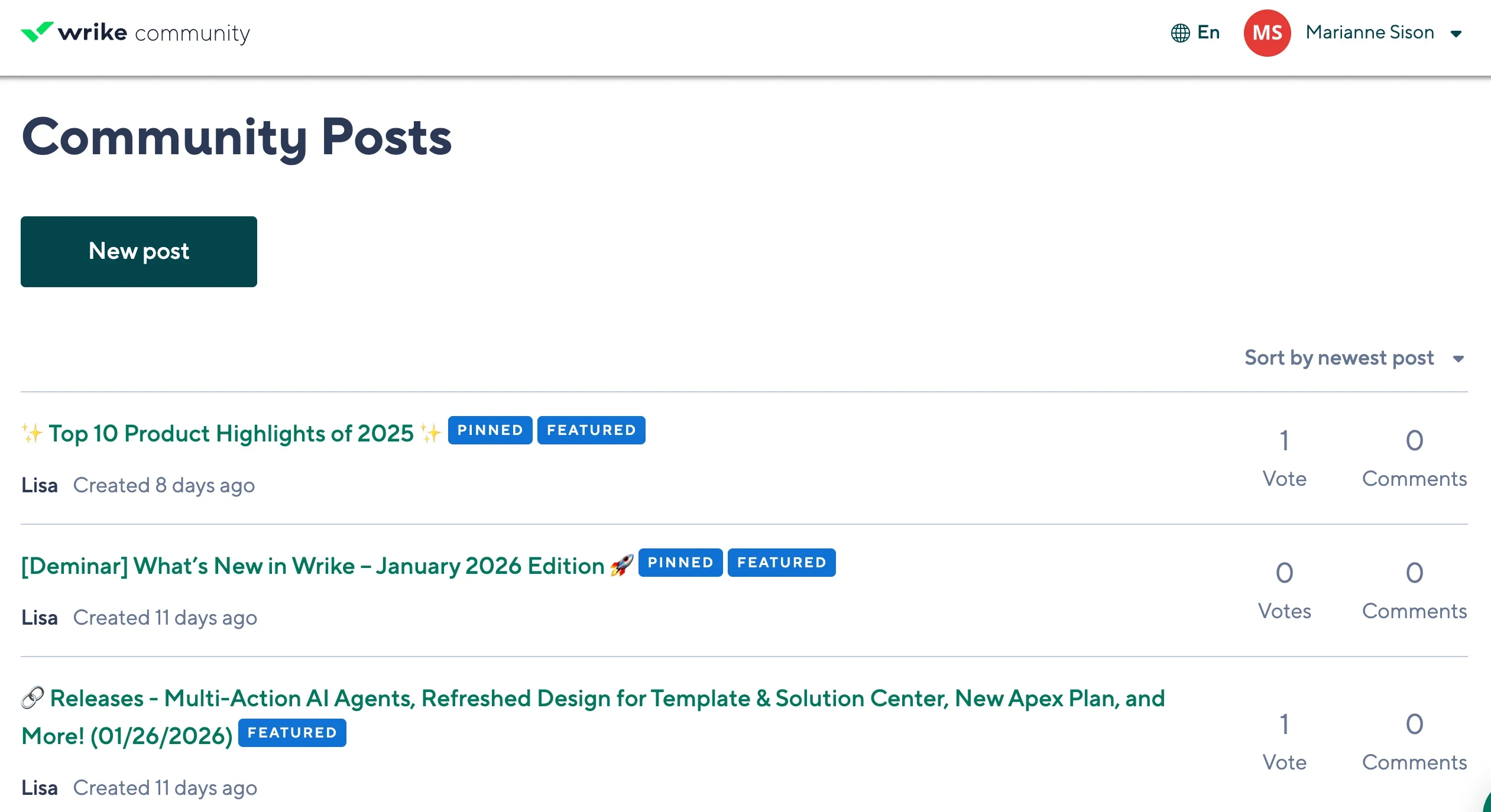
Before I contact their support team, I usually find the help I need within Wrike’s online community. The community forum includes a list of common topics, where I can browse discussions, ask questions, and share solutions based on personal use.
In addition to its premium customer support, the Wrike dev team works quickly to patch software bugs, minimizing issues and consistently improving the platform for everyone.
Wrike pros & cons
Wrike provides advanced project planning and resource management capabilities that can support complex projects across larger teams. Its extensive functionality comes with some tradeoffs, particularly around pricing and ease of navigation.
Pros
- Dynamic Gantt charts make it easier to adjust schedules and visualize task dependencies
- AI-powered mobile inbox helps prioritize work when away from desktop
- Built-in proofing and approval tools streamlines feedback collection
- Resource management tools support capacity planning
- Extensive customization supports different workflows and project requirements.
Cons
 Pricing can jump significantly between plan tiers (from $10/user to $25/user)
- Spaces and folder hierarchy makes navigation more complex
- Some integrations and add-ons charge extra costs on top of the base subscription
- Subscription is limited to annual billing, with no per-month option
- Can be too feature-heavy for beginners and startups
Alternatives to Wrike
Wrike’s extensive offerings may not suit small teams with basic project management needs or those that want to avoid added costs for integrations. Below are several close Wrike alternatives that support different project types and workflow requirements.
Wrike alternatives | Best for | Monthly price | Key features |
|---|---|---|---|
| monday | Beginners | $9/user |
|
| ClickUp | Multi-level workspaces | $7/user |
|
| Smartsheet | Portfolio management | $9/user |
|
| Jira | Agile workflows | $9.05/user |
|
Get started with Wrike
Signing up is quick and easy. Start by heading to wrike.com and type in your business or personal email. Wrike then guides new users through a short onboarding questionnaire to personalize the platform. The setup collects basic details about your role and the number of people you plan to collaborate with in Wrike.
After choosing your experience level with PM tools, the last step is naming your first project, initial tasks, and how you want to see your work between Table, Gantt, and Board views. Invite your team members, and you’ll be off to the races.
Wrike has invested considerable resources in making it easy and intuitive to get set up and running for teams of every size. Of course, first-hand experience is always the best indicator of whether Wrike is suitable for your team.
FAQs
Does Wrike have a free plan?
Yes. The Wrike app offers a free plan for individuals and small teams. It supports unlimited users and includes basic task management and limited project views, but advanced reporting, automation, and resource management require a paid plan.
Is Wrike an AI tool?
Wrike is not purely an AI tool. It is a project management platform that uses AI features, such as task suggestions and risk detection, to support planning and prioritization.
Who uses Wrike?
Wrike is used by mid-sized and enterprise teams that manage complex projects, including marketing, professional services, IT, and operations teams that need detailed workflows, reporting, and cross-department coordination.