





















- Key takeaways
- Best project management software compared
- 1. monday work management – Best for visual planning & beginners
- 2. ClickUp – Best for building task hierarchies
- 3. Jira – Best for agile software delivery
- 4. Asana – Best workflow automation
- 5. Miro – Best for whiteboard-style project planning
- 6. Smartsheet – Best for portfolio reporting
- 7. Wrike – Best for creative production
- 8. Teamwork.com – Best for professional services
- 9. Todoist – Best for personal use
- 10. Notion – Best for project databases
- What are the key features of project management software?
- What to consider when purchasing project management software
- FAQs
Key takeaways
 monday.com, ClickUp, and Jira are the top picks for best project management software: monday.com for visual planning and beginners, ClickUp for detailed task hierarchies, and Jira for agile software delivery.
- ClickUp is the best option for free or budget-conscious teams. Its free plan supports unlimited users, while the $7-per-user Unlimited plan adds Gantt charts, time tracking, portfolios, and resource management.
- monday.com is the best overall pick. It combines visual project tracking and automation with a lower learning curve for teams managing work across multiple projects.
| Provider | Best for | Starting monthly price |
|---|---|---|
| monday work management | Best for visual planning & beginners | $9 per user |
| ClickUp | Best for building task hierarchies | $7 per user |
| Jira | Best for agile software delivery | $9.05 per user |
| Asana | Best workflow automation | $10.99 per user |
| Miro | Best for whiteboard-style project planning | $8 per user |
| Smartsheet | Best for portfolio reporting | $9 per user |
| Wrike | Best for creative production | $10 per user |
| Teamwork | Best for professional services | $10.99 per user |
| Todoist | Best for personal use | $5 per user |
| Notion | Best for project databases | $10 per user |
Why you can trust Project-management.com
Over the past four years as a project management writer, I have personally tested nearly 20 PM platforms, and several of them have become part of my own workflow. I have written dozens of buyer’s guides covering a wide range of use cases and company sizes, which gave me a broader understanding of what project professionals actually need from these tools. Beyond hands-on testing, I design custom scoring rubrics for each evaluation to make sure every platform is assessed accurately and on equal footing, not ranked on gut feel or vendor claims.
Marianne Sison
Senior Staff Writer for Project Management

How I evaluated the best project management software
To compare the best project management software, I started with the scoring criteria in my evaluation rubric and used each factor as a basis to compare how platforms perform for real project teams. I built the scoring system to reflect what project managers value most when they need productivity tools that improve planning and execution.
Pricing (20%)
I compared whether each platform offers a free-forever plan or only a limited trial, then scored the entry and mid-tier subscriptions based on monthly cost. I also checked for annual discounts and considered how much real value each tier delivers for small or growing teams.
General features (25%)
I examined core task management features such as subtasks and dependencies, along with collaboration tools that allow users to leave comments on each task. I also reviewed reporting tools with dashboards plus the range of built-in views so you can move between lists or boards and choose the layout that fits your projects.
Advanced and niche features (20%)
I paid close attention to resource and capacity planning along with portfolio management so you can see how multiple projects affect your team. I also evaluated integration depth with tools such as CRM or video meetings and scored AI or automation features that cut down manual processes.
Customer service and support (10%)
I checked support hours to see who offers near round-the-clock assistance and who limits operational hours to standard business schedules. I also looked at the availability of support channels such as chat or phone plus each vendor’s approach to security and the depth of their knowledge base.
Ease of use (10%)
I assessed how much technical skill you need to set up each tool and how quickly a typical user can move through everyday tasks. I examined setup requirements and usability, since a tool that slows down adoption creates friction for project teams. The interface design also mattered, because intuitive navigation reduces training time and boosts long-term productivity.
Expert score (15%)
Lastly, I added a professional assessment based on real-world performance, overall value, and popularity among users. Each provider’s standout features and practical ease of use contributed to its final expert rating.
Best project management software compared
| Provider | Main reason to choose it | Recommended user size | Starting monthly price |
|---|---|---|---|
| monday work management | Visual workflows with built-in automation and portfolio tools | Mid & large teams | $9 per user |
| ClickUp | Granular task organization with extensive PM features at a lower price | Mid & large teams | $7 per user |
| Jira | Native backlog, sprint, issue, and release management | Small to large IT teams | $9.05 per user |
| Asana | Rules and workflow tools for coordinating repeatable work | Mid & large teams | $10.99 per user |
| Miro | Visual collaboration for mapping plans before execution | Small & mid-size remote teams | $8 per user |
| Smartsheet | Grid-based project tools with reporting across multiple projects | Mid & large teams | $9 per user |
| Wrike | Proofing, approvals, and resource planning for complex delivery | Enterprise teams | $10 per user |
| Teamwork | Time tracking, client work, and project financials in one platform | Mid & large-size agencies | $10.99 per user |
| Todoist | Simple task planning with recurring work and low setup demands | Solo user | $5 per user |
| Notion | Flexible databases that connect project work with docs and knowledge | Solo use and small teams | $10 per user |
1. monday work management – Best for visual planning & beginners

Rating: 4.91 / 5
- Free plan for two seats
- Starts at $9 per user/month
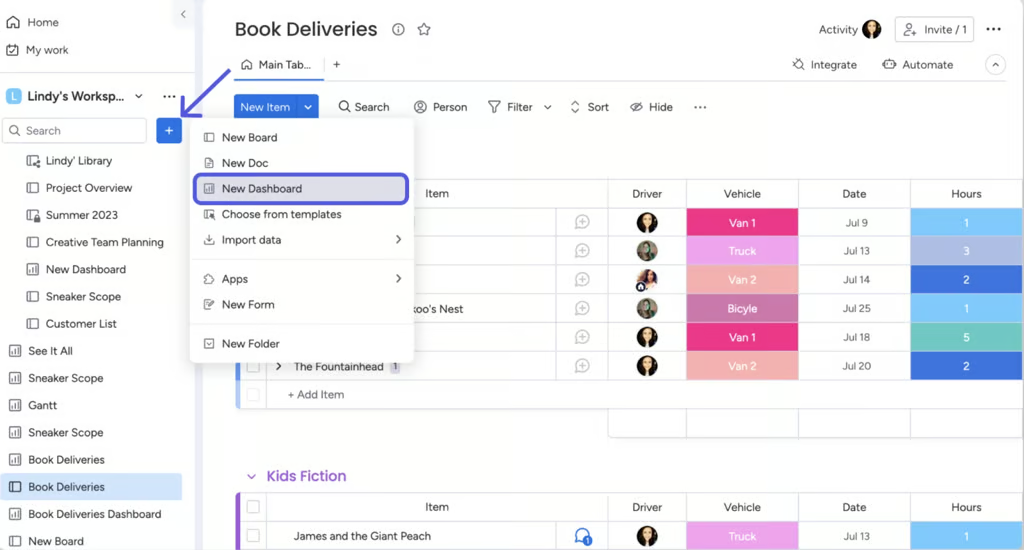
These monday work management views let teams create dashboards and monitor projects on mobile for real time KPI visibility that keeps delivery on track. (Source: monday.com) 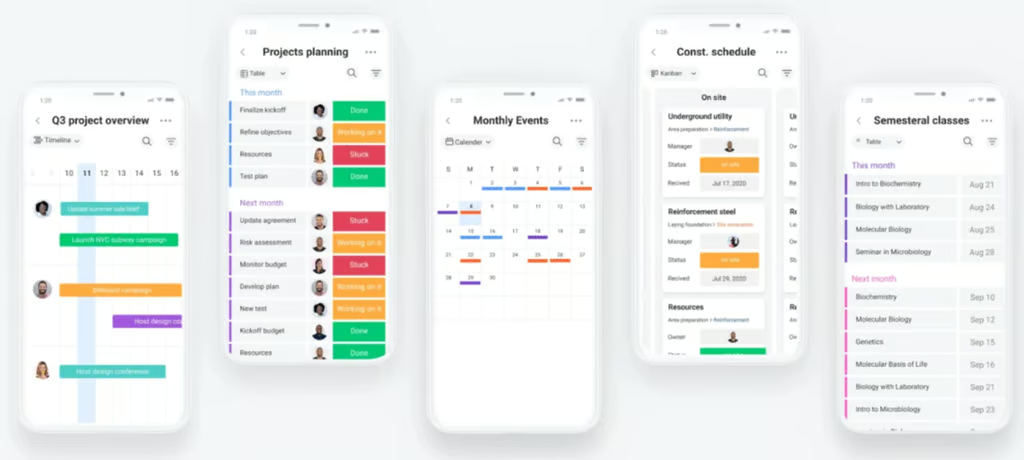
These monday work management views let teams create dashboards and monitor projects on mobile for real time KPI visibility that keeps delivery on track. (Source: monday.com) 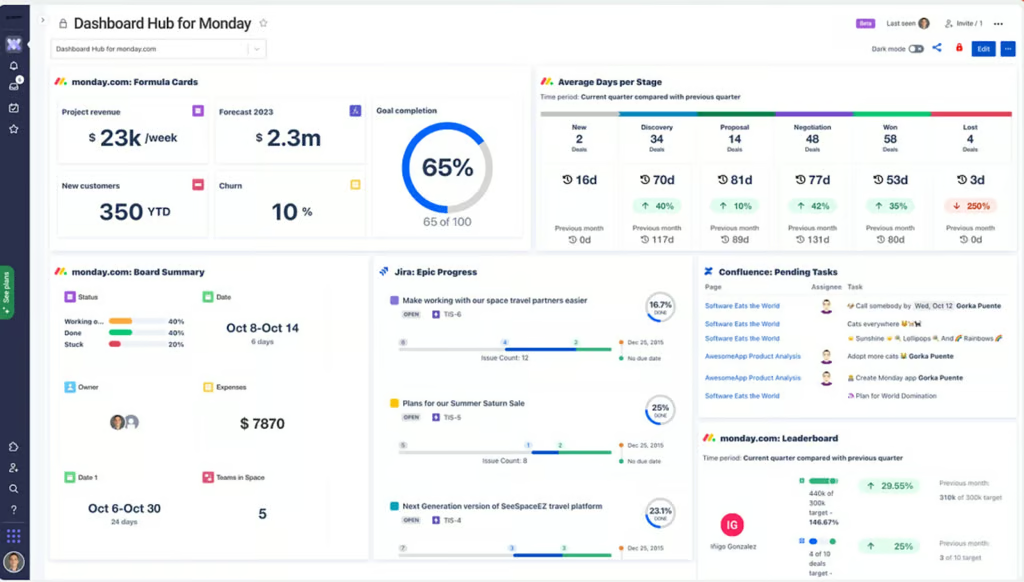
These monday work management views let teams create dashboards and monitor projects on mobile for real time KPI visibility that keeps delivery on track. (Source: monday.com)


monday work management was my main project management tool for a time, and it lived up to its reputation for ease of use. Its color-coded, grid-style boards make it simple to distinguish project status and task assignments across different categories. At a glance, I can see what is on track and what needs attention without going through each item on the board.
Even when a board holds a large volume of tasks, the interface still feels manageable for new users. I can drag and drop rows or columns to rearrange items, which makes it easy to group tasks by phase or owner.
The automation experience follows the same user-friendly approach. The dedicated automation center provides a hub of pre-made rules and workflows to suit users who do not want to spend time configuring complex logic. In a clean workspace, I can set a trigger and define the condition and resulting action in just a few clicks.
monday keeps each step straightforward, so if you are a visual learner or you are trying project management software for the first time, I recommend it as a starting point.
| 💡 PRO TIP: |
|---|
| Depending upon your team size and the complexity of the automations you build, you may run up against count limitations, based on pricing tier. This happened with our team once or twice over the course of a year, but we found that reviewing our lists uncovered numerous instances of automations that were no longer needed, but were still running. So an occasional automations clean-up — quarterly at minimum, more frequently if your team or workflows change frequently — should be part of your PMS data hygiene. |
Pros
 Modern, visual interface
- Automation is easy to configure
- Up to 200 project templates
Cons
 Have a minimum user requirement
- Time tracking require a third-level tier upgrade
- Tasks can’t link across boards (workaround: mirrored columns)
Standout features
- Custom dashboards with widgets, KPIs, and workload overviews: Custom dashboards combine widgets and KPIs with workload views to show project health and performance in one place.
- Unlimited boards, file storage, and interactive docs for paid plans: Paid plans include unlimited boards and file storage plus collaborative docs so your work and assets stay in a single workspace.
- Drag-and-drop automations, conditional logic, recurring tasks, and integrations: Drag-and-drop automations connect conditional logic with app integrations, so recurring work completes with minimal manual effort.
- View modes: Timeline, Kanban, Calendar, Gantt, Table, Workload: A range of views, including (timeline, Gantt chart, Kanban board, plus calendar-style or workload-based layouts lets you track project status in the format that fits your team.
monday pricing
- Free plan: Up to 2 users and includes 200+ templates, Kanban view, embedded documents, and shareable forms
- Basic: $9/user/month — Adds 5GB storage, custom fields, unlimited documents, and monday AI credits
- Standard: $12/user/month – Adds Gantt view, 20GB storage, guest access, and automation & integration
- Pro: $19/user/month — Adds private boards, chart view, time tracking, and formulas
- Enterprise: Custom — Adds portfolio reporting and esource management
Learn more in our monday work management review.
2. ClickUp – Best for building task hierarchies

Rating: 4.86 / 5
- Free plan for unlimited users
- Starts at $7 per user/month
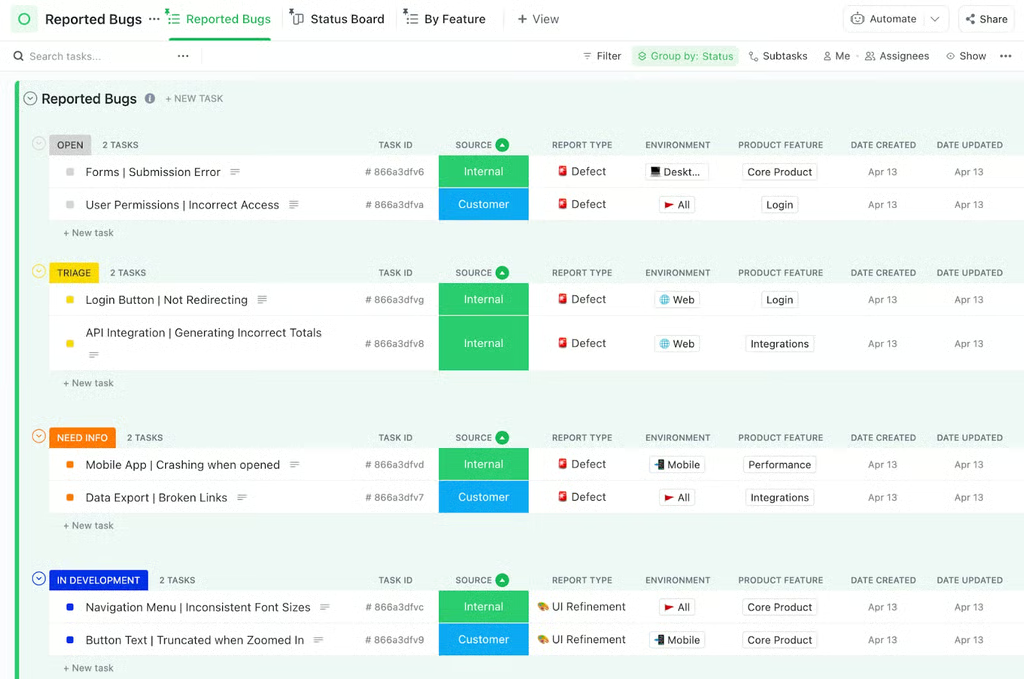
ClickUp boards, Gantt charts, and goal health views help teams track detailed work while keeping project timelines and strategic objectives visible in one workspace. (Source: ClickUp) 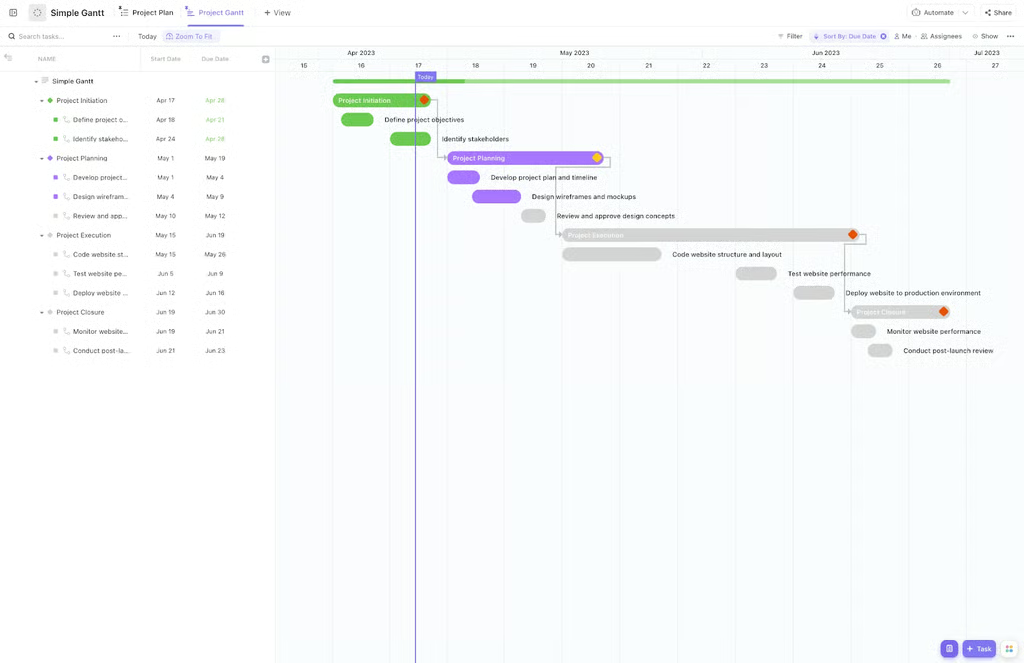
ClickUp boards, Gantt charts, and goal health views help teams track detailed work while keeping project timelines and strategic objectives visible in one workspace. (Source: ClickUp) 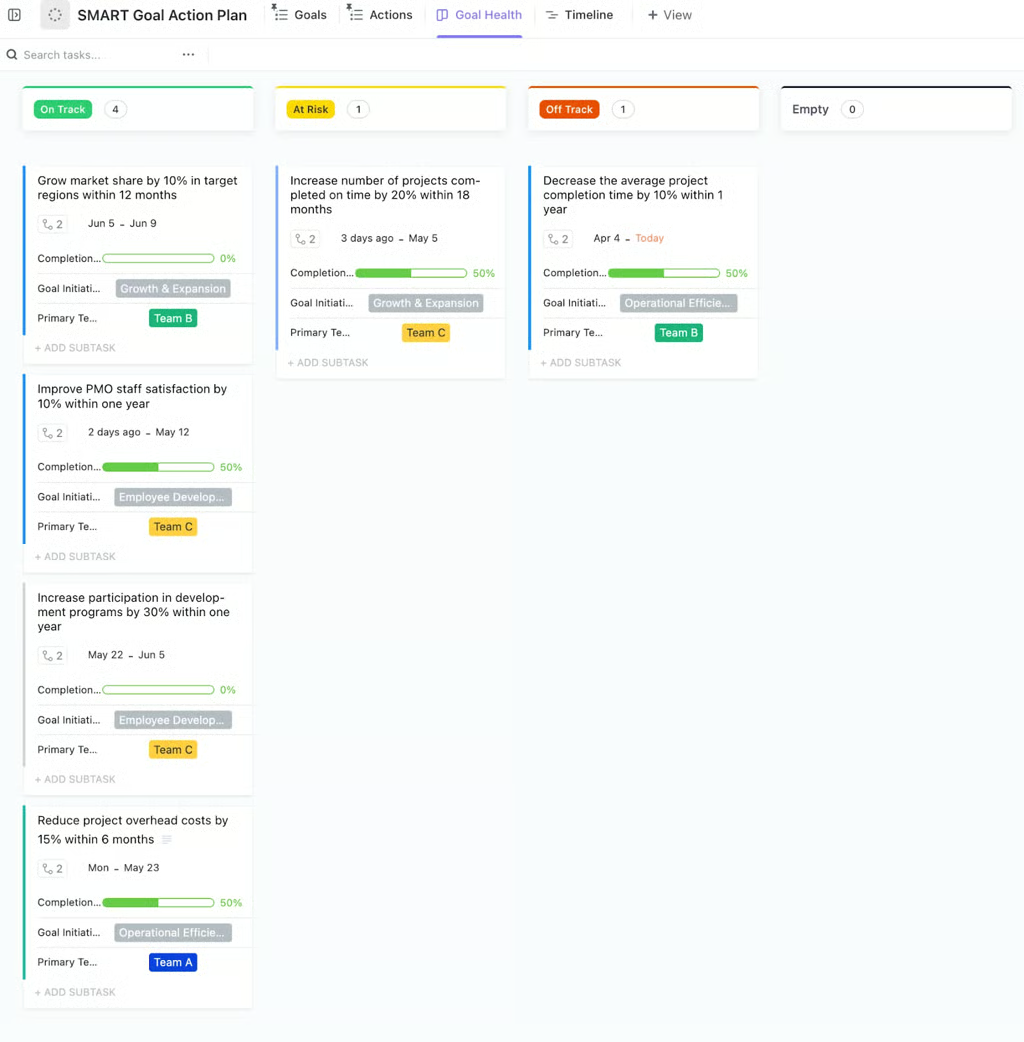
ClickUp boards, Gantt charts, and goal health views help teams track detailed work while keeping project timelines and strategic objectives visible in one workspace. (Source: ClickUp)


I currently rely on ClickUp for my own projects, and it shines when I need detailed, customizable task management. I can design a task board that matches my workflow by adding custom fields and categories, a built-in time tracker, or nested subtasks.
ClickUp also offers one of the largest template libraries I have seen in this space, with more than 1,000 templates that map to standard workflows. I usually start with a layout that matches my use case, then adapt it instead of building from a blank board.
The multi-level task structure is especially helpful for my team. One parent task can contain several layers of subtasks, each assigned to a different role. When a teammate finishes a task, I’ve set up an automation so the next person in the sequence receives the notification that the follow-up work is ready for them immediately, which keeps momentum steady on shared deliverables.
I also view ClickUp as one of the best free project management software options due to its generous free plan. It works well for budget-conscious teams that still want a powerful platform. Many rivals keep advanced capabilities behind higher-priced tiers, while ClickUp provides credits for premium features such as Gantt charts and workload views, along with limited access to portfolio tools. This lets you experiment with advanced functionality before you decide to upgrade to a paid plan.
Pros
- Free plan includes premium project views through a limited pool of credits
- Create tasks while offline and sync them once you reconnect
- Rich task options lets you tailor work to your preferred workflow
Cons
- Interface can be cluttered without customization
- Access to AI requires extra fees
- Free plan limited to 60MB storage
Standout features
- Extensive project view options: ClickUp lets you choose from 15 task views, such as List or Board, to tailor visibility and improve efficiency.
- AI tools: ClickUp AI helps you draft content (including project plans and reports), generate tasks, and summarize project details without leaving the workspace.
- Real-time collaboration: Built-in chat, collaborative docs, and whiteboards, plus screen recordings make it easy for teams to exchange ideas and feedback in real time.
- Hierarchical organization: You can structure work into spaces, folders, lists, and tasks so priorities stay clear and easy to navigate.
ClickUp pricing
- Free Forever: Includes unlimited users, Kanban view, and sprint management
- Unlimited: $7/user/month — Adds integrations, forms, Gantt charts, time tracking, portfolios, and resource management
- Business: $12/user/month — Adds timeline view, workload management, and reporting
- Enterprise: Custom — Adds SSO, advanced permission, and custom roles
Learn more in our ClickUp review.
3. Jira – Best for agile software delivery

Rating: 4.82 / 5
- Free plan for two seats
- Starts at $9.05 per user/month
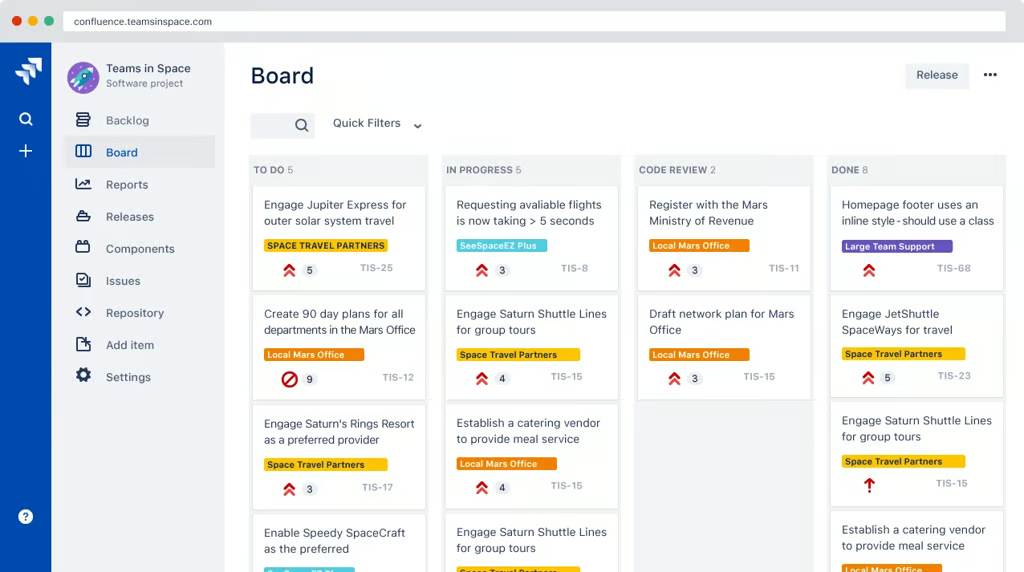
Jira boards, goals, and sprint views help software teams track work from backlog to release while keeping strategic objectives visible in one workspace. (Source: Jira) 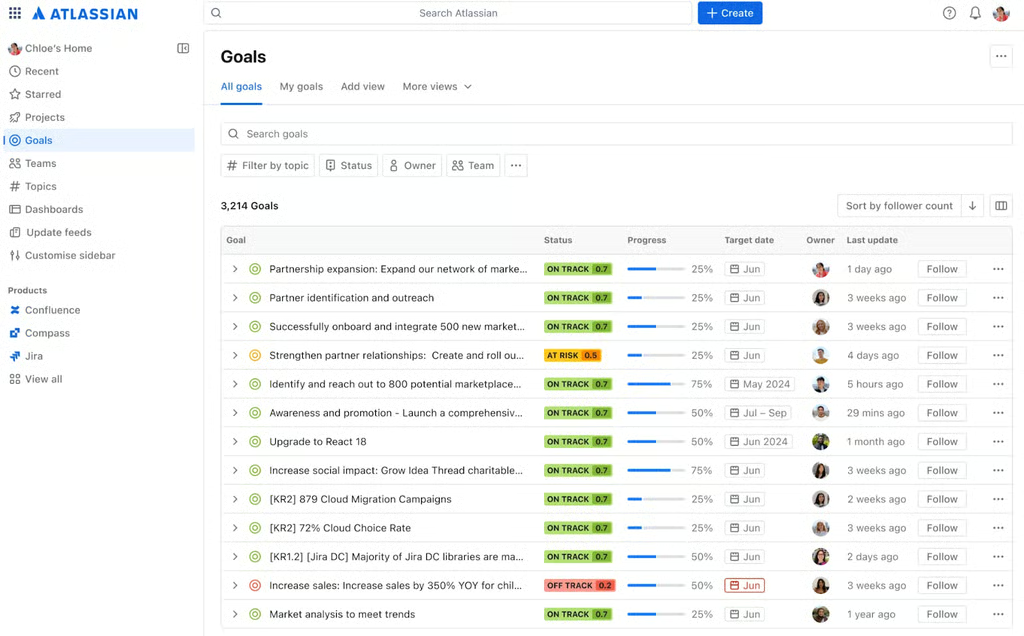
Jira boards, goals, and sprint views help software teams track work from backlog to release while keeping strategic objectives visible in one workspace. (Source: Jira) 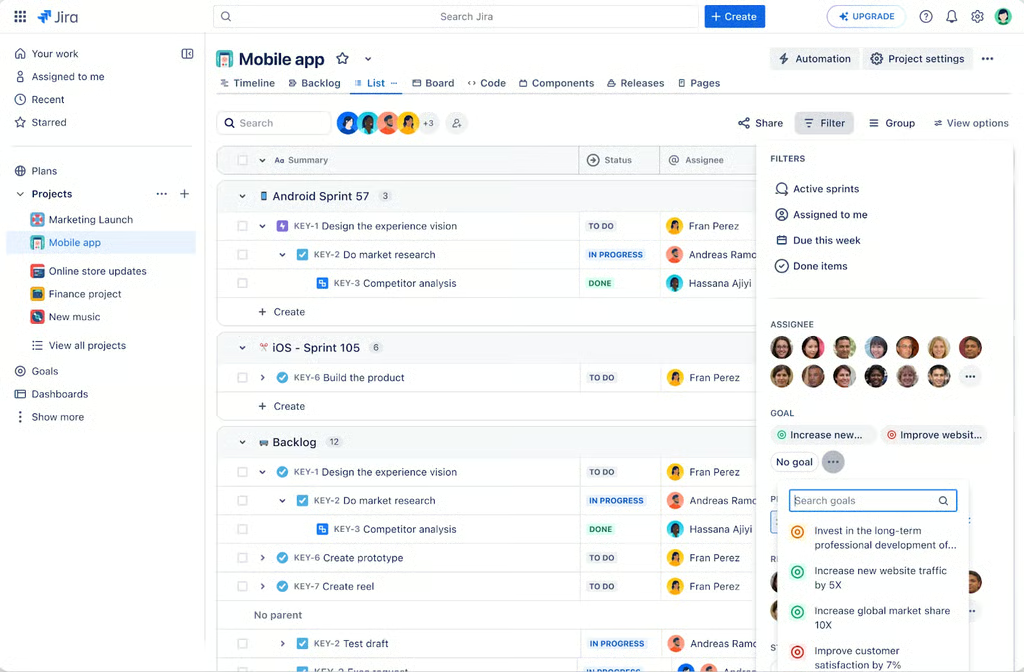
Jira boards, goals, and sprint views help software teams track work from backlog to release while keeping strategic objectives visible in one workspace. (Source: Jira)


Jira is the agile planning tool I see most often in engineering and software development teams, and I rely on it whenever I work with IT departments. When I submit form-based tickets to escalate issues, the IT team has a clear view of incoming requests and IT-specific workflows that guide each item through the right steps. This keeps service requests organized and helps teams respond consistently and predictably.
Jira is the best IT project management software that supports sprint backlogs, roadmapping, and feature requests, giving dev teams a single tool to plan work, prioritize features, and manage software releases. Scrum teams can track progress through burndown and velocity charts that highlight work remaining or completed across a sprint. Cumulative flow diagrams show how many items sit in each status, while control charts reveal cycle time for a specific version or sprint.
Jira is designed to support data-driven decision making during sprint planning and retrospectives, all within the context of your backlog view. The Insights tool pulls data from your Jira boards and projects, then presents aggregated views of the team’s historical performance. You can review sprint commitment insights and issue-type breakdowns, and monitor sprint progress and burndown trends to see how consistently the team delivers work across iterations.
Pros
- Deep agile feature set: story points, epics, sprints, and burndown charts
- Up to 3,000 third-party integrations
- Robust agile reporting tools
Cons
- Steep learning curve
- Limited collaboration tools
- Uses developer-centric jargon that may be unfamiliar to beginners
Standout features
- Agile boards: Teams can plan and visualize work on boards that show items not yet started, tasks already in motion, or tasks completed.
- Backlog management: Jira’s backlog serves as a central repository for work items such as tasks, user stories, and bugs, with labels and custom fields that keep the team focused on the highest priorities.
- Roadmaps: Plan and track work across multiple projects in a single timeline view so you can map out upcoming initiatives.
- Velocity report: Show how much work the team finished in recent sprints so you can forecast realistic workloads for upcoming iterations.
Jira pricing
- Free: Up to 10 users — Includes reports and list, timeline, and calendar views
- Standard: $9.05/user/month — Adds AI agents, guest access, and user roles
- Premium: $18.30/user/month — Adds approval processes and dependency management
- Enterprise: Custom — Adds advanced admin controls and cross-product insights
Learn more in our Jira review.
4. Asana – Best workflow automation

Rating: 4.75 / 5
- Free plan for two seats
- Starts at $10.99 per user/month
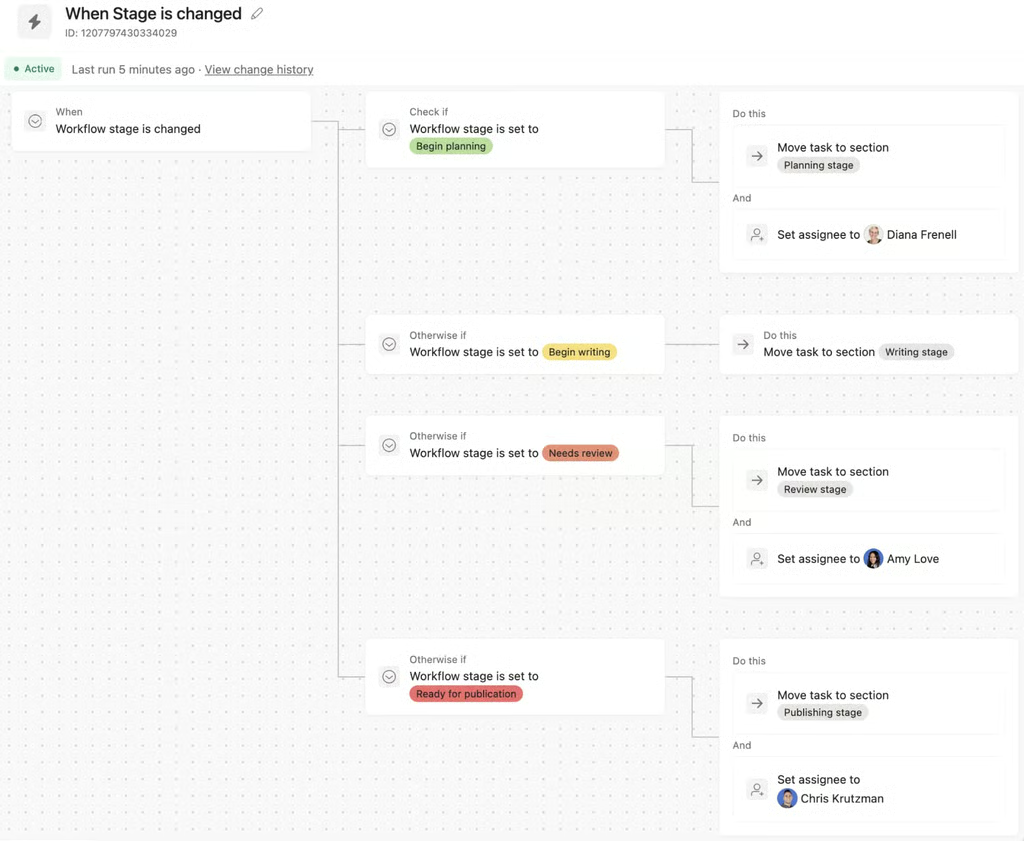
Asana rules automate task updates based on request types and workflow stages. (Source: Asana) 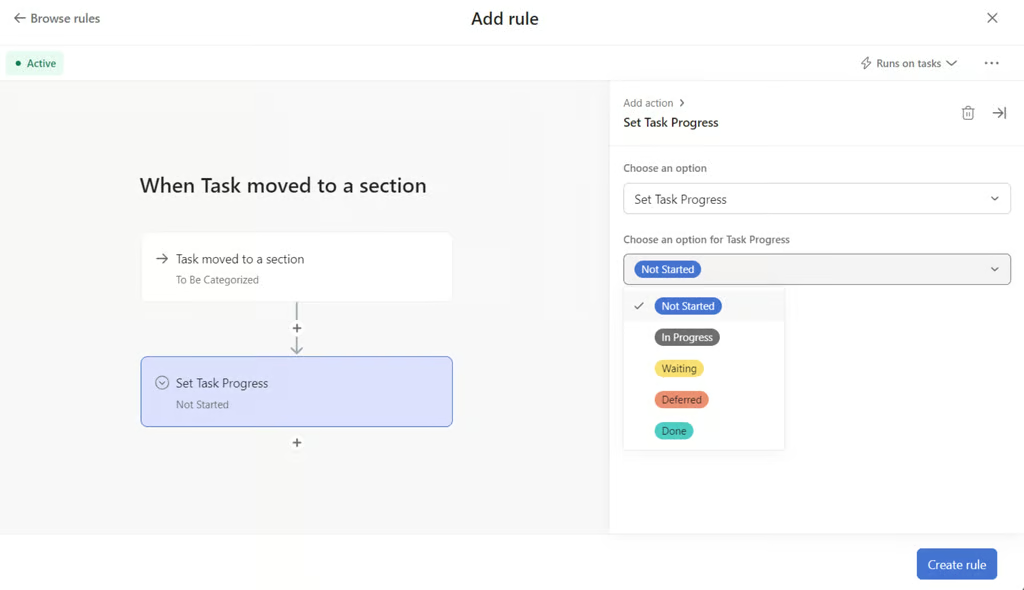
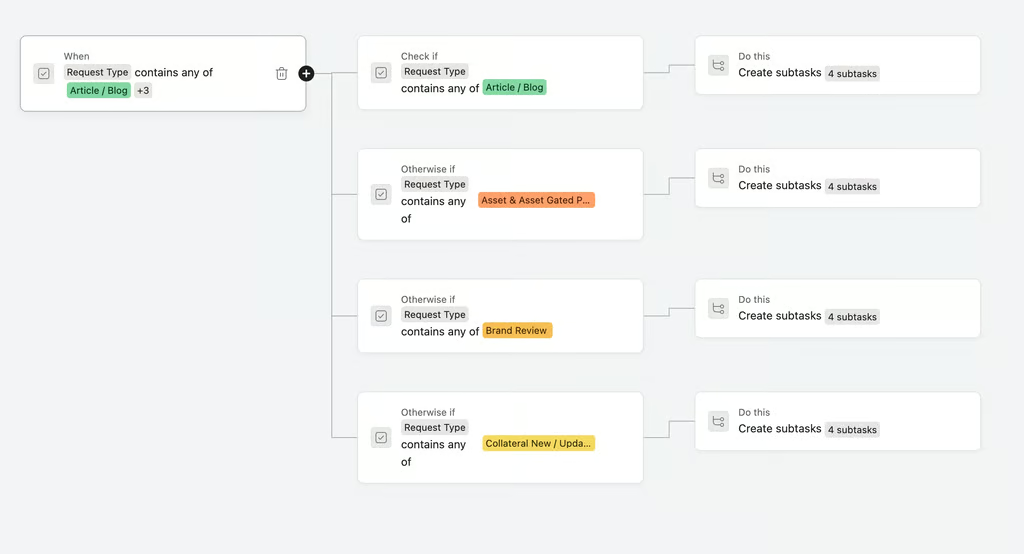


For teams that need automation to evaluate requests and route work, Asana offers AI Studio, a no-code builder for AI-powered workflows. I found this useful for intake workflows where teams must check or prioritize submissions against a specific criteria before they reach an assignee. For routine updates, I use Rules to handle fixed events, such as assigning a task after its due date changes,
A manager selects a trigger, such as a form submission, then explains in plain language how AI should review the request. The workflow confirms required details and identifies duplicates before it routes the task to the correct owner. The same instructions apply to every request, so teams do not have to interpret the intake policy each time. A custom Rule, on the other hand, can contain up to 20 triggers and 20 actions; one due-date change could update a task’s status and notify its owner.
Bundles let me reuse Rules and custom fields across multiple projects, then apply process changes to every project that uses the Bundle. If a Rule fails, Asana emails me after the first error, and anyone with project read access can check its status.
Each project is limited to 50 Rules regardless of plan, so workflows with many conditional paths may need to be divided across multiple Rules or projects. Portfolio Rules, which automate actions across a group of projects, require the Advanced plan or higher.
Pros
- Conditional rules route requests by field values
- One task can span 20 projects
- Portfolios compare project status and team workload
Cons
- Each task allows only one assignee
- Daily summaries repeat existing task notifications
- Portfolio access more than doubles per-user cost
Standout features
- Rules: Assign owners or update task status when predefined triggers and conditions are met
- Forms branching: Display follow-up questions based on responses and capture complete request details before project intake
- Bundles: Apply shared rules across projects and update every connected workflow from one bundle
- AI Studio: Build no-code workflows that evaluate requests or draft content from task and project context
Asana pricing
- Free plan: Includes two users, unlimited tasks and projects, list and board views, and more than 100 integrations.
- Starter: $10.99/user/mo. – Includes timeline and Gantt views, reporting dashboards, unlimited automations, and 50,000 monthly AI Studio credits per billing account.
- Advanced: $24.99/user/mo. – Includes unlimited portfolios, company goals, workload management, and 75,000 monthly AI Studio credits per billing account.
- Enterprise: Custom pricing – Includes SAML authentication, SCIM provisioning, capacity planning, and 200,000 monthly AI Studio credits per billing account.
Read our full Asana review.
5. Miro – Best for whiteboard-style project planning

Rating: 4.7 / 5
- Free plan for two seats
- Starts at $8 per user/month
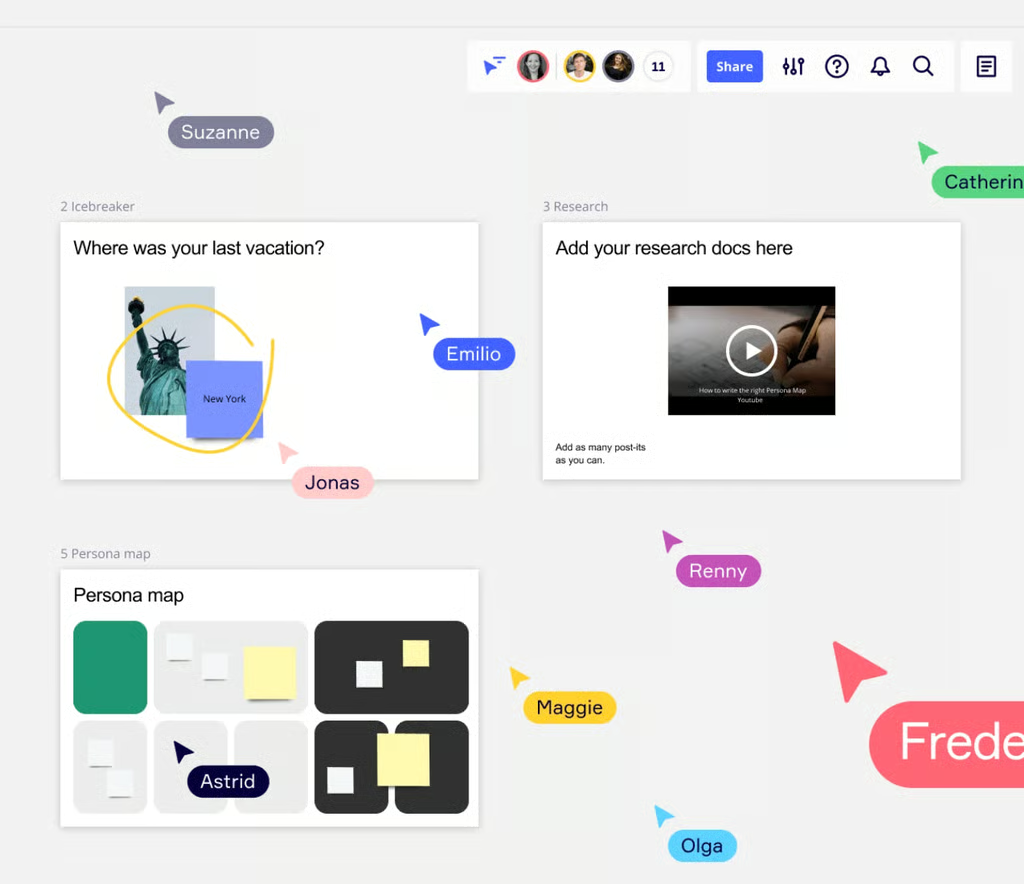
Miro’s online whiteboards help teams brainstorm and turn ideas into trackable tasks on one shared canvas. (Source: Miro) 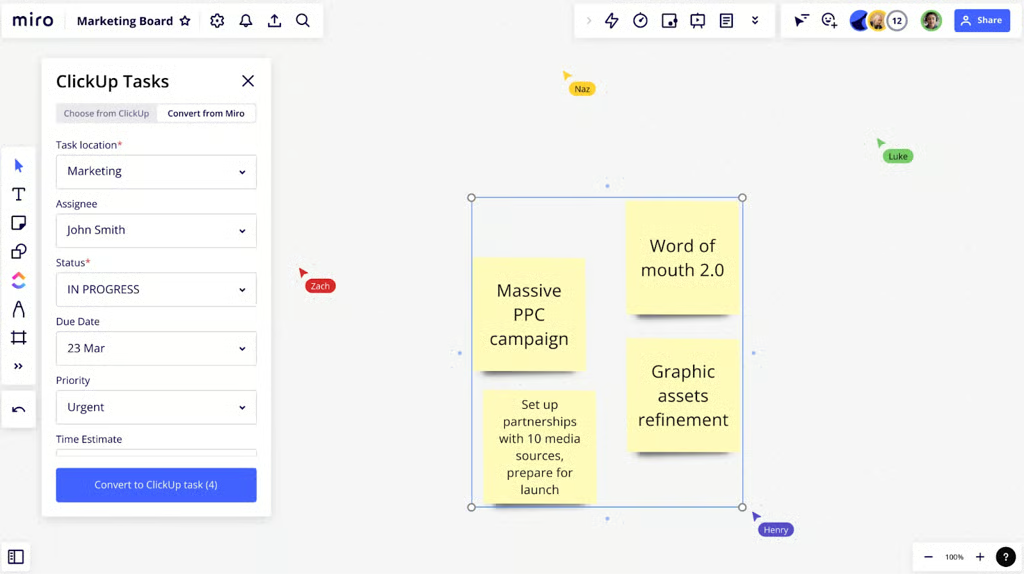
Miro’s online whiteboards help teams brainstorm and turn ideas into trackable tasks on one shared canvas. (Source: Miro) 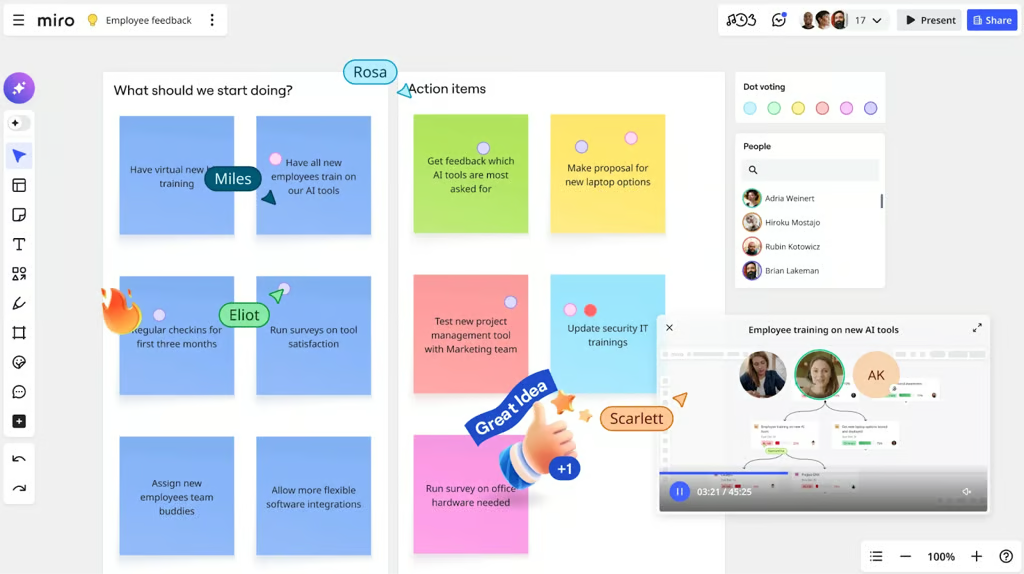
Miro’s online whiteboards help teams brainstorm and turn ideas into trackable tasks on one shared canvas. (Source: Miro)


When it comes remote work, Miro is the best project management software for small teams engaging in real-time project planning. Every member can contribute to a shared canvas simultaneously, making brainstorming an active group work rather than a sequential one. Most project management platforms confine you to pre-formatted boards, but Miro gives you a virtually limitless canvas where you can pin documents and prototypes, then layer in diagrams and timelines to move a topic from rough idea to a concrete project plan.
Ideation with a distributed team often stalls when no one knows how to start. Miro facilitates real-time co-creation and asynchronous comments, so people can contribute in the moment or later in their own time zone. Talktrack recordings help you walk teammates through a board without scheduling a live meeting.
You can visualize ideas with sticky notes and freehand sketches, then add simple diagrams or timers. Voting tools and GIFs keep the session engaging while smart alignment features and templates help you clean up the board for follow-through.
If you prefer a head start, Miro’s library of 7,000 pre-made templates covers common workflows such as retrospectives and customer journey maps, so you can avoid starting from a blank canvas. In my own work, I turn to Miro when I want equal participation across the team or when I need a brainstorming session to feel more interactive and energizing, not just another meeting on the calendar.
Pros
- Choose from 5,000+ community-made templates
- Drag and drop function makes it easy to add tasks
- Rich whiteboard features for free-flowing ideation
Cons
- Prone to system lags when working on large boards
- Boards easily get cluttered when not managed well
- Can be intimidating to use for beginners
Standout features
- Attention Management: Allows meeting hosts to guide participants and keep everyone engaged by directing their focus to the specific area of the board
- Talktrack: Record an audio or video walkthrough of a Miro board and leave it behind so teammates can review it on their own time.
- Voting: Set the voting area to define the objects your participants will vote on.
- Board versions: Board histories are saved automatically so you can review past iterations and restore changes whenever needed.
Miro pricing
- Free: Includes unlimited members, three editable boards, and templates access
- Starter: $8/user/month – Adds unlimited boards, version history, and video calling
- Business: $16/user/month – Adds unlimited guests and diagramming shapes
- Enterprise: Custom – Adds centralized account management and org-wide controls
6. Smartsheet – Best for portfolio reporting

Rating: 4.62 / 5
- 30-day free trial
- Starts at $9 per user/month
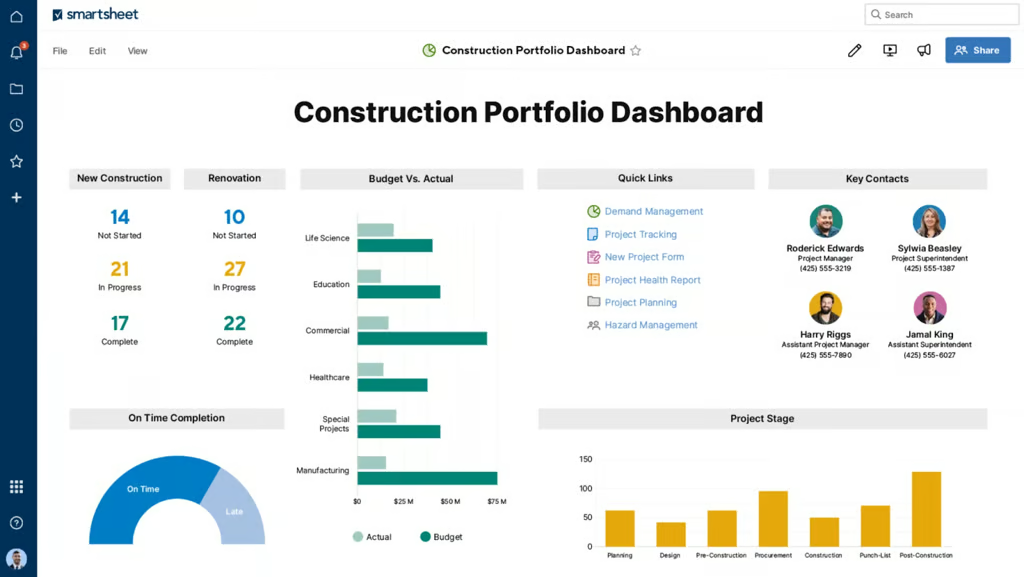
Smartsheet dashboards and resource views give leaders a portfolio-level picture of budgets and team capacity in one place. (Source: Smartsheet) 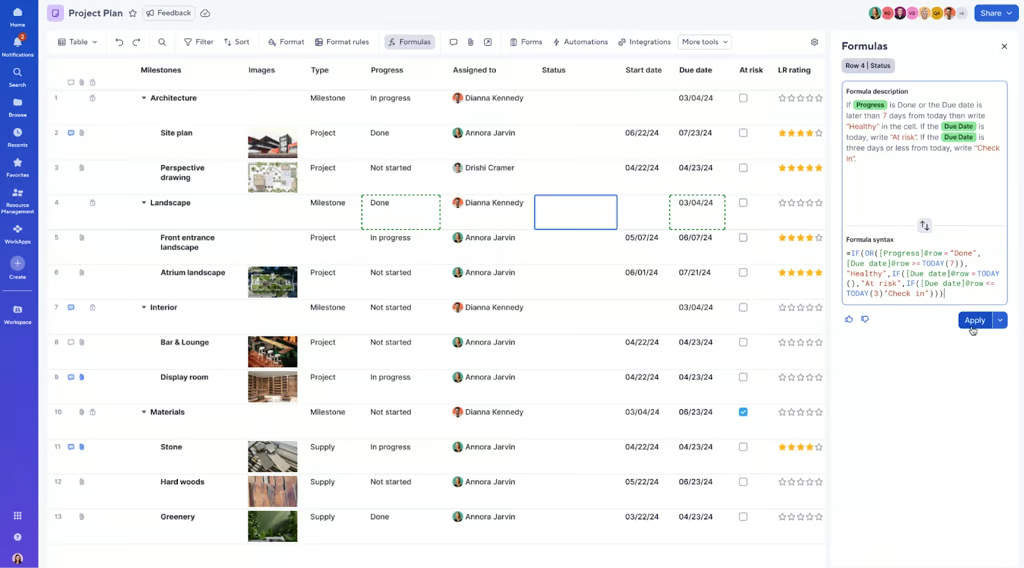
Smartsheet dashboards and resource views give leaders a portfolio-level picture of budgets and team capacity in one place. (Source: Smartsheet) 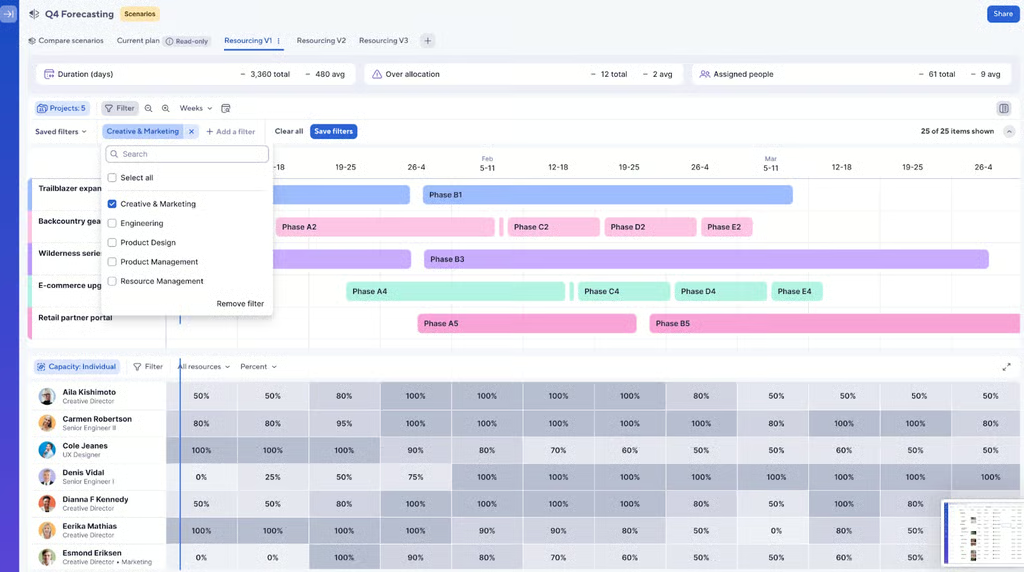
Smartsheet dashboards and resource views give leaders a portfolio-level picture of budgets and team capacity in one place. (Source: Smartsheet)


Smartsheet is my top project management software for enterprise teams that want to see how multiple projects connect across a wider portfolio. As your project load grows, Smartsheet provides a real-time dashboard that surfaces active projects, highlights items at risk, and lets you monitor overall portfolio health.
For advanced portfolio management, I suggest using the Smartsheet Control Center. This add-on automates project creation, implements change, and aggregates portfolio reporting. You first define and standardize the core assets for a typical project, such as the project plan and executive dashboard, then include supporting elements like the budget or RAID log. This approach helps in recreating project structures, workflows, and rollup metrics every time someone approves a new project.
You can also scale your portfolio through a demand intake process so every new request flows into a central pipeline. Teams capture project details through forms, or they connect Control Center to third-party systems that hold project data. This gives leadership a single, reliable source of truth for both incoming demand and active delivery.
Pros
- Highly customizable spreadsheet structure
- Rich file approval functionality
- Enterprise-level security mechanisms
Cons
- No free plan available
- The depth of features may feel overwhelming for small teams
- Access to AI capabilities requires an additional paid upgrade
Standout features
- Work Insights: Highlights items in progress and week over week ticket trends while also calculating average resolution time so you can understand team workload and improve processes.
- Multiple views: Organize work with multiple views such as real-time Gantt or Grid and switch to Kanban or Calendar when you need a different perspective.
- Formulas and functions: Perform calculations or lookups within a single sheet or across multiple connected sheets.
- Dynamic view: Share specific slices of data with clients or vendors, including unlicensed external users, while controlling what they can see and update.
Smartsheet pricing
- Pro: $9/user/month — Includes unlimited users, project views, and sheets
- Business: $19/user/month — Adds free guests, timeline view, and workload tracking
- Enterprise: Custom — Adds AI formulas, work insights, and SSO
- Advanced Work Management: Custom – Adds Control Center and dynamic view
Learn more in our Smartsheet review.
7. Wrike – Best for creative production

Rating: 4.55 / 5
- Free plan with unlimited seats
- Starts at $10 per user/month (billed annually)
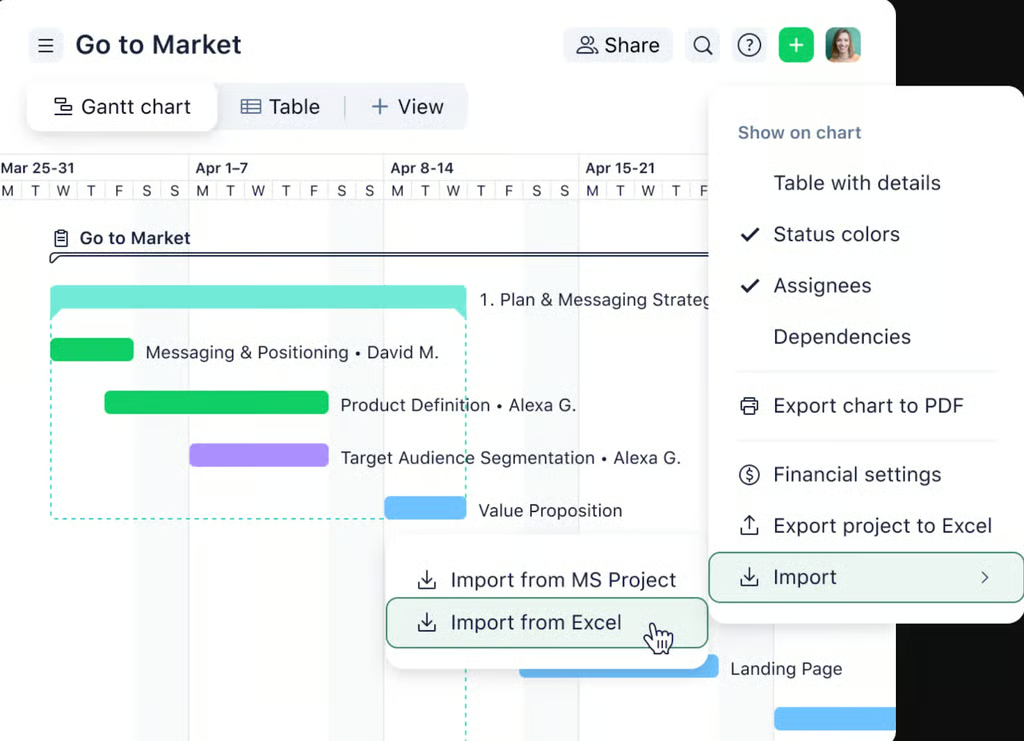
Wrike views help teams organize work and control spend across visual timelines in one flexible project space. (Source: Wrike) 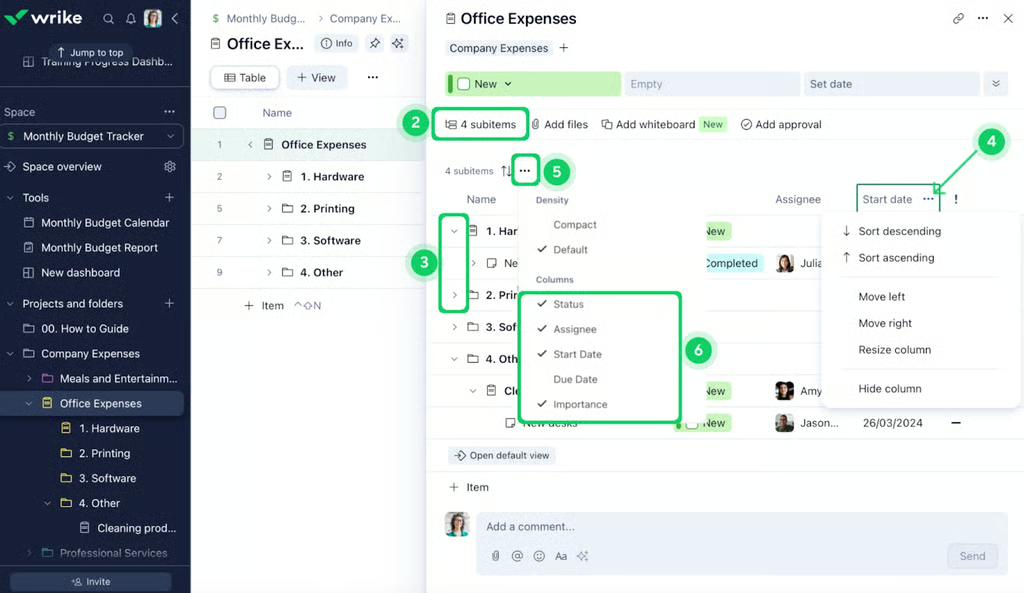
Wrike views help teams organize work and control spend across visual timelines in one flexible project space. (Source: Wrike) 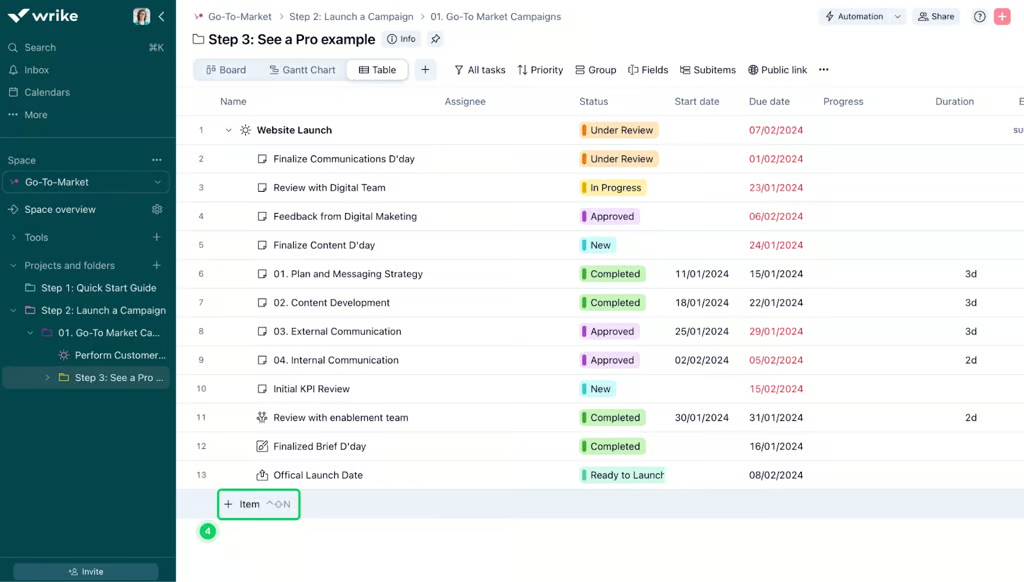
Wrike views help teams organize work and control spend across visual timelines in one flexible project space. (Source: Wrike)


For creative teams managing large volumes of content, Wrike manages the entire content lifecycle in one workspace. The platform includes proofing and approval tools, digital asset management (DAM) integrations, and Adobe Creative Cloud connectivity.
When a project starts, my team fills out a customizable brief that defines the scope, goals, and timeline. Once design work begins, files are reviewed using the built-in proofing tool, while reviewers mark up assets directly on the file, and all comments are logged to the task automatically. When revisions are done, stakeholders approve or reject inside the same workflow.
The DAM integration connects Wrike to platforms like Bynder, MediaValet, or Canto, allowing me to search, preview, and attach approved files to tasks. Once a file is ready, it publishes directly to the DAM from Wrike. Dashboards track every asset’s status across the production stages, showing files currently in review, approved, and pending.
Pros
- AI features are included on the free plan
- Features data analytics and visualizations
- Strong permission controls
Cons
- UI can be overwhelming for small teams
- No monthly billing option
- Limited file storage per plan
Standout features
- Dynamic request forms: Centralize work intake from internal and external requesters and ensure each submission includes the specific information your team needs.
- Cross-tagging: Place a single task into several workstreams or highlight subtasks assigned to you so they appear in your reports without altering the parent task.
- Workload charts: Show each person’s capacity and highlight uneven assignments so you can reallocate tasks or switch views to see how resources spread across projects.
- Budgeting: Compare planned and actual costs in real time while preferred currencies and default hourly rates keep financial tracking consistent across your account.
Wrike pricing
- Free: Unlimited users with basic task management and folder hierarchy
- Team: $10/user/month — For 2 to 15 users and adds cross-tagging, generative AI, custom fields, dashboards, Gantt charts, and portfolio management
- Business: $25/user/month — for 5 to 200 users and adds AI elite features, request forms, templates, approvals, workload charts, time tracking, and guest approvals
- Pinnacle: Custom pricing — Adds advanced reporting, resource and capacity planning, budgeting, and locked spaces
- Apex: Custom pricing – Adds Wrike Datahub, bi-directional integrations with third-party solutions, and advanced security controls
Learn more in our Wrike review
8. Teamwork.com – Best for professional services
Rating: 4.45/5
- Free plan with unlimited seats
- Starts at $10.99 per user/month
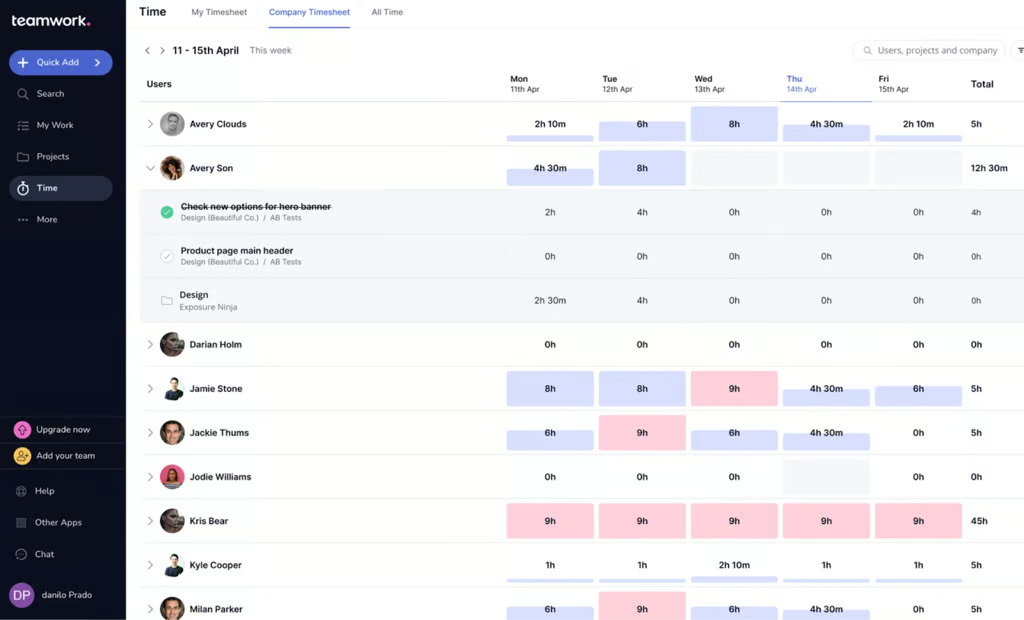
Teamwork.com views for client quotes plus portfolio and timesheets help agencies track billable work and client health from proposal to delivery in one tool. (Source: Teamwork.com) 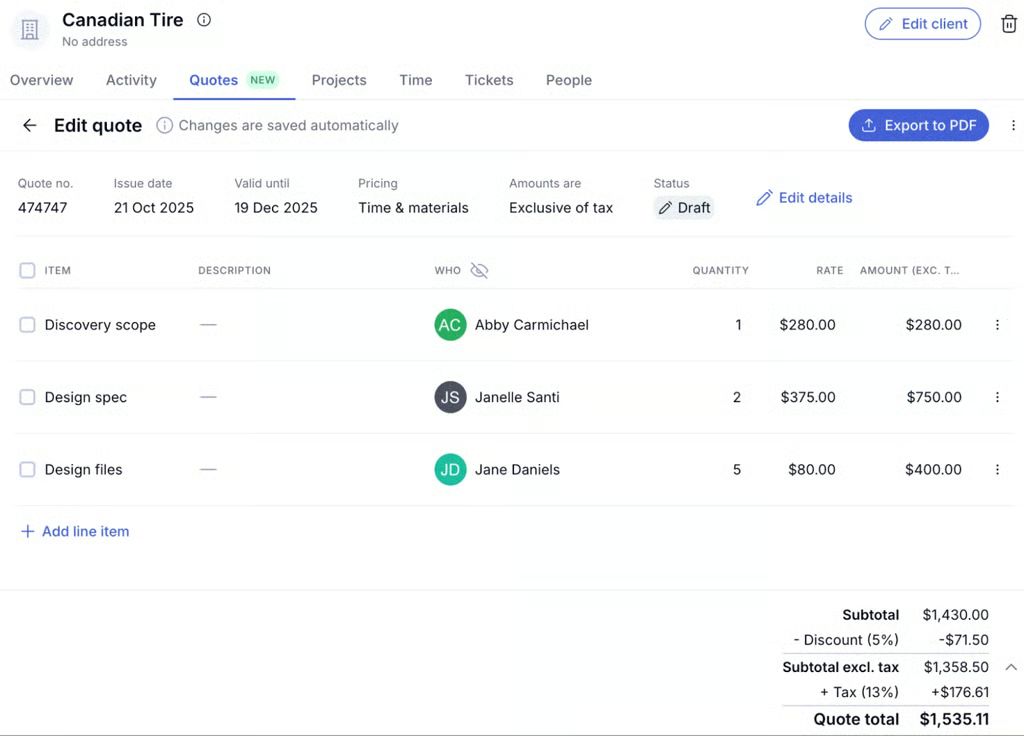
Teamwork.com views for client quotes plus portfolio and timesheets help agencies track billable work and client health from proposal to delivery in one tool. (Source: Teamwork.com) 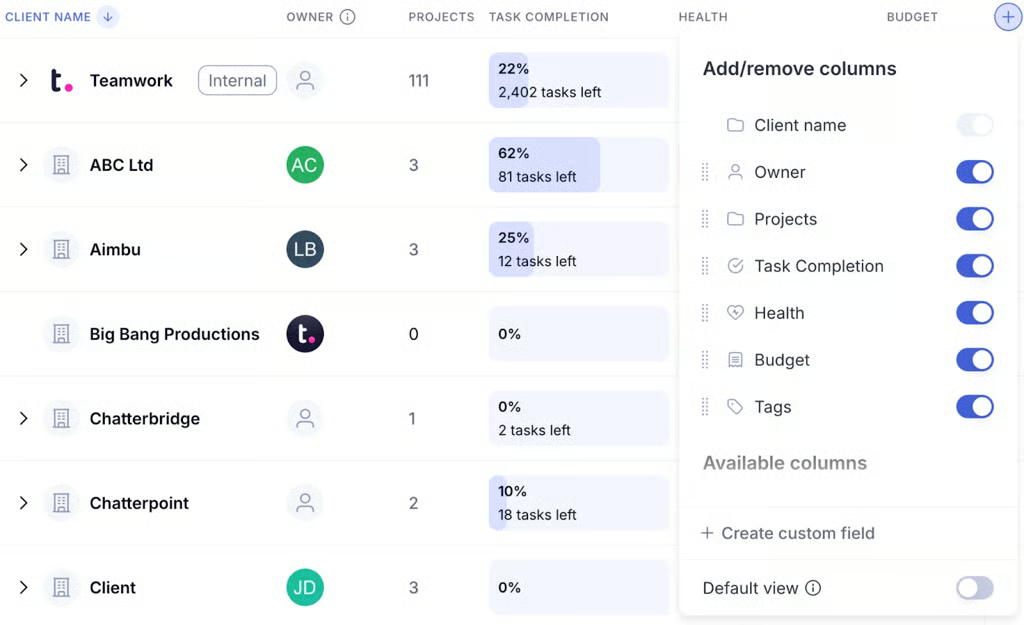
Teamwork.com views for client quotes plus portfolio and timesheets help agencies track billable work and client health from proposal to delivery in one tool. (Source: Teamwork.com)


Teamwork.com is the best software for project management dedicated to handling end-to-end client operations. Where many PM systems treat clients, vendors, and other stakeholders as restricted guests or charge extra for their access, Teamwork includes unlimited client users on supported plans without additional fees.
The platform provides a dedicated Clients area and a separate Clients view, rather than treating client data as an afterthought within project lists. You can add each client, assign an owner, apply tags and custom fields, then review project volume side by side with completion progress and budget figures for every client in a single grid.
To manage the profitability of client work, Teamwork’s cost management features let you set custom billable and internal cost rates. You can also define profit margin targets and benchmark billable time so your definition of “profitable” reflects real rates and capacity. Time tracking feeds directly into these views, which helps you maximize billable hours, close gaps on timesheets, and see how logged time impacts capacity and margins.
Teamwork’s Client Hub and supporting resources focus on the health of your client portfolio instead of only internal delivery. Within the Clients view and Overview widgets, you can quickly gauge project health for each client, monitor activity trends, review budget usage levels, and compare billable work to non-billable effort across the account.
Pros
- Clean and intuitive interface
- Rich workload management tools
- Built-in time tracking and billing features
Cons
- Lesser cloud storage on paid plans
- Limited customization for project views
- Slower load times when running large volumes of projects
Standout features
- Timesheet approvals: Enables designated approvers manage team timesheet submissions from a central Approvals tab before time is finalized.
- Retrospective user rates: Change a user’s historical billable rate with flexible options so past project financials stay accurate without manual recalculation.
- Retainer management: Helps agencies manage long term client contracts by tracking recurring time or budget against retainer limits so margins stay healthy.
- Tentative projects: Act as schedule placeholders for potential work so you can test resource scenarios and see projected impact on time, budget, and profits before creating real projects.
Teamwork pricing
- Free: Includes five users and core project management features
- Deliver: $10.99/user/month — Adds intake forms, integrations, and automations
- Grow: $19.99/user/month — Adds budgeting, reports, and workload resource planner
- Scale: Custom — Adds profitability reports and resource scheduling
9. Todoist – Best for personal use

Rating: 4.38/5
- Free plan with unlimited seats
- Starts at $5 per user/month
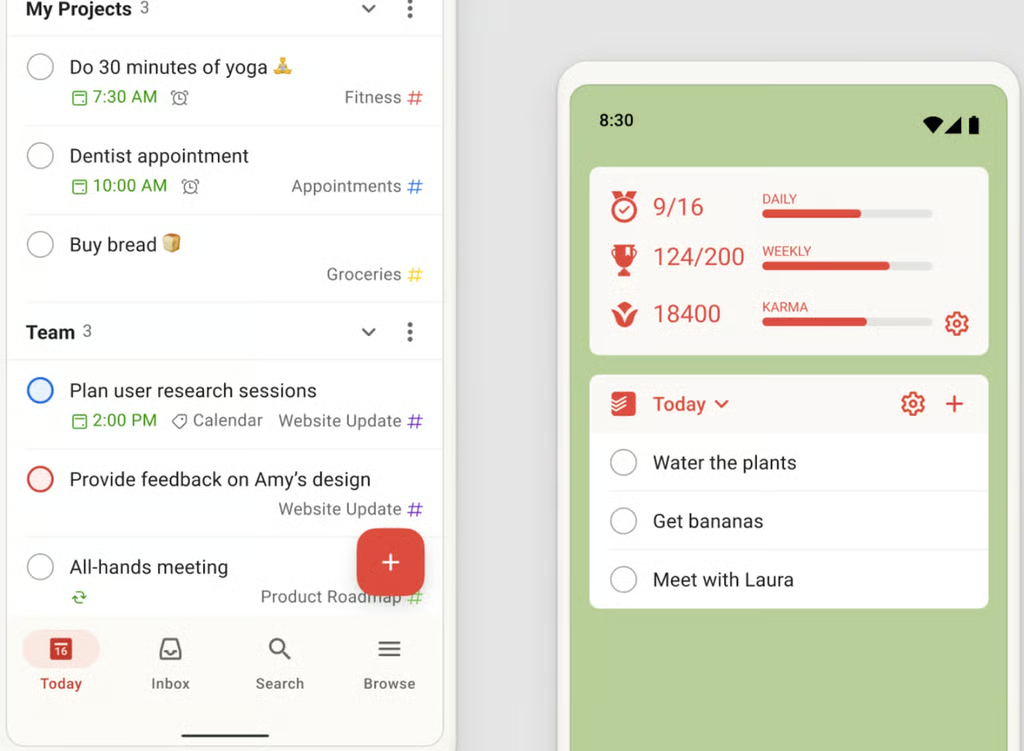
Todoist mobile and desktop views help you manage personal and team tasks while tracking daily and weekly productivity goals in a simple checklist layout. (Source: Todoist) 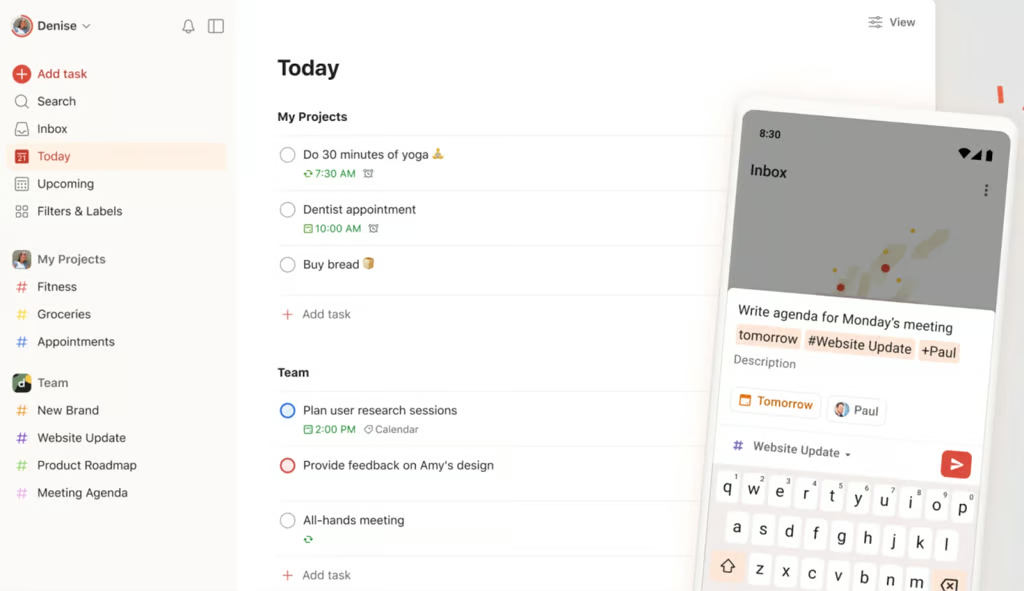
Todoist mobile and desktop views help you manage personal and team tasks while tracking daily and weekly productivity goals in a simple checklist layout. (Source: Todoist) 
Todoist mobile and desktop views help you manage personal and team tasks while tracking daily and weekly productivity goals in a simple checklist layout. (Source: Todoist)


If you do not want to deal with heavy project management features or lots of AI add-ons, Todoist fits that preference very well. With its minimalist interface, using the platform is straightforward: you add a task and a deadline. I capture tasks the moment they pop into my head using natural language, then I set due dates or recurring dates and break bigger items into subtasks when they feel too large to tackle at once.
My favorite feature is Todoist’s Inbox. Every new task lands there when I am not sure where it belongs yet. This works well for me because I often feel swamped and do not want to decide immediately how each task fits into my calendar or projects. I can return later, complete the quick wins right away, or move important items into dedicated projects once I have more clarity.
The Today and Upcoming views also keep schedules more manageable. Today shows everything due across all my projects in one place, while Upcoming gives me a calendar-style view of the days ahead.
Todoist also acts like a coaching tool for my habits. I earn Karma points when I complete tasks on time or use features such as labels and recurring dates, which nudges me to keep my system tidy. The productivity charts help me see patterns in how I work daily and weekly, so I can adjust my workload and routines based on real data instead of guesswork.
Pros
- Lightweight option for individuals
- Easy to set up and configure
- Calendar view supports time blocking
Cons
- Limited capabilities for large-scale projects
- Doesn’t support any AI feature yet
- No time tracking feature
Standout features
- Time blocking: Plan your day by assigning tasks to specific time blocks, creating a realistic schedule and reducing constant rescheduling.
- Location reminders: Send push notifications when you arrive at or leave at a specific place so you remember context-specific tasks such as errands or gym routines.
- Daily digest: Gives you a morning summary of your tasks for the day, along with personalized productivity stats so you start with a clear action list.
- Habit forming: Habit tools such as recurring tasks, Karma points, and streak tracking help you turn regular to-dos into long-term habits with simple daily progress.
Todoist pricing
- Beginner: Includes five projects and list & boards layouts
- Pro: $5 user/month — Adds calendar layout and task duration
- Business: $8 user/month — Adds team workspace, folders, and activity logs
10. Notion – Best for project databases

Rating: 4.28/5
- Free plan with unlimited seats
- Starts at $10 per user/month
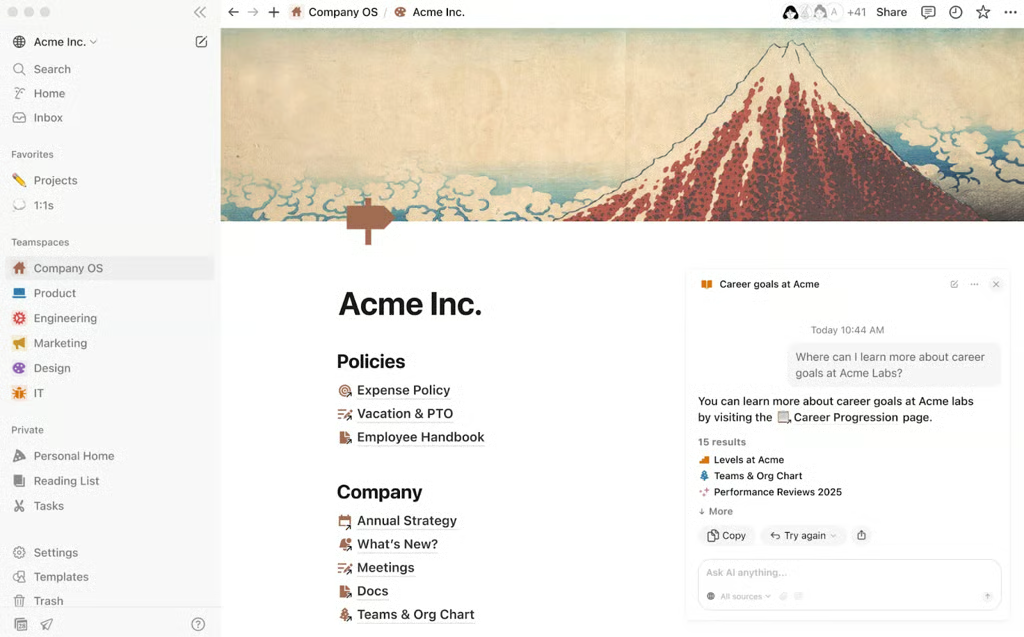
Notion workspaces connect company wikis and structured databases plus visual roadmaps so teams keep policies and project plans in one knowledge hub. (Source: Notion) 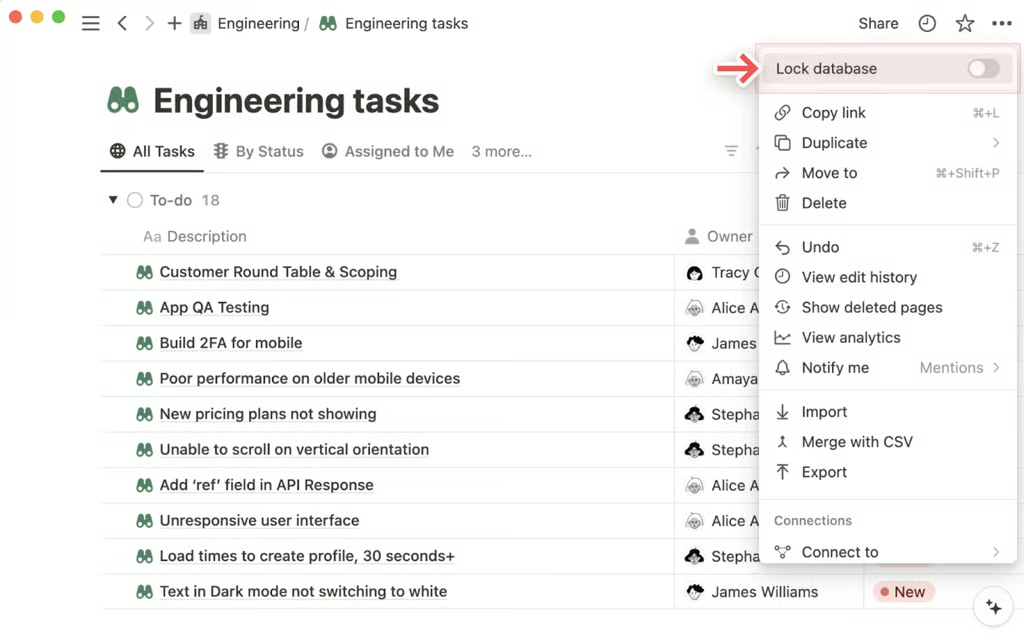
Notion workspaces connect company wikis and structured databases plus visual roadmaps so teams keep policies and project plans in one knowledge hub. (Source: Notion) 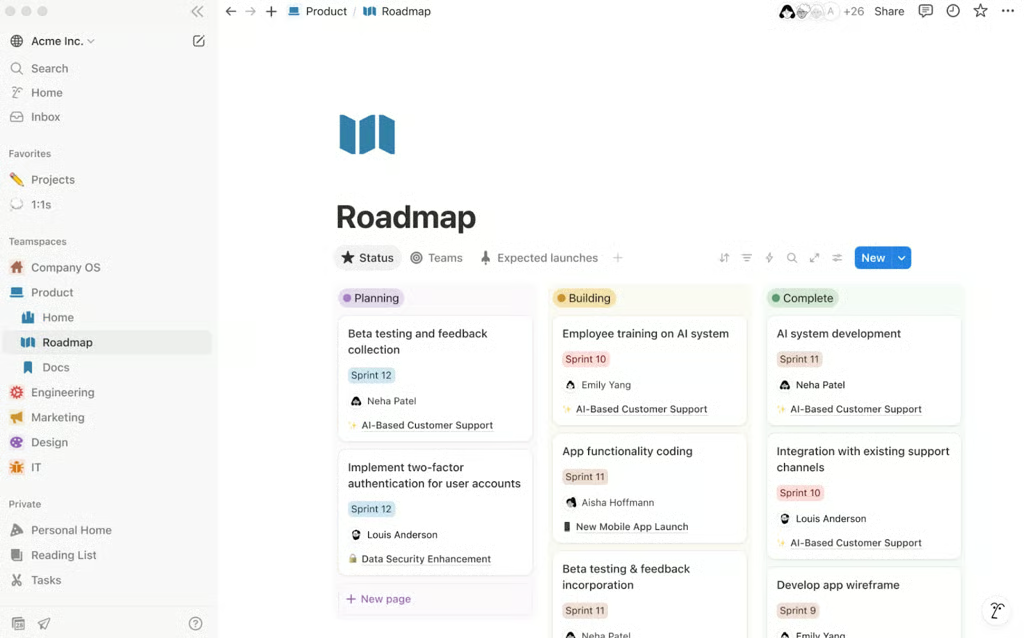
Notion workspaces connect company wikis and structured databases plus visual roadmaps so teams keep policies and project plans in one knowledge hub. (Source: Notion)


From my previous experience using Notion, it works very well for centralizing docs and wikis in databases, then connecting them across projects and teams. A single page can act like a document, a wiki article, or a database item, so I can use it for taking meeting notes or tracking projects.
Instead of building everything around folders, Notion leans on databases for organizing knowledge bases. You can turn a simple document into a wiki entry, then add it to a docs database that becomes a single source of truth for company information. A database supports multiple views, such as table, list, board, calendar, and timeline formats.
Every database entry is a full page with rich properties, where you can add metadata such as owner, team, status, dates, tags, and cross-database relations. This enables me to keep policies and project specifications in one place, linked directly to related OKRs or active projects, instead of spreading those details across separate tools.
Pros
- A vast library of community-made templates
- Access pages when offline
- AI-powered meeting notes and research mode
Cons
- No resource management tools
- Lacks native time tracking
- Customization takes time to set up
Standout features
- Notion Calendar: A free calendar app that syncs with tools such as Google Calendar and iCloud so you can manage personal and work schedules in one place and connect events directly to Notion pages.
- Notion Mail: A unified inbox that syncs in real time with Gmail and pairs with Notion AI so you can draft emails directly inside your workspace.
- Wikis: Centralizes ocompany knowledge in one workspace where teams build hubs for policies, onboarding, and team docs with verified pages and powerful search functionality.
- Docs: Combines rich text pages with database-powered organization so teams can create product specs, meeting notes, and reports in one place and connect them to projects and wikis.
Notion pricing
- Free: Includes basic forms, sites, Notion Calendar & Mail, and databases
- Plus: $10/user.month — Adds unlimited file updates, custom sites, and integrations
- Business: $20/user/month — Adds database permissions and conditional forms logic
- Enterprise: Custom — Adds advanced security and controls
Learn more in our Notion review.
What are the key features of project management software?
The most important features of project management software depend on your team size, the complexity of your work, and the types of projects you manage. Before you choose a tool, review which solutions offer the features below and match them to your use cases.
- Task management: Lets you create tasks and subtasks, define dependencies, and assign work to more than one team member. You can also import tasks from external files.
- Scheduling: Helps you set task schedules and link dependencies. You can build project timelines with milestones and manage resource availability in the same view.
- Team collaboration: Supports discussions and comments on tasks. You can also handle approvals and direct messages inside the platform so conversations stay close to the work.
- Document management: Allows teams to store and organize files inside the tool. Many platforms also connect to cloud storage providers for easy access to shared documents.
- Email and chat integrations: Sends project updates and due date alerts to your inbox or chat app. In many tools you can create or update tasks directly from email.
- Reporting: Produces summary and detailed reports that keep stakeholders informed about progress and risks. These reports often highlight completed work and upcoming priorities.
- Time tracking: Records time spent on tasks and supports time goals for projects. Some tools sync this information to timesheets or payroll systems.
- Project portfolio management: Lets teams oversee multiple projects in one place. You can track status across portfolios, spot issues early, and reallocate resources when priorities change.
- Mobile version: Provides a mobile app so you can review tasks and update work while away from your desk.
- Third-party integrations or API: Connects with other business tools and services so data flows across your stack. An API also gives technical teams room to build custom connections.
- White labeling, branding, and custom settings: Helps agencies and large organizations adapt the interface to their brand. Some tools also support localization for language or regional preferences.
- Support documentation: Offers help through knowledge base articles and tutorials. Many vendors also provide in-app tips and direct support through email or phone.
What to consider when purchasing project management software
Choosing project management software can feel overwhelming when every provider claims to be the right fit. To make the decision easier, I break down key buying considerations and industry-specific use cases for each PM platform based on your business size.
Small business
Key considerations: Control subscription costs and avoid lengthy setup. Choose tools that keep task views simple so new users can adopt them quickly.
Industry-specific use cases: Freelancers and very small teams can use Todoist for personal task tracking and pair it with Miro for brainstorming boards. Creative agencies or startups that want flexible boards and extensive template options can start with ClickUp or Asana for all-in-one workspaces.
Midsize business
Key considerations: Look for stronger integrations and reliable time tracking. Make sure reporting scales as project volume grows.
Industry-specific use cases: Operations or retail teams that rely on forms, sheets, and automation often benefit from Smartsheet. Growing digital or knowledge-work teams can centralize documentation and projects in Notion, then use Miro for workshops or sprint planning. Service teams that manage repeatable client projects can move to Teamwork.com for client project delivery and billing.
Enterprise
Key considerations: Prioritize security and admin controls. Confirm the platform can support multiple departments and connect with existing enterprise resource planning (ERP) or business intelligence (BI) tools.
Industry-specific use cases: Enterprise PMOs that need portfolio views and advanced governance can adopt Wrike or Smartsheet for resource planning and reporting. Large software or engineering groups at scale usually favor Jira for Agile and Scrum delivery, while cross-functional business teams can rely on monday for custom workflows and dashboards.
FAQs
What is the best project management software?
monday.com is the best project management software for most teams because it combines visual planning, automation, and multi-project visibility in one platform. ClickUp is better for detailed task organization, while Jira remains a better choice for Agile software teams that need sprint and issue management.
What is the best free project management software?
ClickUp is one of the best free project management software options because its Free Forever plan supports unlimited members and includes core task management features. Teams that need more advanced capabilities such as Gantt charts, time tracking, or portfolio management will need a paid plan.
Which PM software is easiest to use?
monday.com is one of the easiest project management tools to learn because its board-based interface makes tasks, owners, dates, and statuses easy to interpret. Todoist is simpler for individual task management, while Airtable and ClickUp generally require more setup for complex workflows.
What project management software is best for small businesses?
ClickUp is ideal for small businesses because it combines broad project management capabilities with a lower starting price. monday.com is another good option for teams that prioritize visual planning and quick adoption, while Notion works well when project tracking needs to stay closely connected with documentation.
What is the best project management software for large teams?
monday.com, Wrike, and Smartsheet are among the best project management platforms for large teams because they support multi-project reporting, permissions, and resource planning. The better choice depends on whether the organization prioritizes visual work management, enterprise resource controls, or spreadsheet-based portfolio reporting.
How much does project management software cost?
Project management software commonly starts at about $5 to $12 per user per month for entry-level paid plans. Costs increase when teams need advanced automation, resource management, portfolio reporting, security controls, or higher AI usage, so the required plan matters more than the advertised starting price
How do I choose project management software?
Choose project management software by matching the platform to your team’s workflow, required features, and budget. Start with how work is planned and tracked, then check which plan includes the capabilities you need, such as dependencies, time tracking, automation, resource management, or portfolio reporting.