






















As more project management platforms introduce AI and expand their capabilities, organizations have more options than ever. However, for small teams, the decision still comes down to finding software that fits their workflow, not just their budget. That’s why I’ve put together this list of the best project management software for small teams, focusing on platforms that are quick to set up, easy for the whole team to use, and worth the investment at a smaller scale.
| Best for | Starting monthly price | |
| monday.com | Best workflow automation | $9 per user |
| ClickUp | Best for team collaboration | $7 per user |
| Asana | Best for ease of use | $10.99 per user |
| Wrike | Best value for money | $10 per user |
| Smartsheet | Best for working with freelancers | $9 per user |
| Jira | Best for IT teams | $9.05 per user |
Why you can trust Project-management.com
Over the past four years as a project management writer, I have personally tested nearly 20 PM platforms, and several of them have become part of my own workflow. I have written dozens of buyer’s guides covering a wide range of use cases and company sizes, which gave me a broader understanding of what project professionals actually need from these tools. Beyond hands-on testing, I design custom scoring rubrics for each evaluation to make sure every platform is assessed accurately and on equal footing, not ranked on gut feel or vendor claims.

Marianne Sison
Senior Staff Writer for Project Management
1. monday.com – Best workflow automation
Rating: 4.94/5
- Free plan for two seats
- Starts at $9 per user/month
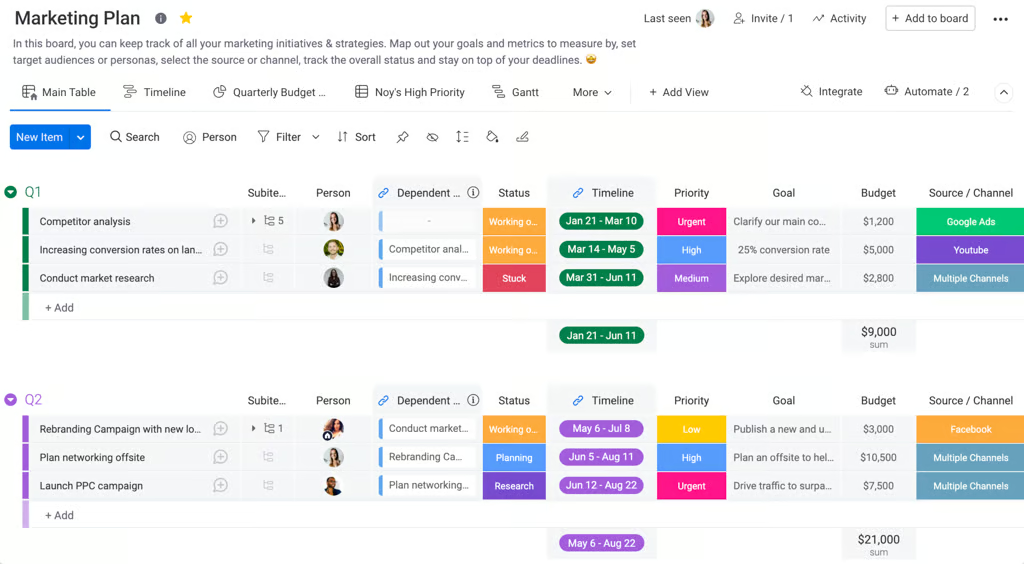
monday.com’s marketing plan board tracks campaigns by goals, budget, and priority, simplifying strategic planning (Source: monday.com). 
monday.com’s Gantt chart displays project dependencies, timelines, and critical paths for accurate scheduling (Source: monday.com).


Why I picked monday.com
For small teams that repeat the same assignments or follow the same approval process, monday.com offers automations that respond when a status changes, a due date arrives, or another event occurs. A rule starts with a trigger and can include conditions before updating an item, notifying a teammate, or moving work to another board.
I can either choose a pre-built automation template or create one from scratch, and a single rule can perform multiple actions. Creating simple automations was straightforward, but changing a rule’s trigger requires rebuilding the automation, and administrators should confirm that any referenced columns still exist after modifying a board.
Paid plans start with three seats and then increase in five-seat blocks, so a six-person team must pay for ten seats. Asana Starter is a better choice for teams that expect to rely heavily on automation because it costs $10.99 per user per month with annual billing and includes unlimited automation rules.
Pros
Cons
Standout features
- Automations: Set no-code triggers that automatically assign tasks and send date reminders, saving time on repetitive work.
- Time tracking: Track time spent on a specific task using built-in timers and manual entry options.
- Formula column: Run simple to advanced calculations using data from multiple columns for real-time insights.
monday pricing
- Free plan: Up to 2 users and includes 200+ templates, Kanban view, embedded documents, and shareable forms
- Basic: $9/user/month — Adds 5GB storage, custom fields, unlimited documents, and monday AI credits
- Standard: $12/user/month – Adds Gantt view, 20GB storage, guest access, and automation & integration
- Pro: $19/user/month — Adds private boards, chart view, time tracking, and formulas
- Enterprise: Custom — Adds portfolio reporting and resource management
Read our full monday.com review
2. ClickUp – Best for team collaboration
Rating: 4.87/5
- Free plan for unlimited users
- Starts at $7 per user/month
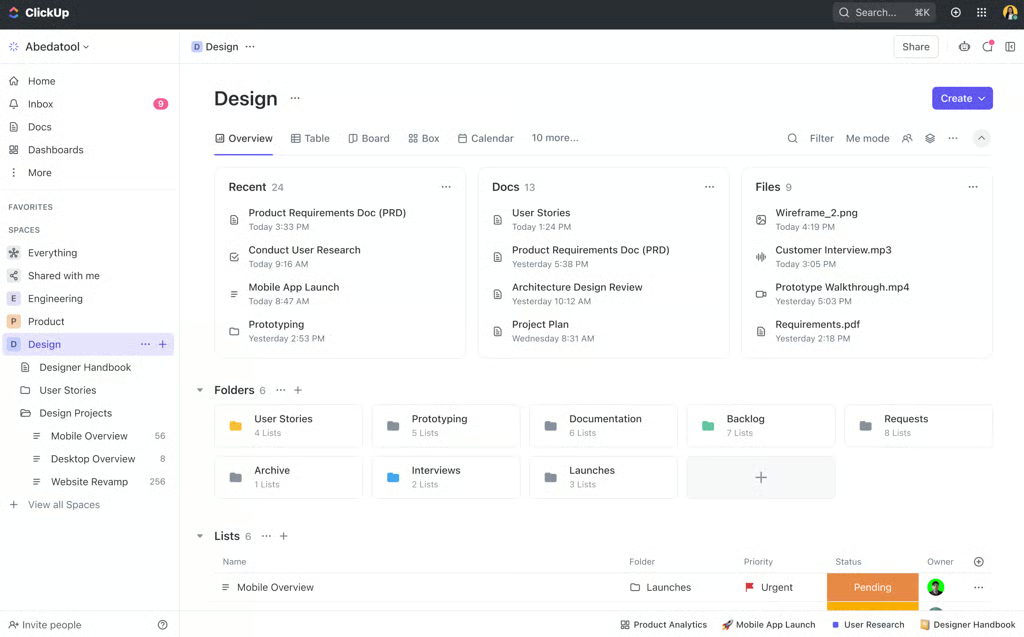
ClickUp’s workspace overview centralizes docs, files, and tasks, allowing teams to access everything without switching tools (Source: ClickUp). 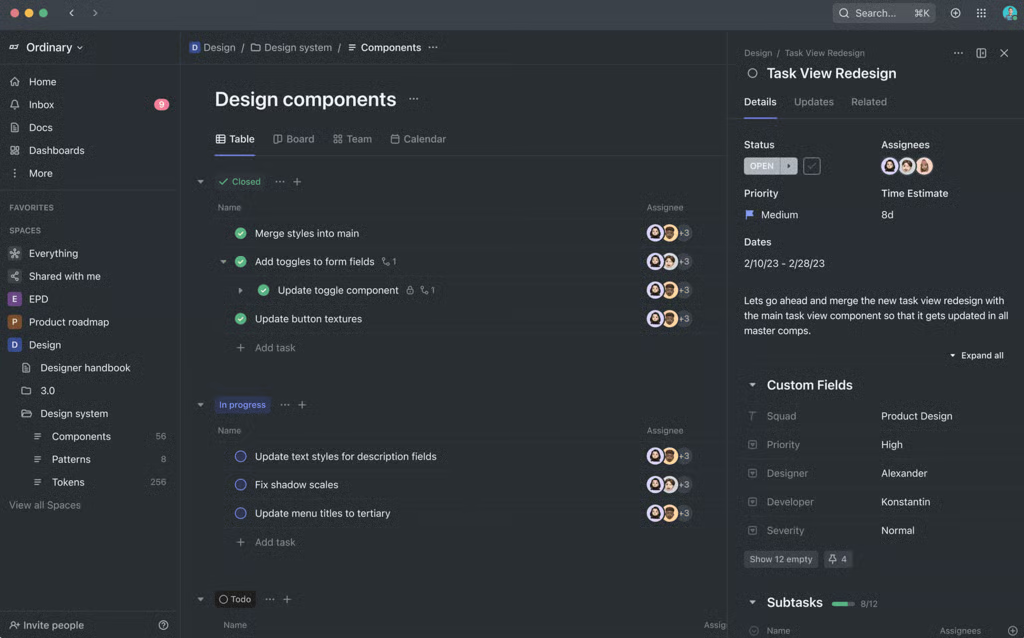
ClickUp’s dark mode task table shows task details, statuses, and assignees for improved visibility and collaboration (Source: ClickUp).


Why I picked ClickUp
ClickUp gives small teams several ways to discuss work in the same workspace, so they can move from a Chat thread to a task without copying the conversation. For anyone like me who has trouble recalling discussions within tasks, I can save important comments as FollowUps, which creates a personal action list.
When my team needs to talk through an issue, I can start a SyncUp call from Chat and share my screen. For updates that don’t require a meeting, I can record a Clip and attach it to a task or Doc, while Inbox collects my mentions and assigned comments in one place.
Although ClickUp is one of my top free project management tools, teams may need to pay for external guests with comment or edit access. If I work with clients regularly, I would also compare Asana Starter, which costs $10.99 per user per month with annual billing and includes unlimited free guests.
Pros
Cons
Standout features
- Everything view: Get a bird’s-eye of all tasks across your organization, with filters and sorting options you can save for future use.
- Proofing: Review and annotate files directly in ClickUp; easily gather feedback and assign action items.
- Workload and box views: Get a good look at your team’s capacity in real time so you can balance workloads and reallocate human resources when needed.
ClickUp pricing
- Free Forever: Includes unlimited users, Kanban view, collaborative docs, 60MB storage, in-app video recording, and sprint management
- Unlimited: $7/user/month — Adds integrations, forms, Gantt charts, real-time chat, time tracking, guest permissions, portfolios, and resource management
- Business: $12/user/month — Adds timeline view, activity views, whiteboards, workload management, and sprint points and reporting
- Enterprise: Custom — Adds conditional logic in forms, custom workload capacity, SSO, advanced permission, enterprise API, and custom roles
3. Asana – Best for ease of use
Rating: 4.77/5
- Free plan for ten users
- Starts at $10.99 per user/month
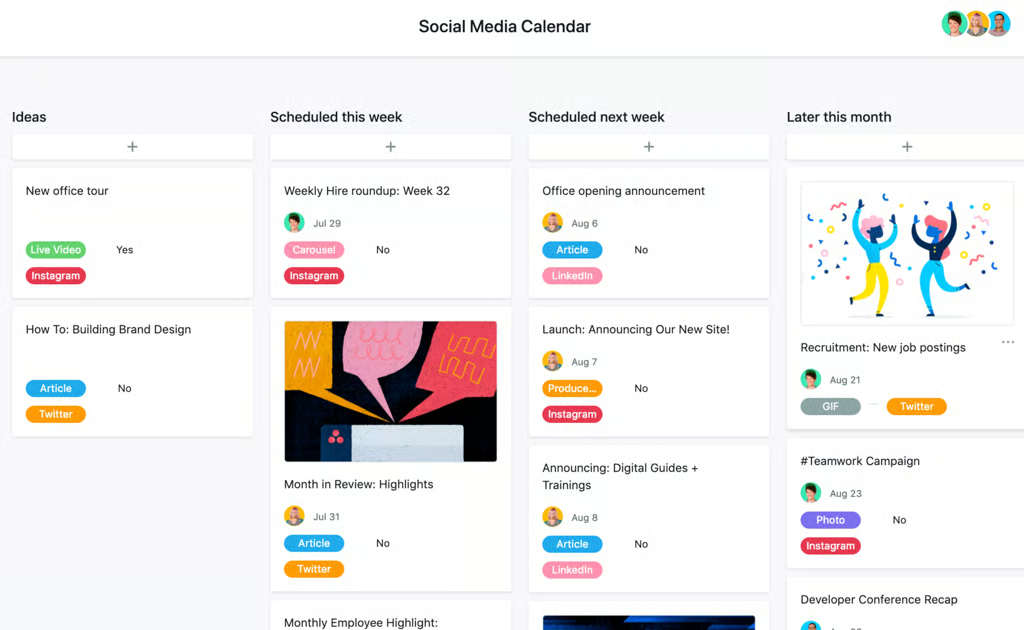
Asana’s social media calendar organizes campaigns by week, making it easier to manage deadlines and platforms in one view (Source: Asana). 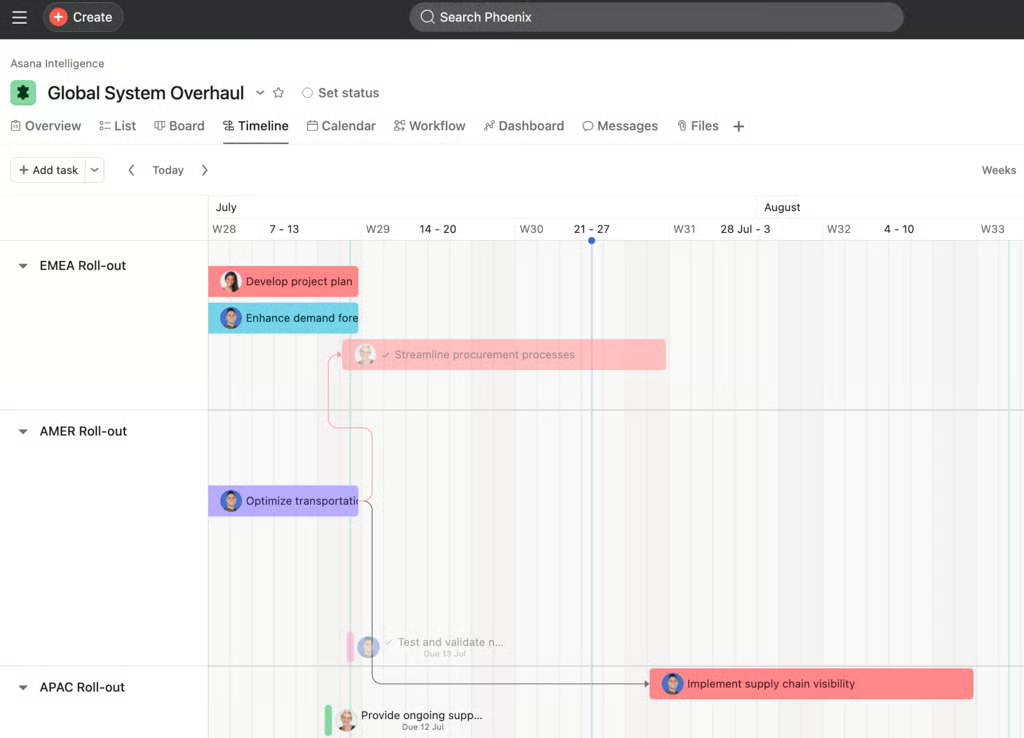
Asana’s timeline view maps tasks with dependencies, helping teams spot bottlenecks and keep projects on track. (Source: Asana)


Why I picked Asana
What stood out to me first was how quickly I could start using Asana. For a small team without time for lengthy onboarding, the clean interface made it easy to create a project board. The sidebar keeps commonly used tools within reach, so I rarely had to dig through menus to find what I needed.
When starting a new project, the pre-built templates already included sample tasks and project stages. I could replace the examples with my own work and invite teammates without first configuring custom work types or permission settings. Each task displays the assignee and due date beside the description, while My Tasks gathers all of my assigned work into a single view.
The main drawback is the free plan. It supports only two users, which limits its usage for most small teams, even when they only need basic task management. ClickUp Free Forever is a better option because it supports unlimited users and tasks, although it offers more setup options and includes only 60MB of file storage.
Pros
Cons
Standout features
- Reporting dashboard: Turn project data into customizable dashboards that highlight progress and key insights in real time.
- Portfolios: Track multiple projects in one place so you can monitor status updates and keep priorities aligned.
- Capacity planning: Balance workloads by comparing team availability with upcoming tasks to allocate resources more effectively.
Asana pricing
- Free: Up to two users — Includes list, board, calendar views, and 100+ integrations
- Starter: $10.99/user/month — Adds forms, templates, Gantt view, AI studio, automations, custom fields, workflow builder, project dashboards, and unlimited guests
- Advanced: $24.99/user/month — Adds goals, proofing, approvals, time tracking, goals, forms branching, and portfolio workload
- Enterprise: Custom – Adds capacity planning, mobile app controls, and admin controls
Read our full Asana review
4. Wrike – Best value for money
Rating: 4.57/5
- Free plan with unlimited seats
- Starts at $10 per user/month
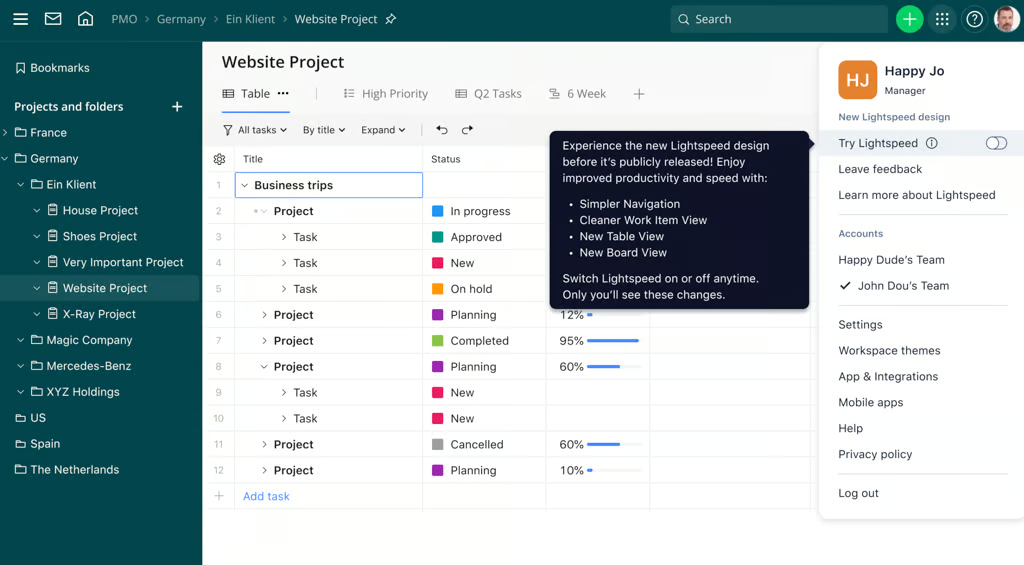
Wrike’s table view organizes tasks by status and priority, making it easy to track progress across multiple projects (Source: Wrike). 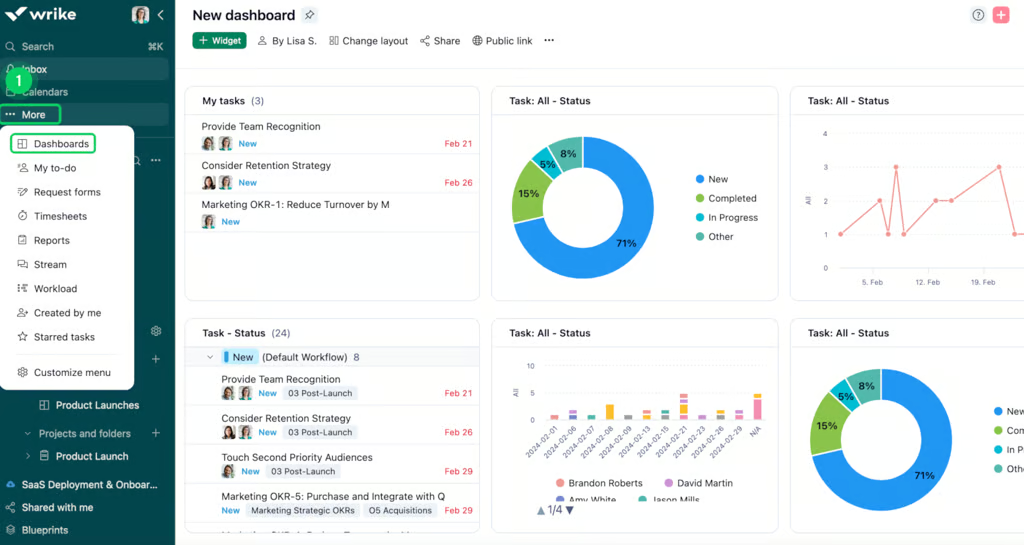
Wrike’s dashboard view combines task lists, charts, and progress tracking to give teams real-time insights into performance (Source: Wrike).


Why I picked Wrike
Wrike includes resource management tools that help project managers distribute work more evenly across the team. Its Workload charts total each person’s assigned effort and and highlight days when someone is over capacity. I can open tasks directly from the chart or drag unassigned work from the Backlog Box to a teammate with available time.
These workload tools are available on the Business plan, which costs $25 per user per month with annual billing and requires at least five users. The Resources view complements the charts by organizing assignments by project instead of by person, which makes it easier to see who is contributing to each project and how much work they have committed.
The Business plan starts at $125 per month for five users. Advanced resource planning, job roles, and capacity forecasting require the custom-priced Pinnacle plan. If my team has a tighter budget, I would rather consider ClickUp’s Business plan, which only costs $12 per user monthly and includes portfolio-level workload management.
Pros
Cons
Standout features
- Gantt charts: Plan projects visually with interactive timelines that make it easy to adjust tasks and track progress.
- Cross-tagging: Connect tasks across multiple projects or folders so updates automatically stay aligned everywhere they appear.
- Custom request forms: Standardize work intake with dynamic forms that capture the right details and create tasks instantly.
Wrike pricing
- Free: Unlimited users with basic task management and folder hierarchy
- Team: $10/user/month — For 2 to 15 users and adds cross-tagging, generative AI, custom fields, dashboards, Gantt charts, and portfolio management
- Business: $25/user/month — for 5 to 200 users and adds AI elite features, request forms, templates, approvals, workload charts, time tracking, and guest approvals
- Pinnacle: Custom pricing — Adds advanced reporting, resource and capacity planning, budgeting, and locked spaces
- Apex: Custom pricing – Adds Wrike Datahub, bi-directional integrations with third-party solutions, and advanced security controls
Read our full Wrike review
5. Smartsheet – Best for working with freelancers
Rating: 4.45/5
- 30-day free trial
- Starts at $12 per user/month
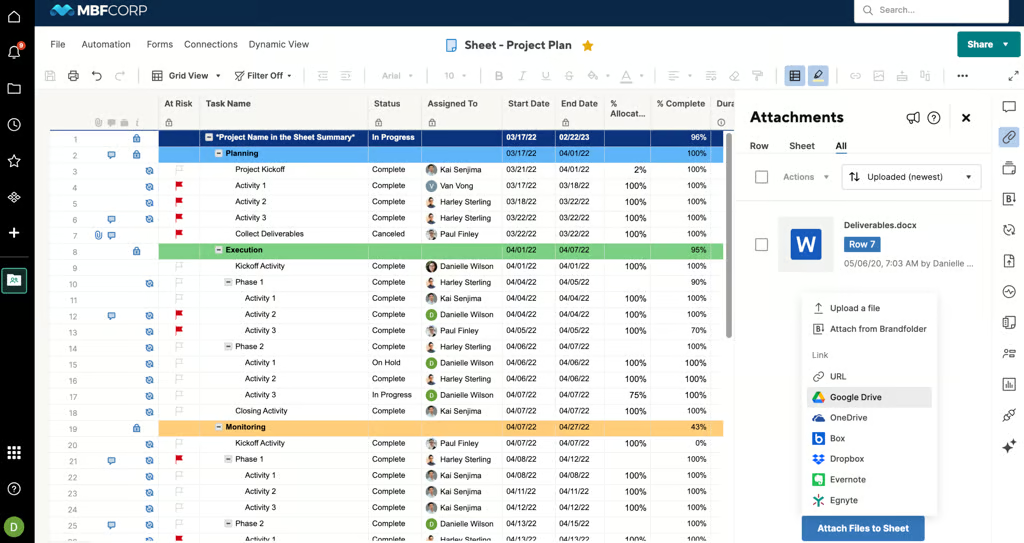
Smartsheet’s project plan grid provides task details, assignees, completion rates, and integrations with file storage tools (Source: Smartsheet). 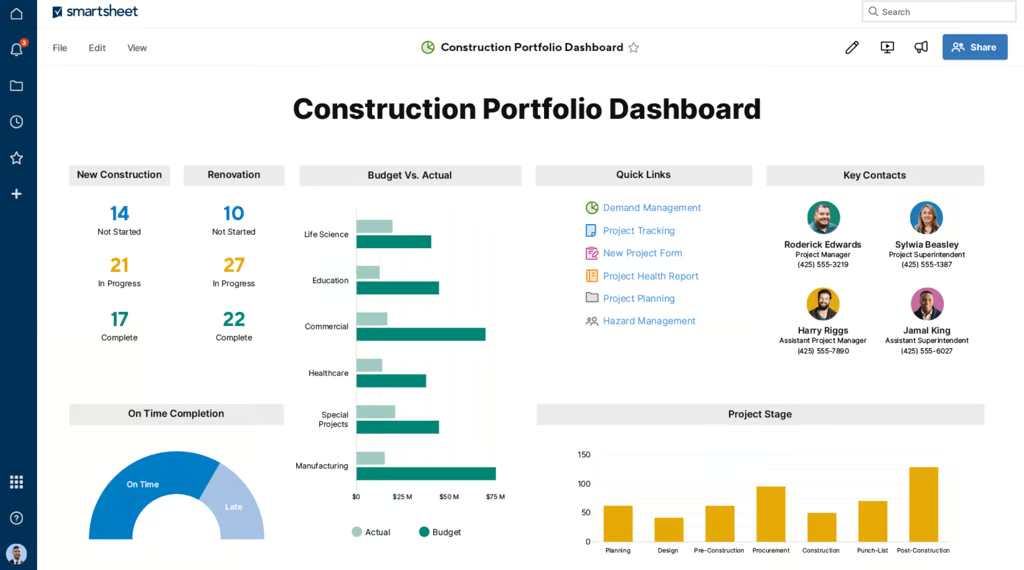
Smartsheet’s construction portfolio dashboard tracks budgets, timelines, and project stages in real time (Source: Smartsheet).


Why I picked Smartsheet
Smartsheet helps small teams work with freelancers by combining intake forms, time tracking, and permission controls. I can send a form to collect work updates or files without giving contractors access to the project sheet. For tracking freelance hours, timesheets lets me compare work hours against project budgets, making it easier to monitor labor costs across several contributors or client projects.
If I need to work with external users, the Business plan costs $19 per member per month and requires at least three members. It includes unlimited guests, contributors, and automations. I would set up the intake form and connect it to the correct sheet before inviting collaborators.
On top of the monthly subscription, the Dynamic View costs another $125 per month if each freelancer must edit selected data without seeing the source sheet. Asana Starter is more ideal for task-based client work because it includes unlimited free guests at $10.99 per paid user each month with annual billing.
Pros
Cons
Standout features
- File library: Centralize important project files in one place for quick access, easier collaboration, and faster execution.
- Document generation: Automate the creation of custom documents by pulling data directly from your sheets into pre-built templates.
- Conversations: Keep discussions organized within rows or sheets so context stays connected to the work itself.
Smartsheet pricing
- Pro: $9/user/month — Includes unlimited viewers, formulas, sheets, and project views for up to 10 members
- Business: $19/user/month — Adds free guests, unlimited automations, conditional form logic, timeline view, workload tracking, and admin capabilities
- Enterprise: Custom — Adds work insights, AI formulas, charts, role-based sharing, unlimited attachment storage, and SSO
Advanced Work Management: Custom – Adds Control Center, granular sharing controls, and app connectors
Read our full Smartsheet review
6. Jira – Best for IT teams
Rating: 4.08/5
- Free plan for two seats
- Starts at $8.6 per user/month
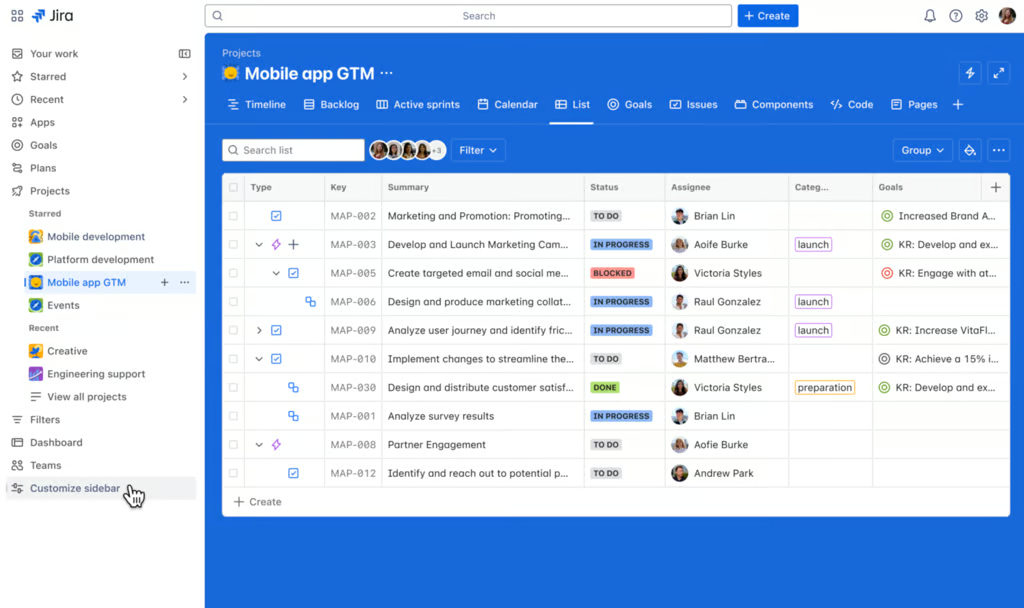
Jira’s list view organizes project tasks with assignees, statuses, and goals, giving teams full visibility into ongoing work (Source: Jira). 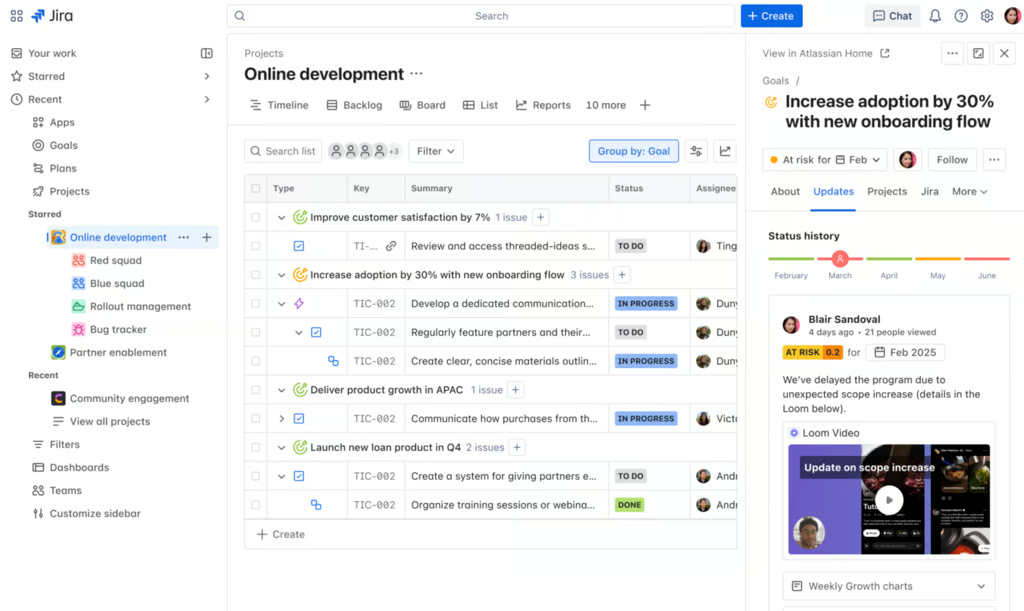
Jira’s issue tracking board groups tasks by status, making it easier to prioritize goals and monitor team progress (Source: Jira).


Why I picked Jira
Jira offers configurable Scrum and Kanban boards that let IT teams track bugs and system upgrades alongside technical projects. I can prioritize work in the backlog, while work-in-progress limits highlight stages where too many issues have accumulated and may be slowing delivery.
For sprint-based work, I can prioritize items in the backlog, estimate effort, and move selected issues into the next sprint. Sprint reports compare planned work with completed work, while velocity charts show how much the team typically finishes in each sprint. Jira includes its core Agile planning tools across all plans, while the Standard plan adds controlled permissions and audit logs.
As the volume of work grows, projects can be separated into different boards or filtered with Jira Query Language (JQL). Teams can also use Atlassian Rovo to search across projects, documentation, and knowledge sources, which helps surface project information. For data security, permission settings can be applied to filters and boards, allowing teams to control which information different users can access.
Among the platforms featured in this guide, Jira is the most difficult to learn because it is built for software development teams that need detailed workflows and issue tracking. For smaller teams with limited experience using project management software, I recommend monday.com because its visual boards require less setup and are easier to learn.
Pros
Cons
Standout features
- Dependency management: Visualize task order to identify potential bottlenecks early and keep projects moving smoothly.
- Goal tracking: Track how work aligns with company goals in a summary view that’s easy to share.
- Shared release dates: Connect development and launch teams with a single source of truth for release schedules and updates.
Jira pricing
- Free: Up to 10 users — Includes reports, dashboards, unlimited projects, forms, 2GB storage, and project views (backlog, list, board, timeline, and summary)
- Standard: $9.05/user/month — Adds AI assistant, user roles, external collaboration, 250GB storage, and 1700 automation rule runs
- Premium: $18.30/user/month — Adds dependencies, custom approvals, unlimited storage, and 1,000 rule runs per user
- Enterprise: Custom — Adds advanced admin controls and security, cross-product insights, and unlimited automation rule runs
Read our full Jira review
Methodology
To identify the best project management software for small teams, I built a scoring rubric around the factors that lean teams value most when they need to collaborate on projects without overcomplicating their workflows. Each platform was tested and scored against the same criteria to ensure a fair comparison.
Pricing (20%) I compared whether each platform offers a free-forever plan or only a limited trial, then scored entry and mid-tier subscriptions based on monthly cost per user. I also checked for annual discounts and assessed how much value each pricing tier delivers for small teams working within a tight budget.
General Features (25%) I examined core task management capabilities including task creation, subtasks, dependencies, and due dates, along with collaboration tools that allow team members to communicate within tasks. I also reviewed reporting dashboards and the range of available views such as lists, boards, and calendars, since small teams benefit from having flexible layout options.
Advanced Features (20%) I looked closely at features that help small teams take on more complex work, including automation, resource management, and integrations with communication platforms, file storage, and CRMs. I also evaluated AI-powered features and workflow automation capabilities.
Ease of Use (15%) I assessed how quickly a small team can get up and running without dedicated IT support or lengthy onboarding. I considered the intuitiveness of each platform’s interface, the quality of pre-built templates, and how easily team members with varying technical backgrounds can adopt the tool.
Customer Service and Support (10%) I reviewed the availability and quality of each platform’s support channels, including live chat, email, and phone support. I also checked support hours, the depth of each vendor’s knowledge base, and how well each platform supports small teams that may not have a dedicated IT department to troubleshoot issues internally.
Expert Score (10%) Finally, I added a professional assessment based on my hands-on experience with each platform, weighing overall performance, value for money, and how well each tool meets the specific demands of small teams. Standout features, real-world usability, and user satisfaction all contributed to the final expert rating.
How to choose project management software
Finding the best project management software comes down to matching the platform’s strengths with your team’s needs. Even as a small team, you’ll want to focus on features that improve collaboration and adapt as your projects grow.
- Ease of use: Software with a clean, intuitive layout shortens the time it takes for your team to get comfortable. The easier it is to navigate, the quicker everyone can focus on projects instead of figuring out the tool.
- Collaboration features: Look for platforms that bring conversations and files directly into the workspace. When tasks, chats, and feedback live in one place, teams communicate faster and reduce the risk of missing critical details. In fact, 76% of people who primarily use a project management tool to communicate with co-workers report better internal efficiency, according to a 2024 Project.co survey.
- Scalability: The best choice is one that supports today’s projects while preparing for tomorrow’s growth. A scalable platform makes it simple to add users or advanced features as your workload increases.
- Reporting and analytics: Clear visibility into progress helps you spot trends before they become problems. With strong reporting, you can adjust priorities, manage resources, and keep deadlines under control.
- AI capabilities: The right AI-powered project management tool can streamline repetitive tasks while surfacing insights you might overlook. It’s no surprise that a Capterra survey found 55% of buyers say adding AI is the top reason to invest in new project management software.
- Integrations: A tool that connects with your CRM, chat, and storage apps creates a smoother workflow. Instead of jumping between platforms, your team works from one centralized hub that keeps everything aligned.
The right choice is the one that aligns with your workflows and budget, while offering flexibility for growth. By prioritizing features that address today’s challenges, you can avoid costly transitions down the line. With the right project management software, your team can deliver more efficiently and stay aligned from start to finish.
FAQs
What are the best project management tools for small teams?
The best project management software for small teams depends on your workflow and the level of collaboration required. If you need flexibility with automation and templates, monday.com is a strong choice. It scales easily while keeping task management simple, which helps small teams stay organized without overwhelming them.
What is the easiest project management software?
Asana is often considered the easiest project management software. Its clean interface and simple navigation make it quick to adopt, even if you haven’t used a project management tool before. You can switch between list, board, or calendar views smoothly, which keeps projects easy to follow and manage.
Which type of project management software is adequate for small projects?
For small projects, you need project management software that balances simplicity with flexibility. monday.com fits this role well, as it offers customizable boards and automations without requiring heavy setup. It lets you start quickly, scale if needed, and keep everything organized in one platform, making it adequate for smaller initiatives.