





















I have worked with companies that used a wide range of project tools, from work management platforms like monday.com and ClickUp to simple task trackers like Todoist. Some options are intuitive for beginners, while others are suited to cross-functional projects at enterprise scale. In this guide, I draw on years of hands-on experience with the best project management software and explain which platform is best for each use case, so you can see which one fits your workflow and business goals.
| Provider | Best for | Recommended user size | Starting monthly price |
| monday work management | Best for visual planning & beginners | Mid & large teams | $9 per user |
| ClickUp | Best for building task hierarchies | Mid & large teams | $7 per user |
| Jira | Best for agile software delivery | Small to large IT teams | $9.05 per user |
| Asana | Best workflow automation | Mid & large teams | $10.99 per user |
| Miro | Best for whiteboard-style project planning | Small & mid-size remote teams | $8 per user |
| Smartsheet | Best for portfolio reporting | Mid & large teams | $9 per user |
| Wrike | Best for creative production | Enterprise teams | $10 per user |
| Teamwork | Best for professional services | Mid & large-size agencies | $10.99 per user |
| Todoist | Best for personal use | Solo users | $5 per user |
| Notion | Best for project databases | Solo use and small teams | $10 per user |
Why you can trust Project-management.com
Over the past four years as a project management writer, I have personally tested nearly 20 PM platforms, and several of them have become part of my own workflow. I have written dozens of buyer’s guides covering a wide range of use cases and company sizes, which gave me a broader understanding of what project professionals actually need from these tools. Beyond hands-on testing, I design custom scoring rubrics for each evaluation to make sure every platform is assessed accurately and on equal footing, not ranked on gut feel or vendor claims.

Marianne Sison
Senior Staff Writer for Project Management
- 1. monday work management – Best for visual planning & beginners
- 2. ClickUp – Best for building task hierarchies
- 3. Jira – Best for agile software delivery
- 4. Asana – Best workflow automation
- 5. Miro – Best for whiteboard-style project planning
- 6. Smartsheet – Best for portfolio reporting
- 7. Wrike – Best for creative production
- 8. Teamwork.com – Best for professional services
- 9. Todoist – Best for personal use
- 10. Notion – Best for project databases
- How I evaluated the best project management software
- What are the key features of project management software?
- What to consider when purchasing project management software
- FAQs
1. monday work management – Best for visual planning & beginners

Rating: 4.91 / 5
- Free plan for two seats
- Starts at $9 per user/month
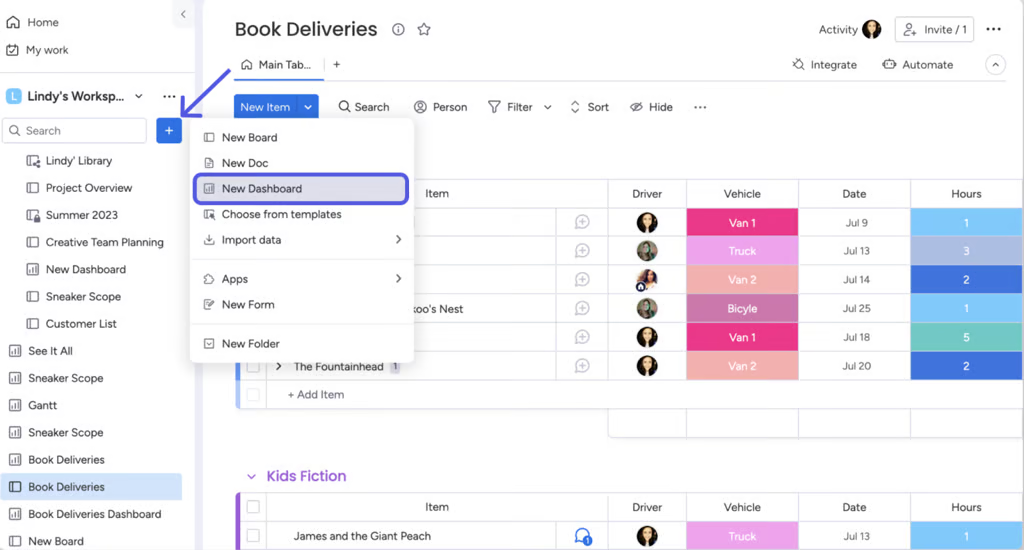
These monday work management views let teams create dashboards and monitor projects on mobile for real time KPI visibility that keeps delivery on track. (Source: monday.com) 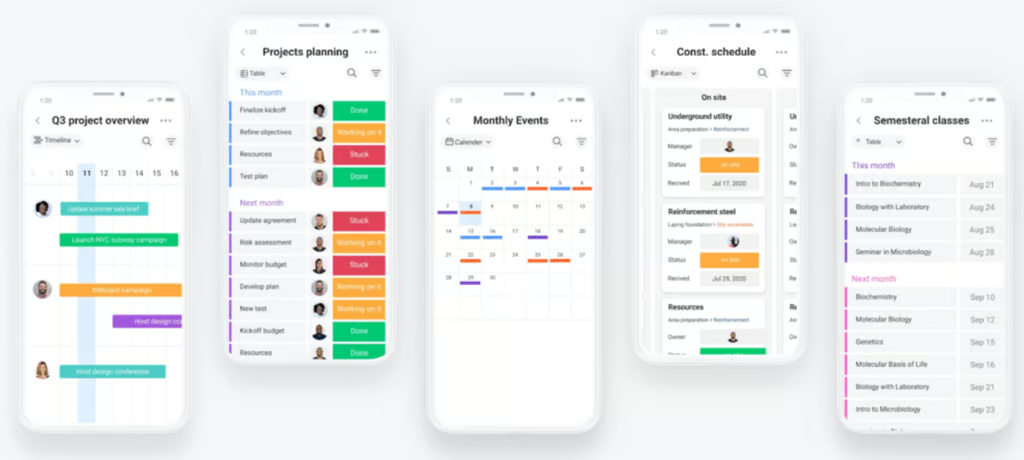
These monday work management views let teams create dashboards and monitor projects on mobile for real time KPI visibility that keeps delivery on track. (Source: monday.com) 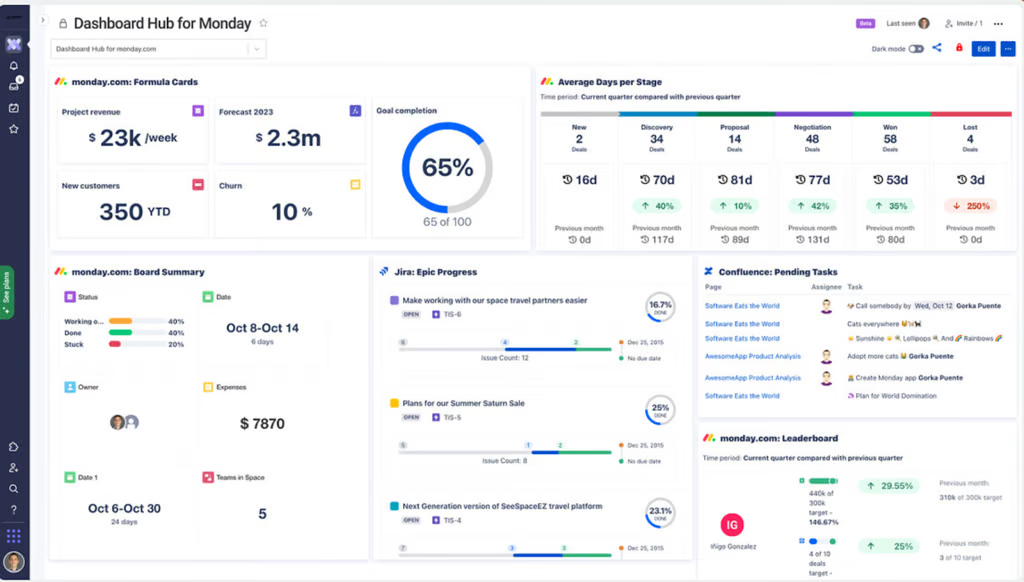
These monday work management views let teams create dashboards and monitor projects on mobile for real time KPI visibility that keeps delivery on track. (Source: monday.com)


monday work management was my main project management tool for a time, and it lived up to its reputation for ease of use. Its color-coded, grid-style boards make it simple to distinguish project status and task assignments across different categories. At a glance, I can see what is on track and what needs attention without going through each item on the board.
Even when a board holds a large volume of tasks, the interface still feels manageable for new users. I can drag and drop rows or columns to rearrange items, which makes it easy to group tasks by phase or owner.
The automation experience follows the same user-friendly approach. The dedicated automation center provides a hub of pre-made rules and workflows to suit users who do not want to spend time configuring complex logic. In a clean workspace, I can set a trigger and define the condition and resulting action in just a few clicks.
monday keeps each step straightforward, so if you are a visual learner or you are trying project management software for the first time, I recommend it as a starting point.
| 💡 PRO TIP: |
| Depending upon your team size and the complexity of the automations you build, you may run up against count limitations, based on pricing tier. This happened with our team once or twice over the course of a year, but we found that reviewing our lists uncovered numerous instances of automations that were no longer needed, but were still running. So an occasional automations clean-up — quarterly at minimum, more frequently if your team or workflows change frequently — should be part of your PMS data hygiene. |
Pros
Cons
Standout features
monday pricing
- Free plan: Up to 2 users and includes 200+ templates, Kanban view, embedded documents, and shareable forms
- Basic: $9/user/month — Adds 5GB storage, custom fields, unlimited documents, and monday AI credits
- Standard: $12/user/month – Adds Gantt view, 20GB storage, guest access, and automation & integration
- Pro: $19/user/month — Adds private boards, chart view, time tracking, and formulas
- Enterprise: Custom — Adds portfolio reporting and esource management
Learn more in our monday work management review.
2. ClickUp – Best for building task hierarchies

Rating: 4.86 / 5
- Free plan for unlimited users
- Starts at $7 per user/month
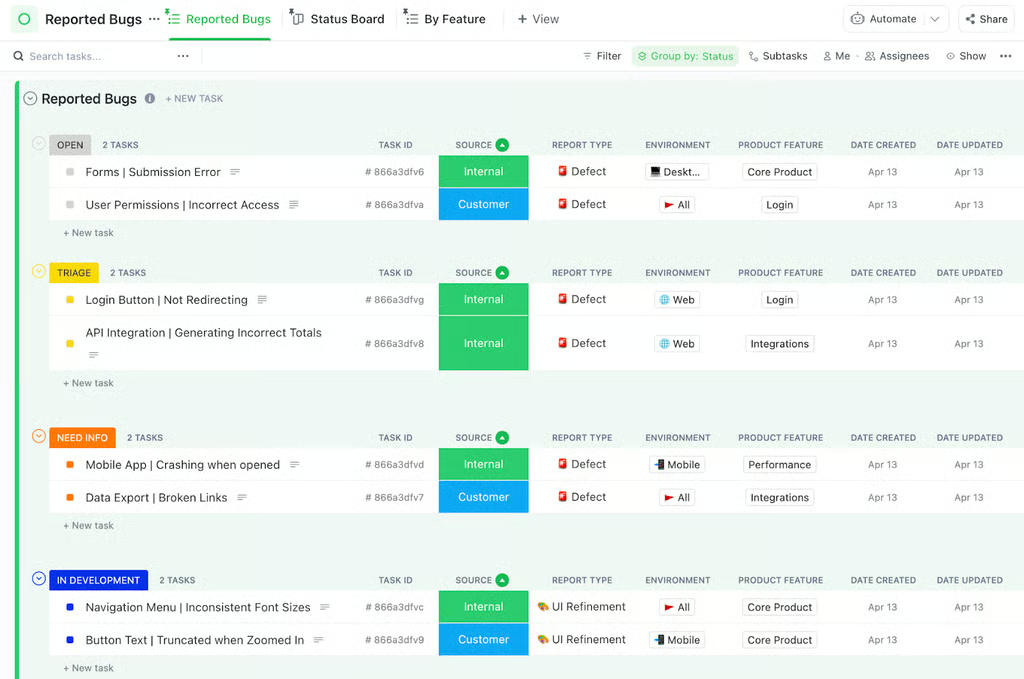
ClickUp boards, Gantt charts, and goal health views help teams track detailed work while keeping project timelines and strategic objectives visible in one workspace. (Source: ClickUp) 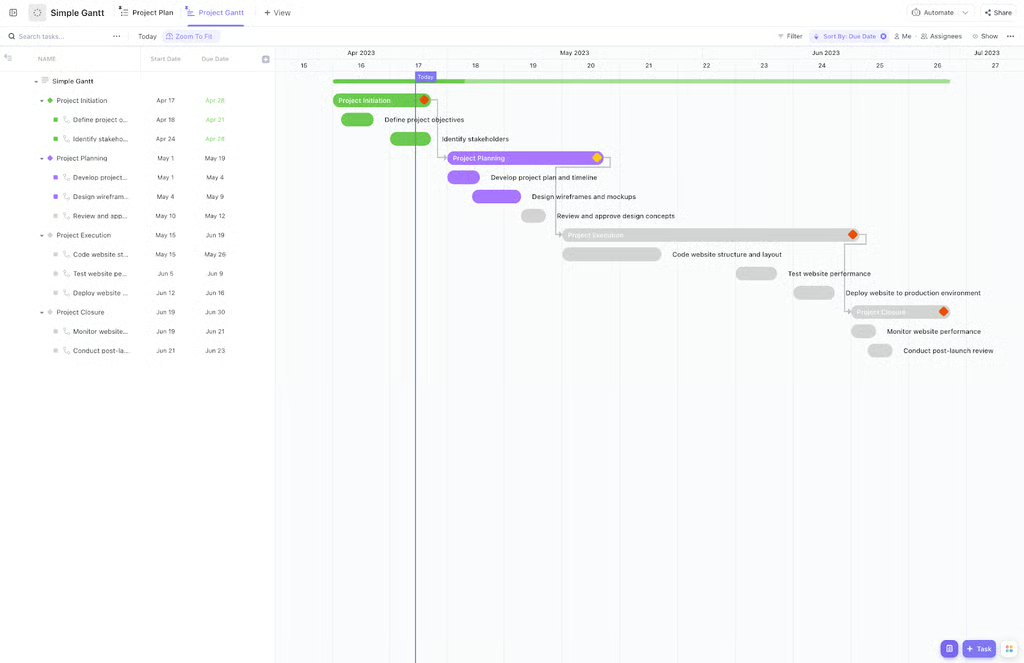
ClickUp boards, Gantt charts, and goal health views help teams track detailed work while keeping project timelines and strategic objectives visible in one workspace. (Source: ClickUp) 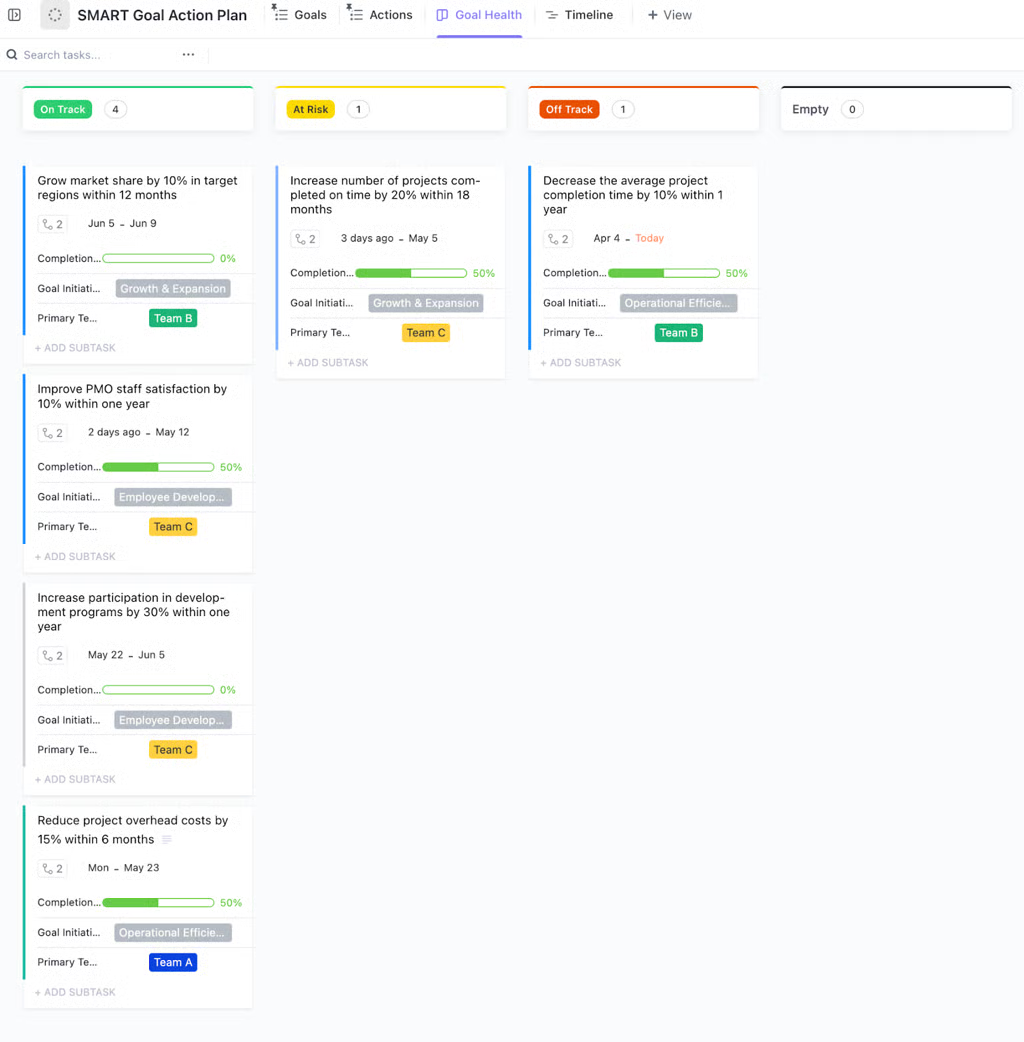
ClickUp boards, Gantt charts, and goal health views help teams track detailed work while keeping project timelines and strategic objectives visible in one workspace. (Source: ClickUp)


I currently rely on ClickUp for my own projects, and it shines when I need detailed, customizable task management. I can design a task board that matches my workflow by adding custom fields and categories, a built-in time tracker, or nested subtasks.
ClickUp also offers one of the largest template libraries I have seen in this space, with more than 1,000 templates that map to standard workflows. I usually start with a layout that matches my use case, then adapt it instead of building from a blank board.
The multi-level task structure is especially helpful for my team. One parent task can contain several layers of subtasks, each assigned to a different role. When a teammate finishes a task, I’ve set up an automation so the next person in the sequence receives the notification that the follow-up work is ready for them immediately, which keeps momentum steady on shared deliverables.
I also view ClickUp as one of the best free project management software options due to its generous free plan. It works well for budget-conscious teams that still want a powerful platform. Many rivals keep advanced capabilities behind higher-priced tiers, while ClickUp provides credits for premium features such as Gantt charts and workload views, along with limited access to portfolio tools. This lets you experiment with advanced functionality before you decide to upgrade to a paid plan.
Pros
Cons
Standout features
ClickUp pricing
- Free Forever: Includes unlimited users, Kanban view, and sprint management
- Unlimited: $7/user/month — Adds integrations, forms, Gantt charts, time tracking, portfolios, and resource management
- Business: $12/user/month — Adds timeline view, workload management, and reporting
- Enterprise: Custom — Adds SSO, advanced permission, and custom roles
Learn more in our ClickUp review.
3. Jira – Best for agile software delivery

Rating: 4.82 / 5
- Free plan for two seats
- Starts at $9.05 per user/month
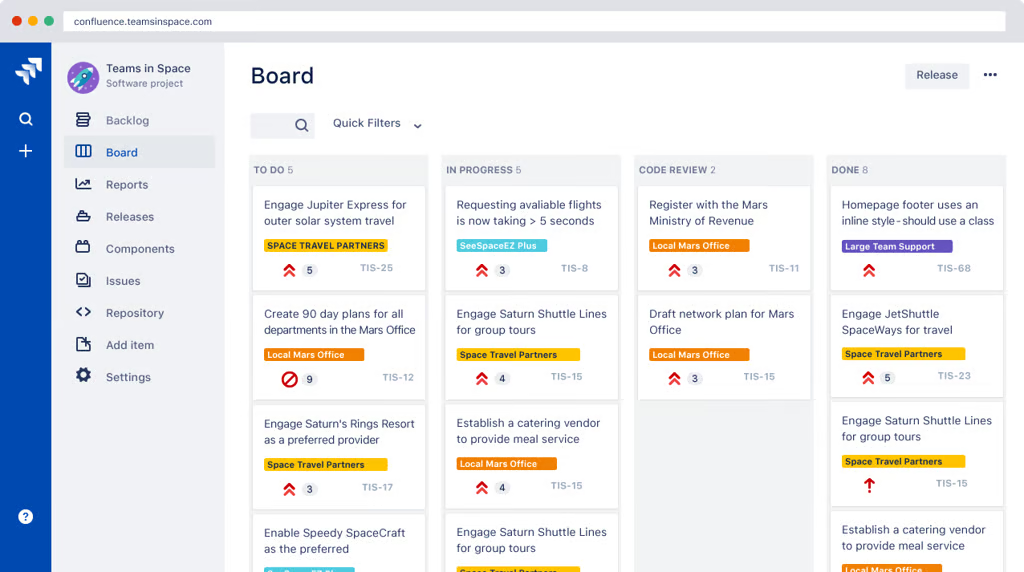
Jira boards, goals, and sprint views help software teams track work from backlog to release while keeping strategic objectives visible in one workspace. (Source: Jira) 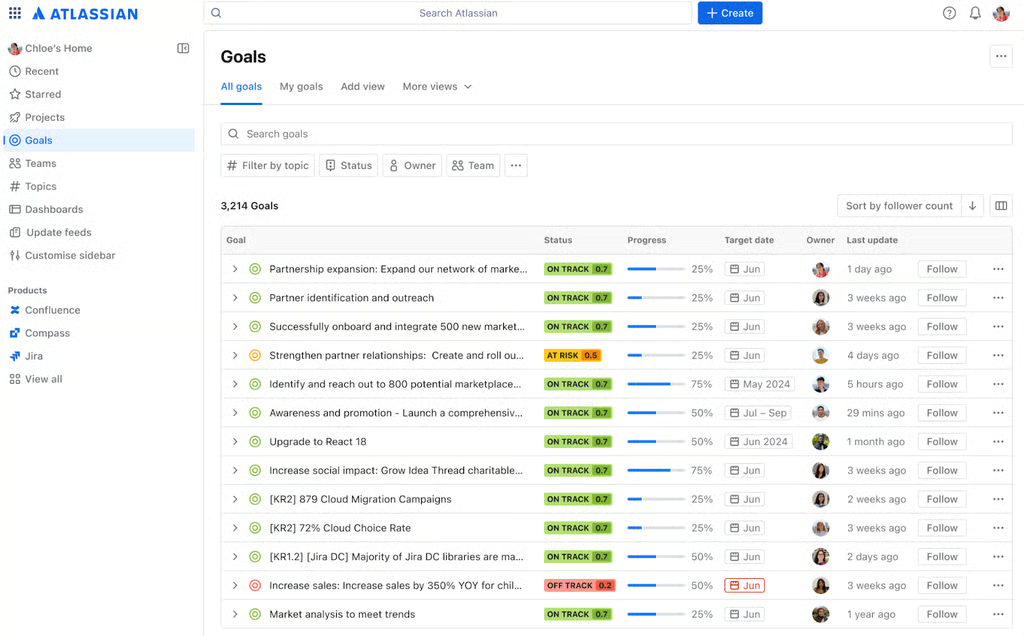
Jira boards, goals, and sprint views help software teams track work from backlog to release while keeping strategic objectives visible in one workspace. (Source: Jira) 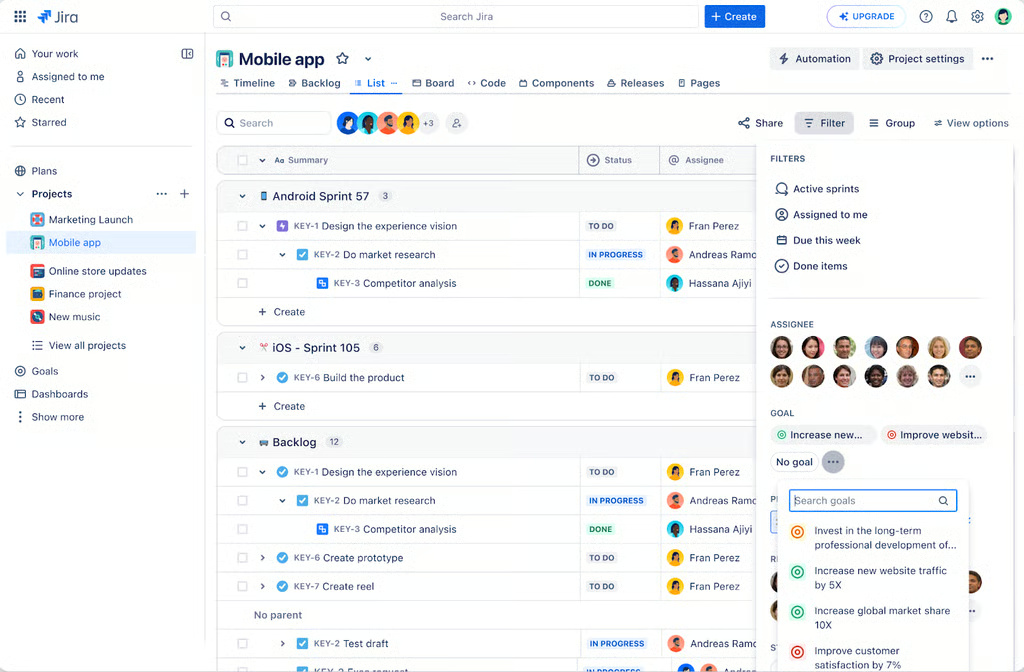
Jira boards, goals, and sprint views help software teams track work from backlog to release while keeping strategic objectives visible in one workspace. (Source: Jira)


Jira is the agile planning tool I see most often in engineering and software development teams, and I rely on it whenever I work with IT departments. When I submit form-based tickets to escalate issues, the IT team has a clear view of incoming requests and IT-specific workflows that guide each item through the right steps. This keeps service requests organized and helps teams respond consistently and predictably.
Jira is the best IT project management software that supports sprint backlogs, roadmapping, and feature requests, giving dev teams a single tool to plan work, prioritize features, and manage software releases. Scrum teams can track progress through burndown and velocity charts that highlight work remaining or completed across a sprint. Cumulative flow diagrams show how many items sit in each status, while control charts reveal cycle time for a specific version or sprint.
Jira is designed to support data-driven decision making during sprint planning and retrospectives, all within the context of your backlog view. The Insights tool pulls data from your Jira boards and projects, then presents aggregated views of the team’s historical performance. You can review sprint commitment insights and issue-type breakdowns, and monitor sprint progress and burndown trends to see how consistently the team delivers work across iterations.
Pros
Cons
Standout features
Jira pricing
- Free: Up to 10 users — Includes reports and list, timeline, and calendar views
- Standard: $9.05/user/month — Adds AI agents, guest access, and user roles
- Premium: $18.30/user/month — Adds approval processes and dependency management
- Enterprise: Custom — Adds advanced admin controls and cross-product insights
Learn more in our Jira review.
4. Asana – Best workflow automation

Rating: 4.75 / 5
- Free plan for two seats
- Starts at $10.99 per user/month
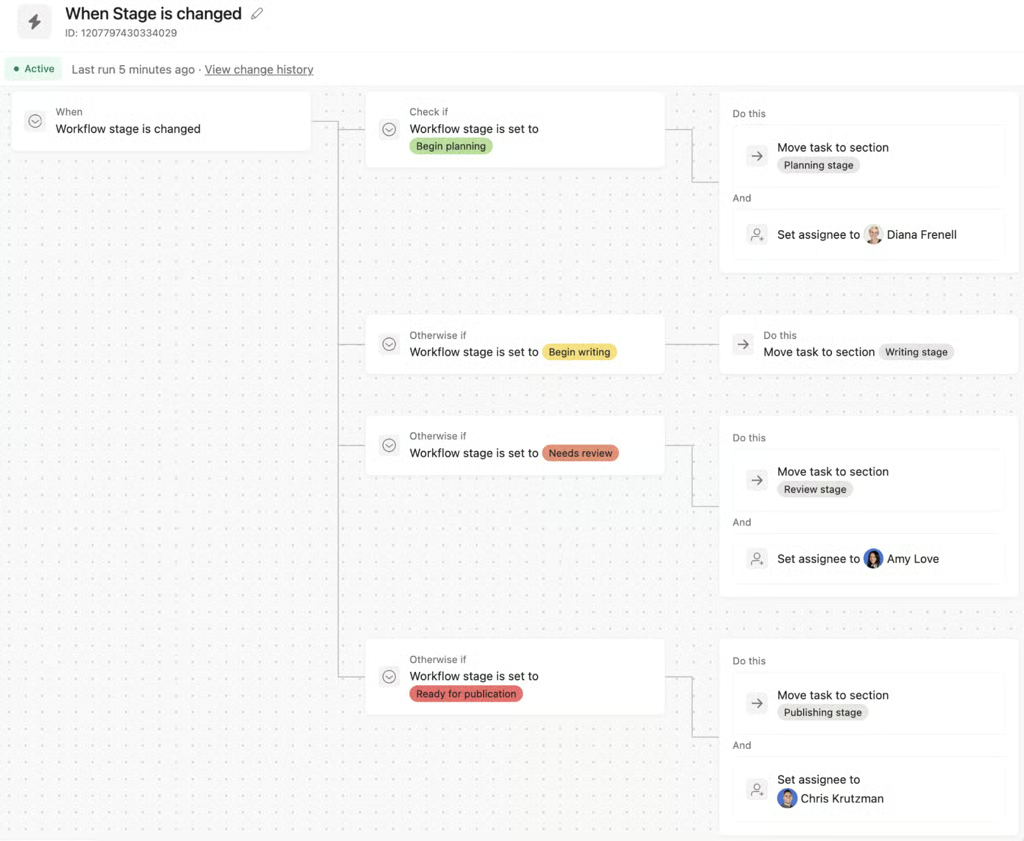
Asana rules automate task updates based on request types and workflow stages. (Source: Asana) 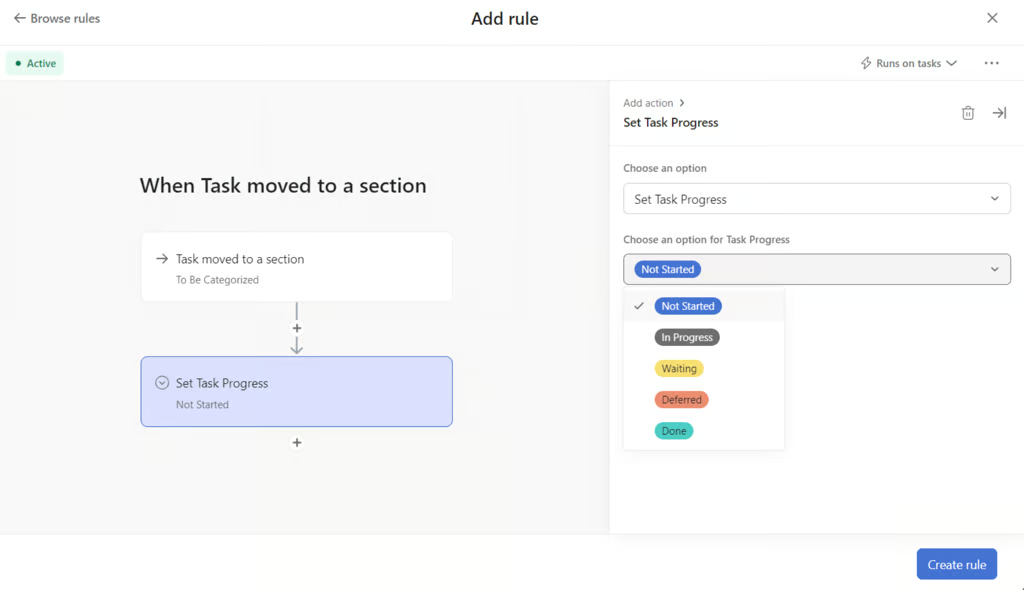
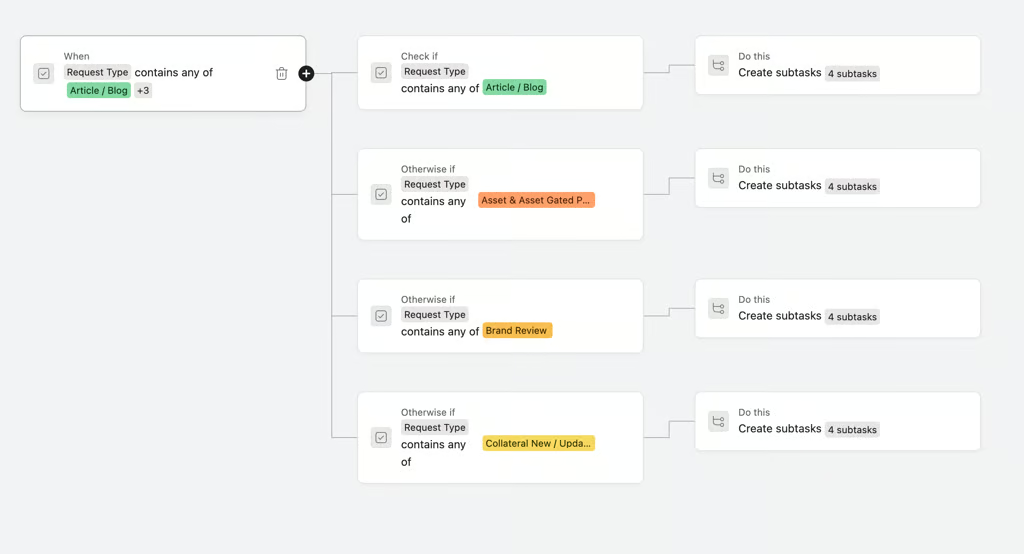


For teams that need automation to evaluate requests and route work, Asana offers AI Studio, a no-code builder for AI-powered workflows. I found this useful for intake workflows where teams must check or prioritize submissions against a specific criteria before they reach an assignee. For routine updates, I use Rules to handle fixed events, such as assigning a task after its due date changes,
A manager selects a trigger, such as a form submission, then explains in plain language how AI should review the request. The workflow confirms required details and identifies duplicates before it routes the task to the correct owner. The same instructions apply to every request, so teams do not have to interpret the intake policy each time. A custom Rule, on the other hand, can contain up to 20 triggers and 20 actions; one due-date change could update a task’s status and notify its owner.
Bundles let me reuse Rules and custom fields across multiple projects, then apply process changes to every project that uses the Bundle. If a Rule fails, Asana emails me after the first error, and anyone with project read access can check its status.
Each project is limited to 50 Rules regardless of plan, so workflows with many conditional paths may need to be divided across multiple Rules or projects. Portfolio Rules, which automate actions across a group of projects, require the Advanced plan or higher.
Pros
Cons
Standout features
Asana pricing
- Free plan: Includes two users, unlimited tasks and projects, list and board views, and more than 100 integrations.
- Starter: $10.99/user/mo. – Includes timeline and Gantt views, reporting dashboards, unlimited automations, and 50,000 monthly AI Studio credits per billing account.
- Advanced: $24.99/user/mo. – Includes unlimited portfolios, company goals, workload management, and 75,000 monthly AI Studio credits per billing account.
- Enterprise: Custom pricing – Includes SAML authentication, SCIM provisioning, capacity planning, and 200,000 monthly AI Studio credits per billing account.
Read our full Asana review.
5. Miro – Best for whiteboard-style project planning

Rating: 4.7 / 5
- Free plan for two seats
- Starts at $8 per user/month
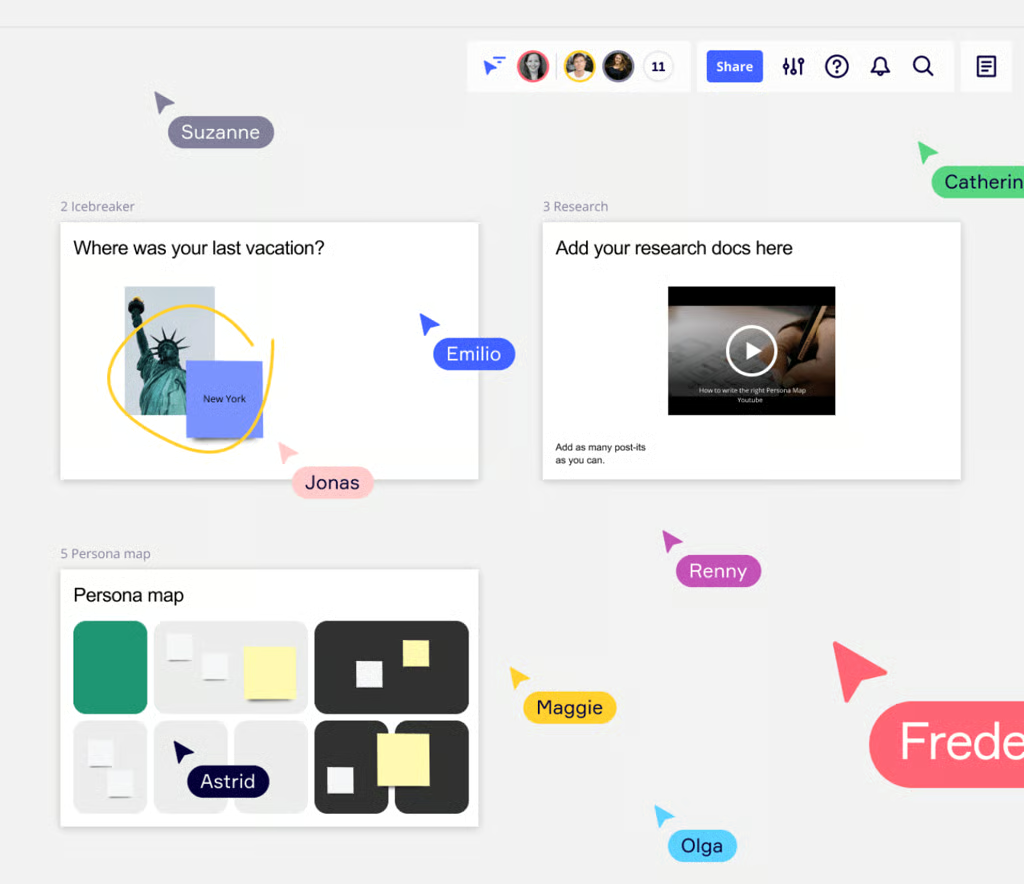
Miro’s online whiteboards help teams brainstorm and turn ideas into trackable tasks on one shared canvas. (Source: Miro) 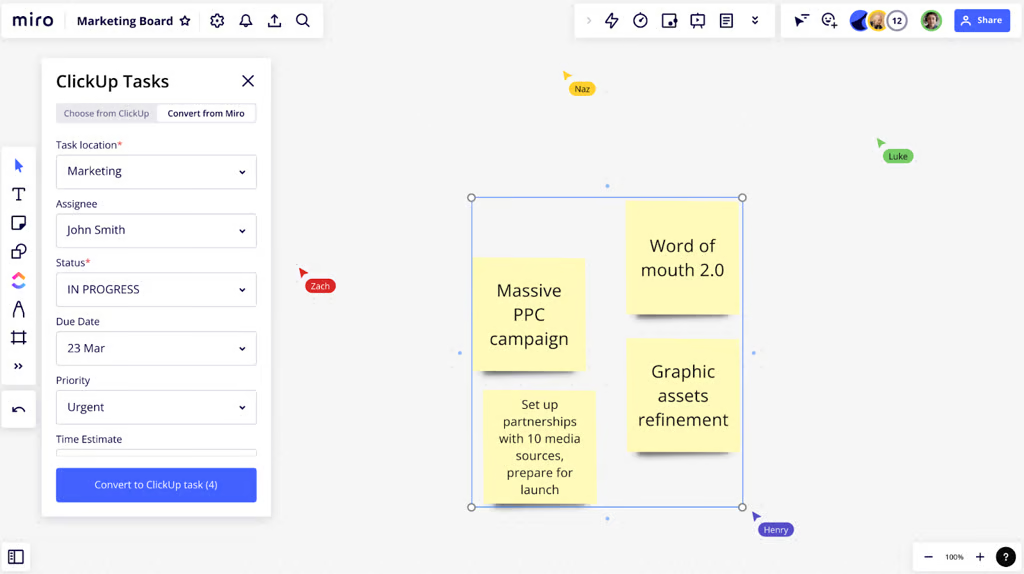
Miro’s online whiteboards help teams brainstorm and turn ideas into trackable tasks on one shared canvas. (Source: Miro) 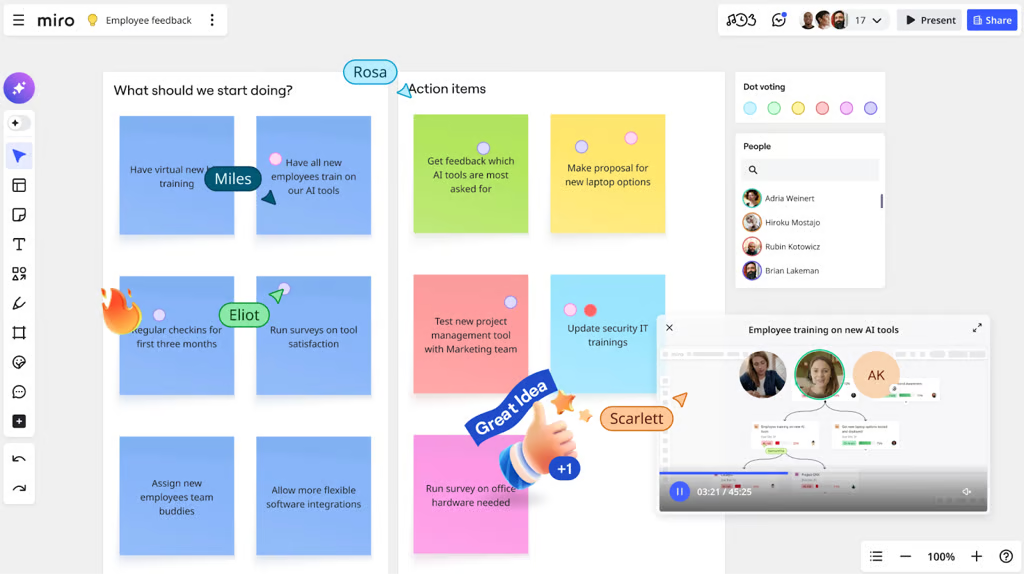
Miro’s online whiteboards help teams brainstorm and turn ideas into trackable tasks on one shared canvas. (Source: Miro)


When it comes remote work, Miro is the best project management software for small teams engaging in real-time project planning. Every member can contribute to a shared canvas simultaneously, making brainstorming an active group work rather than a sequential one. Most project management platforms confine you to pre-formatted boards, but Miro gives you a virtually limitless canvas where you can pin documents and prototypes, then layer in diagrams and timelines to move a topic from rough idea to a concrete project plan.
Ideation with a distributed team often stalls when no one knows how to start. Miro facilitates real-time co-creation and asynchronous comments, so people can contribute in the moment or later in their own time zone. Talktrack recordings help you walk teammates through a board without scheduling a live meeting.
You can visualize ideas with sticky notes and freehand sketches, then add simple diagrams or timers. Voting tools and GIFs keep the session engaging while smart alignment features and templates help you clean up the board for follow-through.
If you prefer a head start, Miro’s library of 7,000 pre-made templates covers common workflows such as retrospectives and customer journey maps, so you can avoid starting from a blank canvas. In my own work, I turn to Miro when I want equal participation across the team or when I need a brainstorming session to feel more interactive and energizing, not just another meeting on the calendar.
Pros
Cons
Standout features
Miro pricing
- Free: Includes unlimited members, three editable boards, and templates access
- Starter: $8/user/month – Adds unlimited boards, version history, and video calling
- Business: $16/user/month – Adds unlimited guests and diagramming shapes
- Enterprise: Custom – Adds centralized account management and org-wide controls
6. Smartsheet – Best for portfolio reporting
Rating: 4.62 / 5
- 30-day free trial
- Starts at $9 per user/month
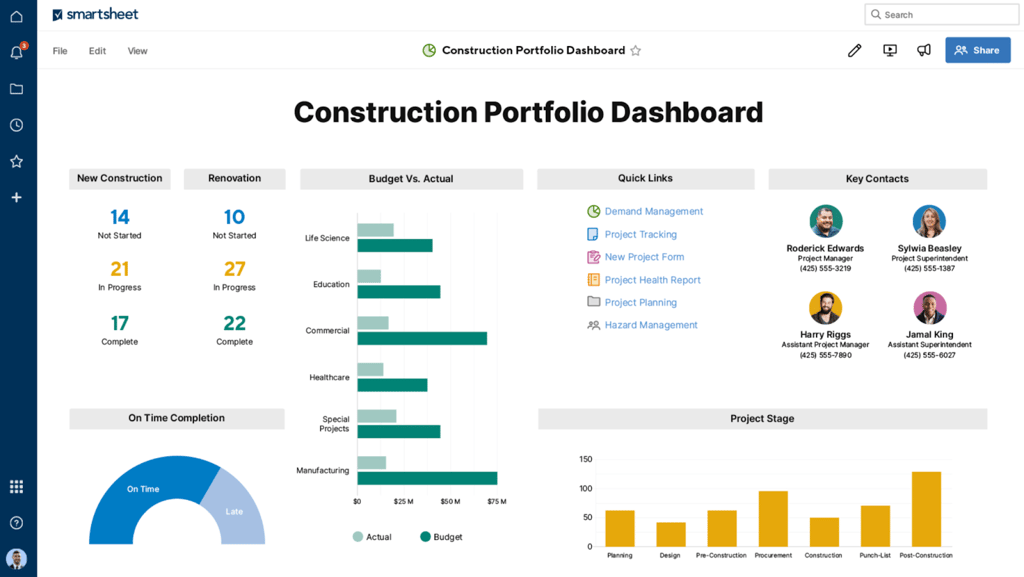
Smartsheet dashboards and resource views give leaders a portfolio-level picture of budgets and team capacity in one place. (Source: Smartsheet) 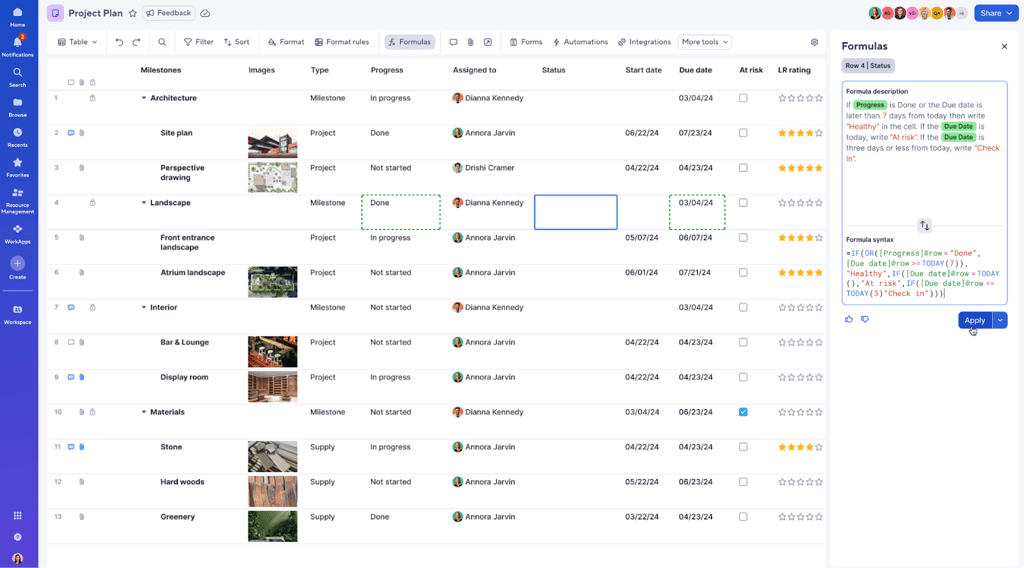
Smartsheet dashboards and resource views give leaders a portfolio-level picture of budgets and team capacity in one place. (Source: Smartsheet) 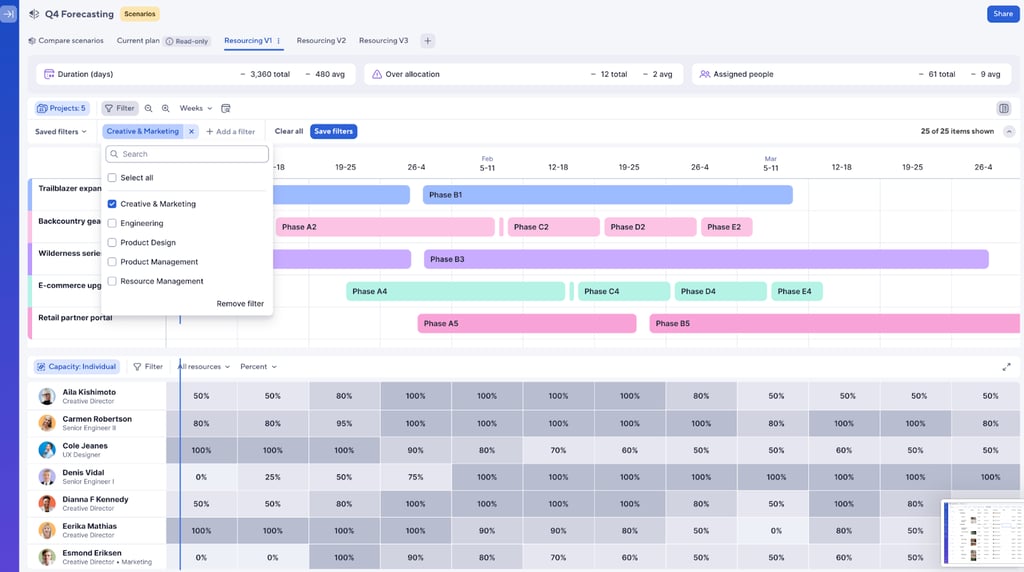
Smartsheet dashboards and resource views give leaders a portfolio-level picture of budgets and team capacity in one place. (Source: Smartsheet)


Smartsheet is my top project management software for enterprise teams that want to see how multiple projects connect across a wider portfolio. As your project load grows, Smartsheet provides a real-time dashboard that surfaces active projects, highlights items at risk, and lets you monitor overall portfolio health.
For advanced portfolio management, I suggest using the Smartsheet Control Center. This add-on automates project creation, implements change, and aggregates portfolio reporting. You first define and standardize the core assets for a typical project, such as the project plan and executive dashboard, then include supporting elements like the budget or RAID log. This approach helps in recreating project structures, workflows, and rollup metrics every time someone approves a new project.
You can also scale your portfolio through a demand intake process so every new request flows into a central pipeline. Teams capture project details through forms, or they connect Control Center to third-party systems that hold project data. This gives leadership a single, reliable source of truth for both incoming demand and active delivery.
Pros
Cons
Standout features
Smartsheet pricing
- Pro: $9/user/month — Includes unlimited users, project views, and sheets
- Business: $19/user/month — Adds free guests, timeline view, and workload tracking
- Enterprise: Custom — Adds AI formulas, work insights, and SSO
- Advanced Work Management: Custom – Adds Control Center and dynamic view
Learn more in our Smartsheet review.
7. Wrike – Best for creative production

Rating: 4.55 / 5
- Free plan with unlimited seats
- Starts at $10 per user/month (billed annually)
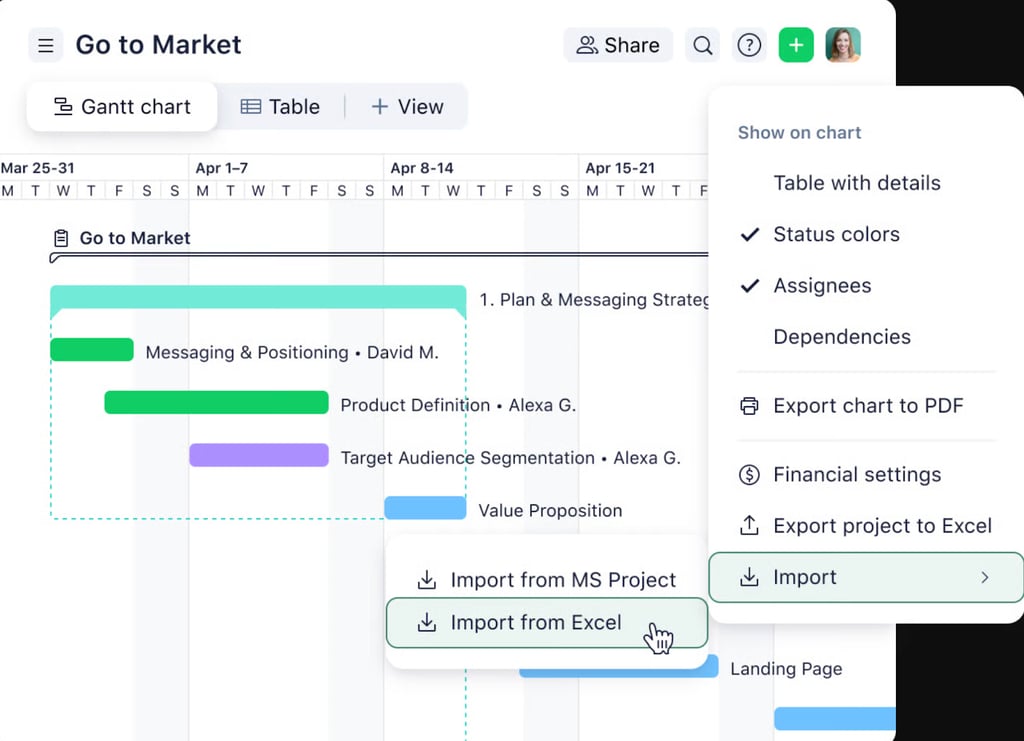
Wrike views help teams organize work and control spend across visual timelines in one flexible project space. (Source: Wrike) 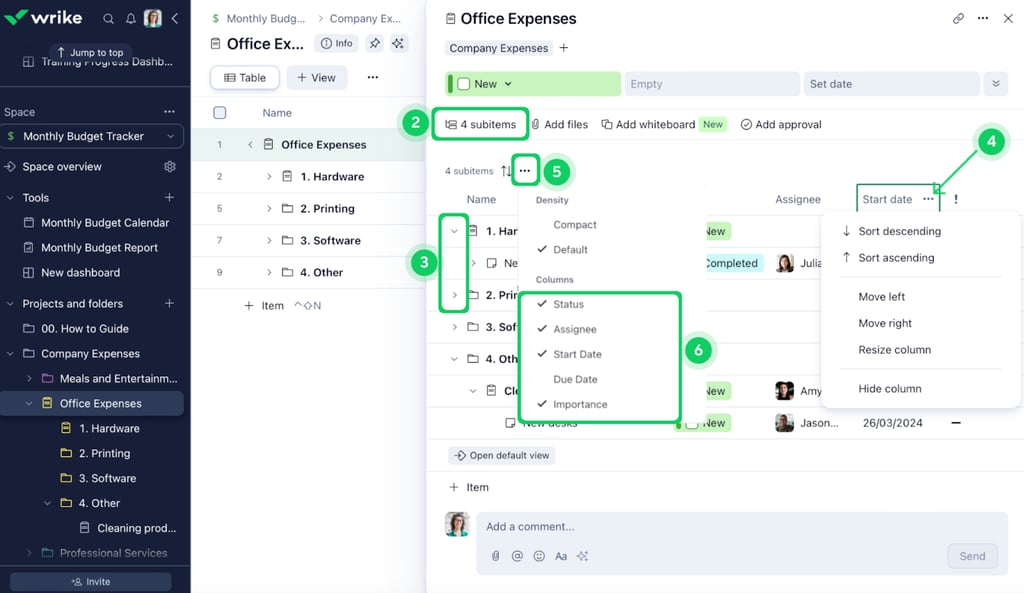
Wrike views help teams organize work and control spend across visual timelines in one flexible project space. (Source: Wrike) 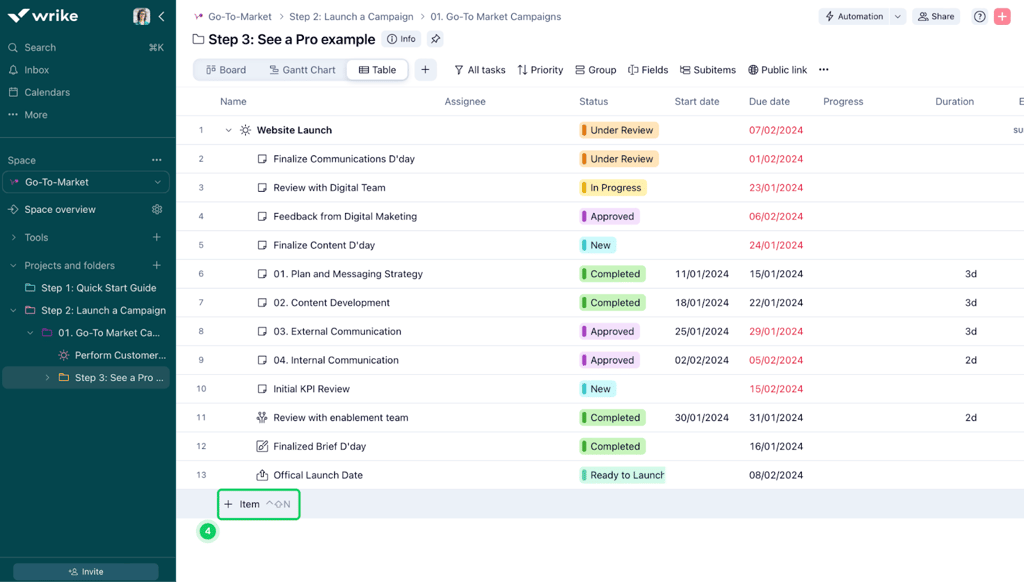
Wrike views help teams organize work and control spend across visual timelines in one flexible project space. (Source: Wrike)


For creative teams managing large volumes of content, Wrike manages the entire content lifecycle in one workspace. The platform includes proofing and approval tools, digital asset management (DAM) integrations, and Adobe Creative Cloud connectivity.
When a project starts, my team fills out a customizable brief that defines the scope, goals, and timeline. Once design work begins, files are reviewed using the built-in proofing tool, while reviewers mark up assets directly on the file, and all comments are logged to the task automatically. When revisions are done, stakeholders approve or reject inside the same workflow.
The DAM integration connects Wrike to platforms like Bynder, MediaValet, or Canto, allowing me to search, preview, and attach approved files to tasks. Once a file is ready, it publishes directly to the DAM from Wrike. Dashboards track every asset’s status across the production stages, showing files currently in review, approved, and pending.
Pros
Cons
Standout features
Wrike pricing
- Free: Unlimited users with basic task management and folder hierarchy
- Team: $10/user/month — For 2 to 15 users and adds cross-tagging, generative AI, custom fields, dashboards, Gantt charts, and portfolio management
- Business: $25/user/month — for 5 to 200 users and adds AI elite features, request forms, templates, approvals, workload charts, time tracking, and guest approvals
- Pinnacle: Custom pricing — Adds advanced reporting, resource and capacity planning, budgeting, and locked spaces
- Apex: Custom pricing – Adds Wrike Datahub, bi-directional integrations with third-party solutions, and advanced security controls
Learn more in our Wrike review
8. Teamwork.com – Best for professional services
Rating: 4.45/5
- Free plan with unlimited seats
- Starts at $10.99 per user/month
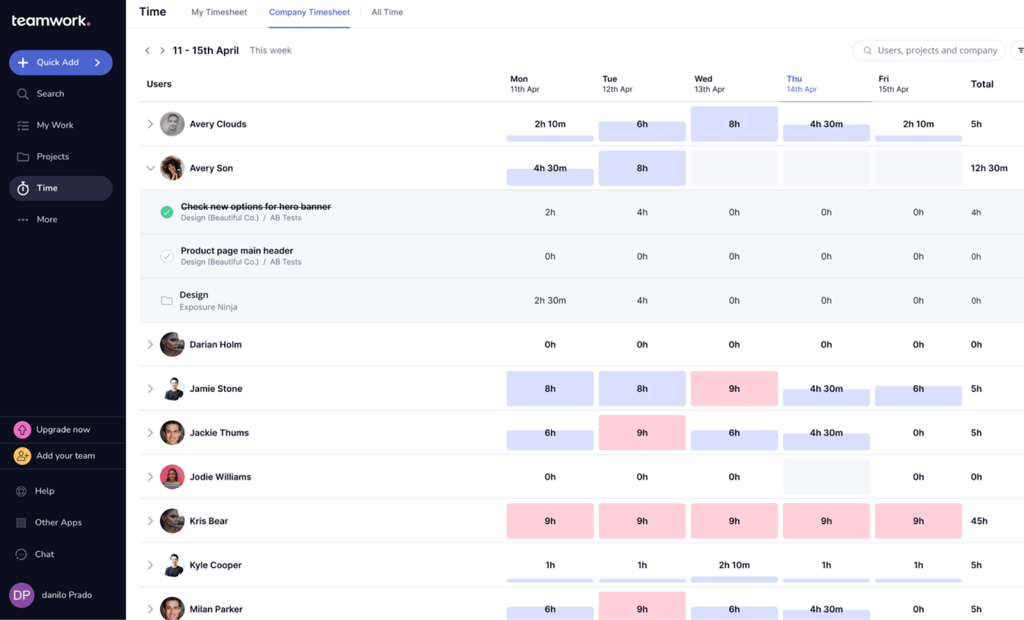
Teamwork.com views for client quotes plus portfolio and timesheets help agencies track billable work and client health from proposal to delivery in one tool. (Source: Teamwork.com) 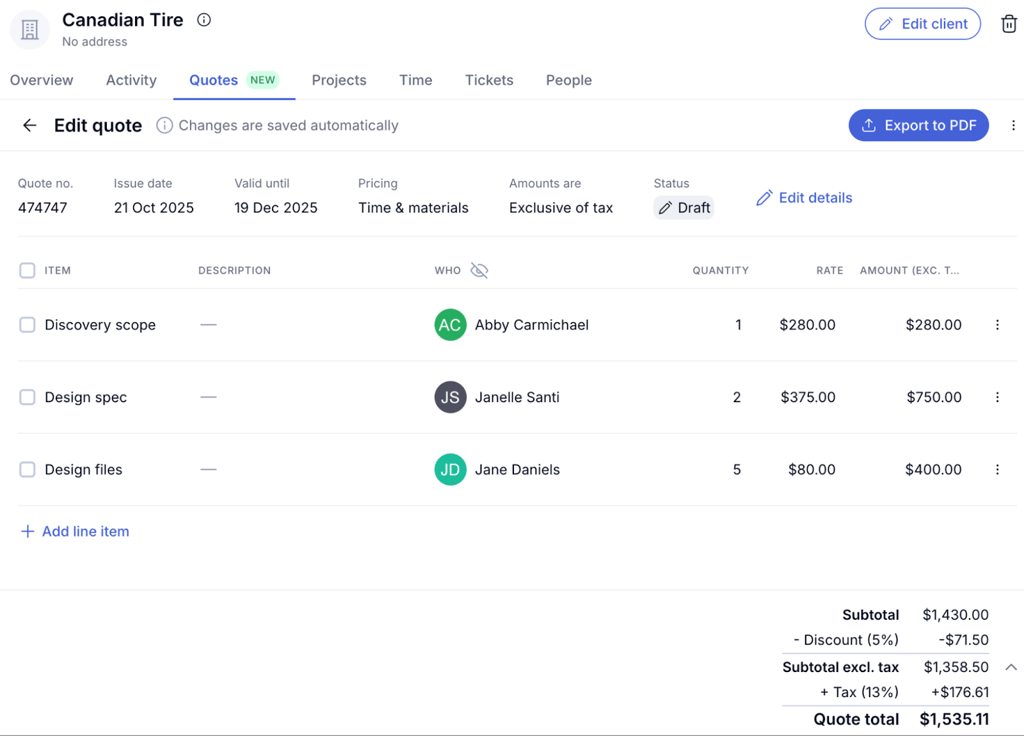
Teamwork.com views for client quotes plus portfolio and timesheets help agencies track billable work and client health from proposal to delivery in one tool. (Source: Teamwork.com) 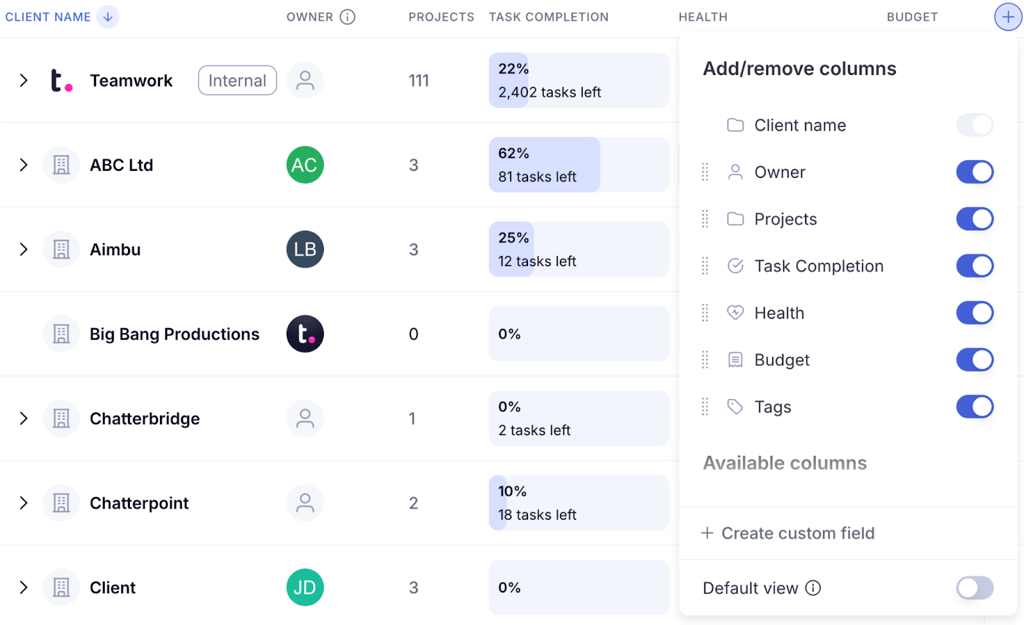
Teamwork.com views for client quotes plus portfolio and timesheets help agencies track billable work and client health from proposal to delivery in one tool. (Source: Teamwork.com)


Teamwork.com is the best software for project management dedicated to handling end-to-end client operations. Where many PM systems treat clients, vendors, and other stakeholders as restricted guests or charge extra for their access, Teamwork includes unlimited client users on supported plans without additional fees.
The platform provides a dedicated Clients area and a separate Clients view, rather than treating client data as an afterthought within project lists. You can add each client, assign an owner, apply tags and custom fields, then review project volume side by side with completion progress and budget figures for every client in a single grid.
To manage the profitability of client work, Teamwork’s cost management features let you set custom billable and internal cost rates. You can also define profit margin targets and benchmark billable time so your definition of “profitable” reflects real rates and capacity. Time tracking feeds directly into these views, which helps you maximize billable hours, close gaps on timesheets, and see how logged time impacts capacity and margins.
Teamwork’s Client Hub and supporting resources focus on the health of your client portfolio instead of only internal delivery. Within the Clients view and Overview widgets, you can quickly gauge project health for each client, monitor activity trends, review budget usage levels, and compare billable work to non-billable effort across the account.
Pros
Cons
Standout features
Teamwork pricing
- Free: Includes five users and core project management features
- Deliver: $10.99/user/month — Adds intake forms, integrations, and automations
- Grow: $19.99/user/month — Adds budgeting, reports, and workload resource planner
- Scale: Custom — Adds profitability reports and resource scheduling
9. Todoist – Best for personal use
Rating: 4.38/5
- Free plan with unlimited seats
- Starts at $5 per user/month
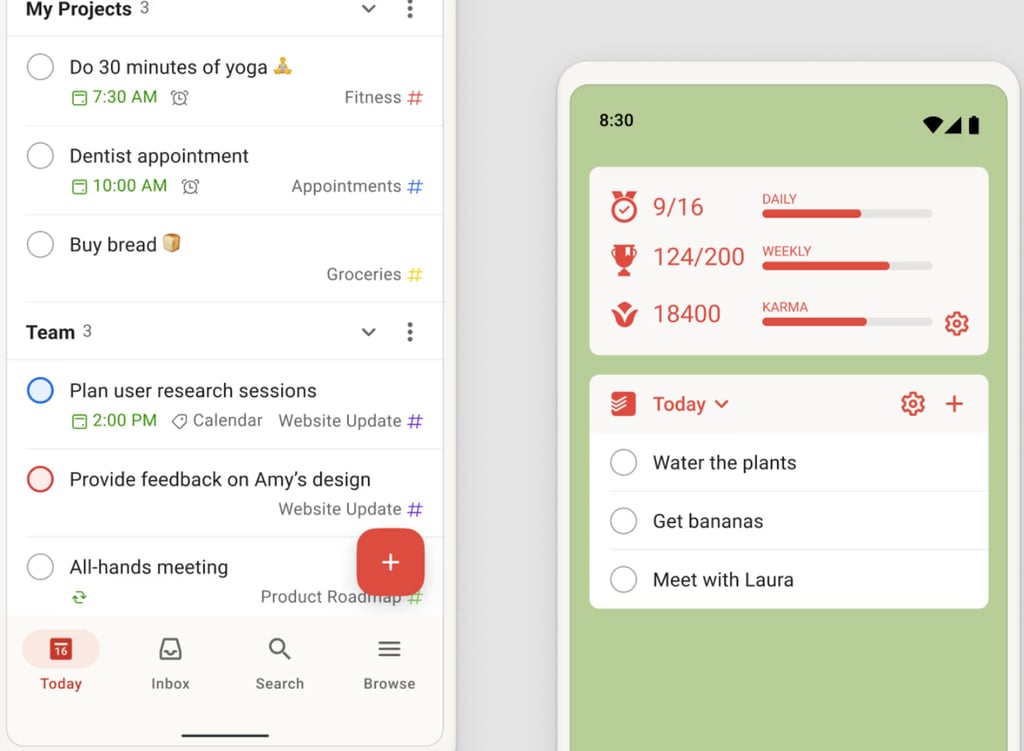
Todoist mobile and desktop views help you manage personal and team tasks while tracking daily and weekly productivity goals in a simple checklist layout. (Source: Todoist) 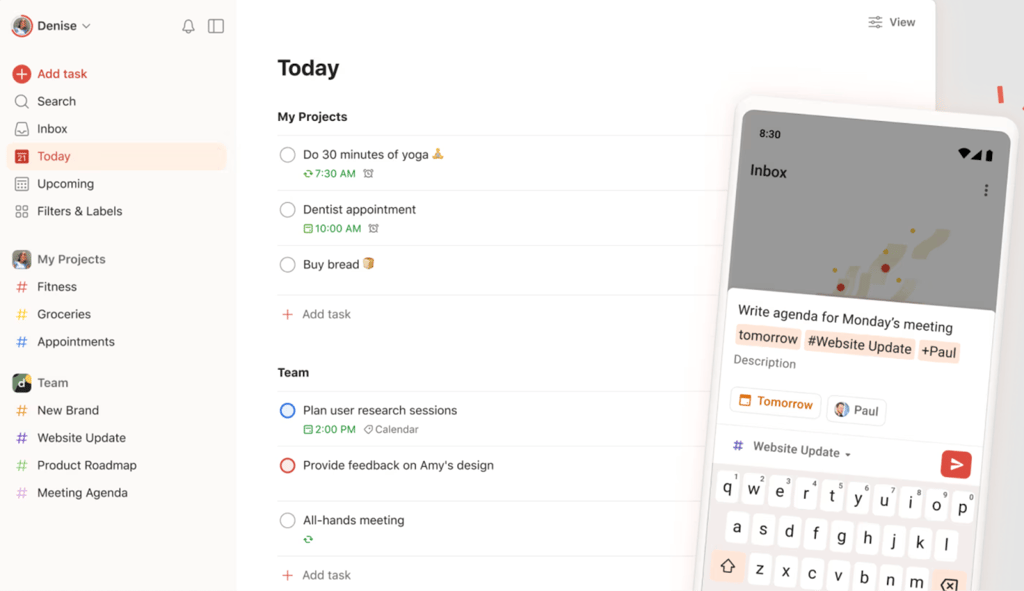
Todoist mobile and desktop views help you manage personal and team tasks while tracking daily and weekly productivity goals in a simple checklist layout. (Source: Todoist) 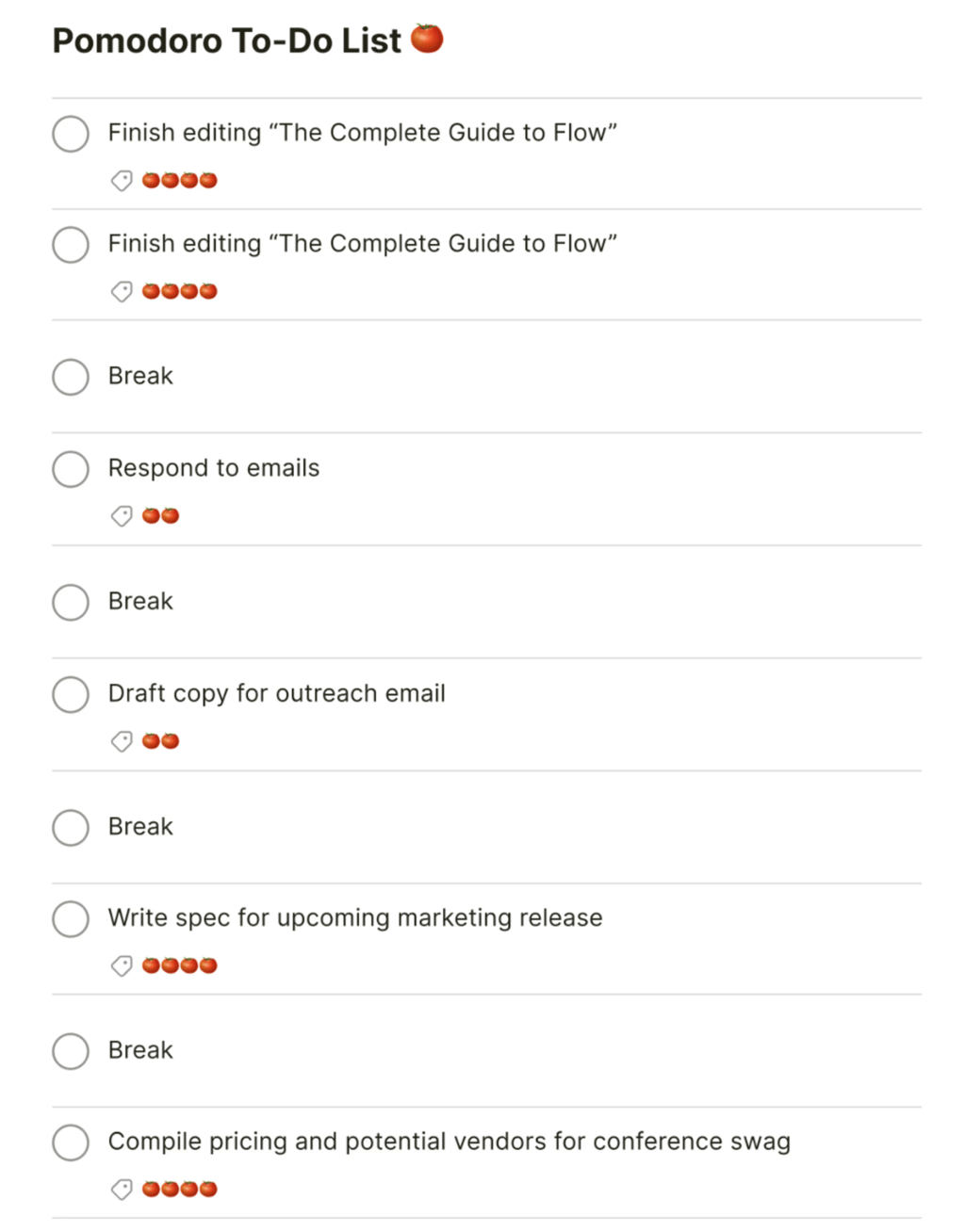
Todoist mobile and desktop views help you manage personal and team tasks while tracking daily and weekly productivity goals in a simple checklist layout. (Source: Todoist)


If you do not want to deal with heavy project management features or lots of AI add-ons, Todoist fits that preference very well. With its minimalist interface, using the platform is straightforward: you add a task and a deadline. I capture tasks the moment they pop into my head using natural language, then I set due dates or recurring dates and break bigger items into subtasks when they feel too large to tackle at once.
My favorite feature is Todoist’s Inbox. Every new task lands there when I am not sure where it belongs yet. This works well for me because I often feel swamped and do not want to decide immediately how each task fits into my calendar or projects. I can return later, complete the quick wins right away, or move important items into dedicated projects once I have more clarity.
The Today and Upcoming views also keep schedules more manageable. Today shows everything due across all my projects in one place, while Upcoming gives me a calendar-style view of the days ahead.
Todoist also acts like a coaching tool for my habits. I earn Karma points when I complete tasks on time or use features such as labels and recurring dates, which nudges me to keep my system tidy. The productivity charts help me see patterns in how I work daily and weekly, so I can adjust my workload and routines based on real data instead of guesswork.
Pros
Cons
Standout features
Todoist pricing
- Beginner: Includes five projects and list & boards layouts
- Pro: $5 user/month — Adds calendar layout and task duration
- Business: $8 user/month — Adds team workspace, folders, and activity logs
10. Notion – Best for project databases

Rating: 4.28/5
- Free plan with unlimited seats
- Starts at $10 per user/month
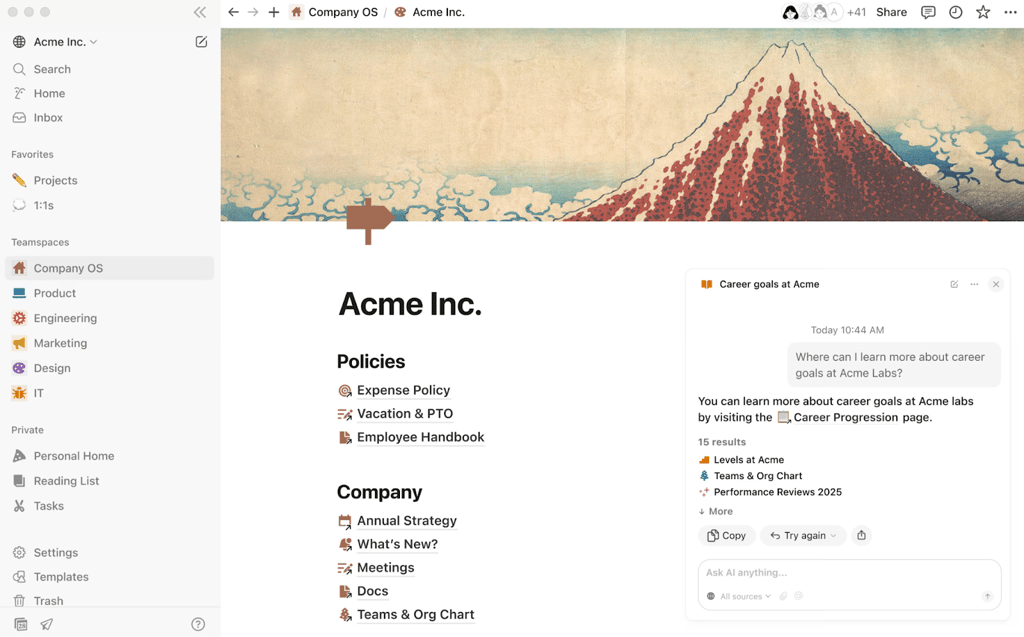
Notion workspaces connect company wikis and structured databases plus visual roadmaps so teams keep policies and project plans in one knowledge hub. (Source: Notion) 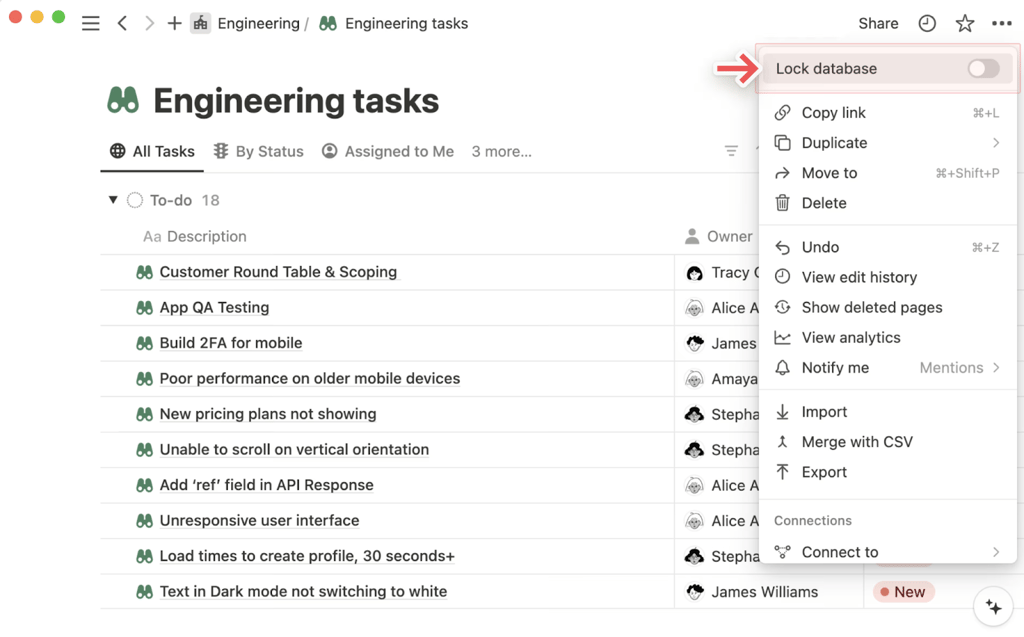
Notion workspaces connect company wikis and structured databases plus visual roadmaps so teams keep policies and project plans in one knowledge hub. (Source: Notion) 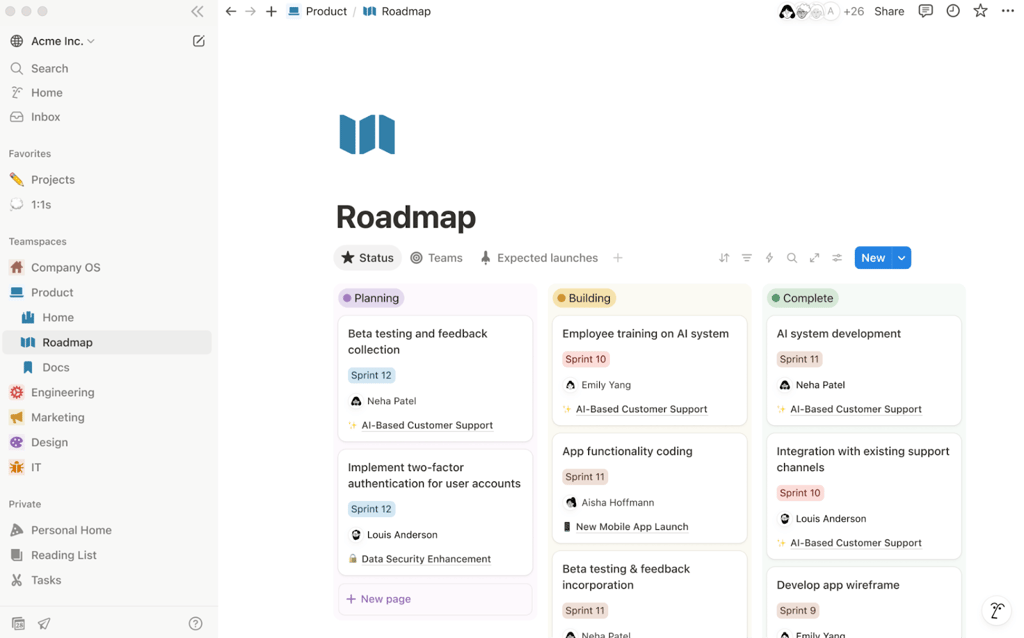
Notion workspaces connect company wikis and structured databases plus visual roadmaps so teams keep policies and project plans in one knowledge hub. (Source: Notion)


From my previous experience using Notion, it works very well for centralizing docs and wikis in databases, then connecting them across projects and teams. A single page can act like a document, a wiki article, or a database item, so I can use it for taking meeting notes or tracking projects.
Instead of building everything around folders, Notion leans on databases for organizing knowledge bases. You can turn a simple document into a wiki entry, then add it to a docs database that becomes a single source of truth for company information. A database supports multiple views, such as table, list, board, calendar, and timeline formats.
Every database entry is a full page with rich properties, where you can add metadata such as owner, team, status, dates, tags, and cross-database relations. This enables me to keep policies and project specifications in one place, linked directly to related OKRs or active projects, instead of spreading those details across separate tools.
Pros
Cons
Standout features
Notion pricing
- Free: Includes basic forms, sites, Notion Calendar & Mail, and databases
- Plus: $10/user.month — Adds unlimited file updates, custom sites, and integrations
- Business: $20/user/month — Adds database permissions and conditional forms logic
- Enterprise: Custom — Adds advanced security and controls
Learn more in our Notion review.
How I evaluated the best project management software
To compare the best project management software, I started with the scoring criteria in my evaluation rubric and used each factor as a basis to compare how platforms perform for real project teams. I built the scoring system to reflect what project managers value most when they need productivity tools that improve planning and execution.
Pricing (20%)
I compared whether each platform offers a free-forever plan or only a limited trial, then scored the entry and mid-tier subscriptions based on monthly cost. I also checked for annual discounts and considered how much real value each tier delivers for small or growing teams.
General features (25%)
I examined core task management features such as subtasks and dependencies, along with collaboration tools that allow users to leave comments on each task. I also reviewed reporting tools with dashboards plus the range of built-in views so you can move between lists or boards and choose the layout that fits your projects.
Advanced and niche features (20%)
I paid close attention to resource and capacity planning along with portfolio management so you can see how multiple projects affect your team. I also evaluated integration depth with tools such as CRM or video meetings and scored AI or automation features that cut down manual processes.
Customer service and support (10%)
I checked support hours to see who offers near round-the-clock assistance and who limits operational hours to standard business schedules. I also looked at the availability of support channels such as chat or phone plus each vendor’s approach to security and the depth of their knowledge base.
Ease of use (10%)
I assessed how much technical skill you need to set up each tool and how quickly a typical user can move through everyday tasks. I examined setup requirements and usability, since a tool that slows down adoption creates friction for project teams. The interface design also mattered, because intuitive navigation reduces training time and boosts long-term productivity.
Expert score (15%)
Lastly, I added a professional assessment based on real-world performance, overall value, and popularity among users. Each provider’s standout features and practical ease of use contributed to its final expert rating.
What are the key features of project management software?
The most important features of project management software depend on your team size, the complexity of your work, and the types of projects you manage. Before you choose a tool, review which solutions offer the features below and match them to your use cases.
- Task management: Lets you create tasks and subtasks, define dependencies, and assign work to more than one team member. You can also import tasks from external files.
- Scheduling: Helps you set task schedules and link dependencies. You can build project timelines with milestones and manage resource availability in the same view.
- Team collaboration: Supports discussions and comments on tasks. You can also handle approvals and direct messages inside the platform so conversations stay close to the work.
- Document management: Allows teams to store and organize files inside the tool. Many platforms also connect to cloud storage providers for easy access to shared documents.
- Email and chat integrations: Sends project updates and due date alerts to your inbox or chat app. In many tools you can create or update tasks directly from email.
- Reporting: Produces summary and detailed reports that keep stakeholders informed about progress and risks. These reports often highlight completed work and upcoming priorities.
- Time tracking: Records time spent on tasks and supports time goals for projects. Some tools sync this information to timesheets or payroll systems.
- Project portfolio management: Lets teams oversee multiple projects in one place. You can track status across portfolios, spot issues early, and reallocate resources when priorities change.
- Mobile version: Provides a mobile app so you can review tasks and update work while away from your desk.
- Third-party integrations or API: Connects with other business tools and services so data flows across your stack. An API also gives technical teams room to build custom connections.
- White labeling, branding, and custom settings: Helps agencies and large organizations adapt the interface to their brand. Some tools also support localization for language or regional preferences.
- Support documentation: Offers help through knowledge base articles and tutorials. Many vendors also provide in-app tips and direct support through email or phone.
What to consider when purchasing project management software
Choosing project management software can feel overwhelming when every provider claims to be the right fit. To make the decision easier, I break down key buying considerations and industry-specific use cases for each PM platform based on your business size.
Small business
Key considerations: Control subscription costs and avoid lengthy setup. Choose tools that keep task views simple so new users can adopt them quickly.
Industry-specific use cases: Freelancers and very small teams can use Todoist for personal task tracking and pair it with Miro for brainstorming boards. Creative agencies or startups that want flexible boards and extensive template options can start with ClickUp or Asana for all-in-one workspaces.
Midsize business
Key considerations: Look for stronger integrations and reliable time tracking. Make sure reporting scales as project volume grows.
Industry-specific use cases: Operations or retail teams that rely on forms, sheets, and automation often benefit from Smartsheet. Growing digital or knowledge-work teams can centralize documentation and projects in Notion, then use Miro for workshops or sprint planning. Service teams that manage repeatable client projects can move to Teamwork.com for client project delivery and billing.
Enterprise
Key considerations: Prioritize security and admin controls. Confirm the platform can support multiple departments and connect with existing enterprise resource planning (ERP) or business intelligence (BI) tools.
Industry-specific use cases: Enterprise PMOs that need portfolio views and advanced governance can adopt Wrike or Smartsheet for resource planning and reporting. Large software or engineering groups at scale usually favor Jira for Agile and Scrum delivery, while cross-functional business teams can rely on monday for custom workflows and dashboards.
FAQs
How do I choose the right PM tool?
Start with your workflows and team size, then list must-have features such as task views and collaboration. Check how well each tool integrates with your current apps and fits your budget. I also recommend trial accounts so you can test usability with a small pilot group before committing to a company-wide rollout.
Is project management software worth it?
Definitely. Project management software reduces the need for status meetings and complex, error-prone manual tracking, which saves time and improves productivity. PM software gives you a single place for tasks and files, so work stays visible and needed information is easily found and used. The real value shows up in fewer missed deadlines and smoother handoffs between people or departments.
Is Todoist or Google Tasks better?
Both make the best free project management software, but I usually prefer Todoist for most users. Todoist provides richer task customization and habit-building tools that support motivation, and it also delivers reliable cross-platform performance, while Google Tasks suits people who stay inside Gmail and Google Calendar.
What is the best project management software?
The best project management software depends on your team size and workflow, but monday work management remains our choice for visual task tracking and automation.