





















Waterfall is a project management framework that most platforms support through Gantt charts, task dependencies, and milestone tracking. Wrike is known for dynamic Gantt scheduling, Smartsheet combines timeline planning with a spreadsheet-style interface, and ClickUp uses a list-based hierarchy for detailed project work. In this article, I compare six waterfall project management tools to help you find the right platform for your project requirements and workflow.
| Best for | Starting monthly fee(billed annually) | |
| Wrike | Best for complex Gantt scheduling | $10/user |
| Smartsheet | Best for tracking schedule baselines | $9/user |
| Microsoft Planner | Best for Microsoft 365 scheduling | $10/user |
| monday.com | Best for custom project workflows | $9/user |
| ClickUp | Best for detailed task hierarchies | $7/user |
| Asana | Best for coordinating dependent projects | $10.99/user |
How I evaluated the best Waterfall project management software
I rated each Waterfall project management platform using a scoring rubric across dozens of competing platforms. The weighted results reflect my research and assessment of how each product performs for waterfall project delivery.
Pricing (20%): I compared annual subscription costs and free plan availability across providers. I also checked how pricing changes as teams need more project management functionality.
General features (25%): I evaluated the standard features for organizing and scheduling sequential work. My review covered task management, dependencies, milestones, and other project planning capabilities.
Advanced and niche features (20%)
I examined tools designed for more complex Waterfall planning, including baselines and critical path analysis. I also assessed resource management and portfolio-level capabilities.
Ease of use (10%)
I considered the effort required to configure a project and build a timeline or Gantt chart. I also assessed how easily project managers can update plans as work progresses.
Support (10%)
I compared available customer support channels and access across subscription levels. I also considered the quality of documentation and self-service resources.
Expert score (15%)
I used my experience evaluating project management software to assess each platform from a Waterfall perspective. I considered constraints and usability issues that feature lists alone may not capture.
Why you should trust Project-management.com
As a tech analyst for project management software, I have personally tested nearly 20 platforms over the past five years, and several of them have become part of my workflow. I have written dozens of buyer’s guides covering a wide range of use cases and company sizes, which gave me a broader understanding of what project teams need from these tools.
Marianne Sison
Senior Staff Writer for Project Management

- Waterfall project management software compared
- 1. Wrike – Best for complex Gantt scheduling
- 2. Smartsheet – Best for tracking schedule baselines
- 3. Microsoft Planner – Best for Microsoft 365 scheduling
- 4. monday.com – Best for custom project workflows
- 5. ClickUp – Best for detailed task hierarchies
- 6. Asana – Best for coordinating dependent projects
- How to choose the best waterfall project management software
- FAQs
Waterfall project management software compared
| Provider | Waterfall project features | Starting monthly fee | My rating |
| Wrike | Gantt charts with four dependency typesCritical path with total and free floatBaseline and schedule variance tracking | $10/user | 4.87 out of 5 |
| Smartsheet | Gantt chartsCritical, driving, and summary pathsBaselines | $9/user | 4.84 out of 5 |
| Microsoft Planner | Timeline viewAutomatic date recalculationCritical path and baselines | $10/user | 4.79 out of 5 |
| monday.com | Automatic date shiftingCritical-path highlightingBaseline snapshots | $9/user | 4.59 out of 5 |
| ClickUp | Automatic downstream reschedulingCritical path and slack timeBaselines and milestones | $7/user | 4.57 out of 5 |
| Asana | Task dependenciesAutomatic schedulingCritical path and milestones | $10.99/user | 4.02 out of 5 |
1. Wrike – Best for complex Gantt scheduling
- My rating: 4.87 out of 5
- Free plan available
- Starts at $10/user/month
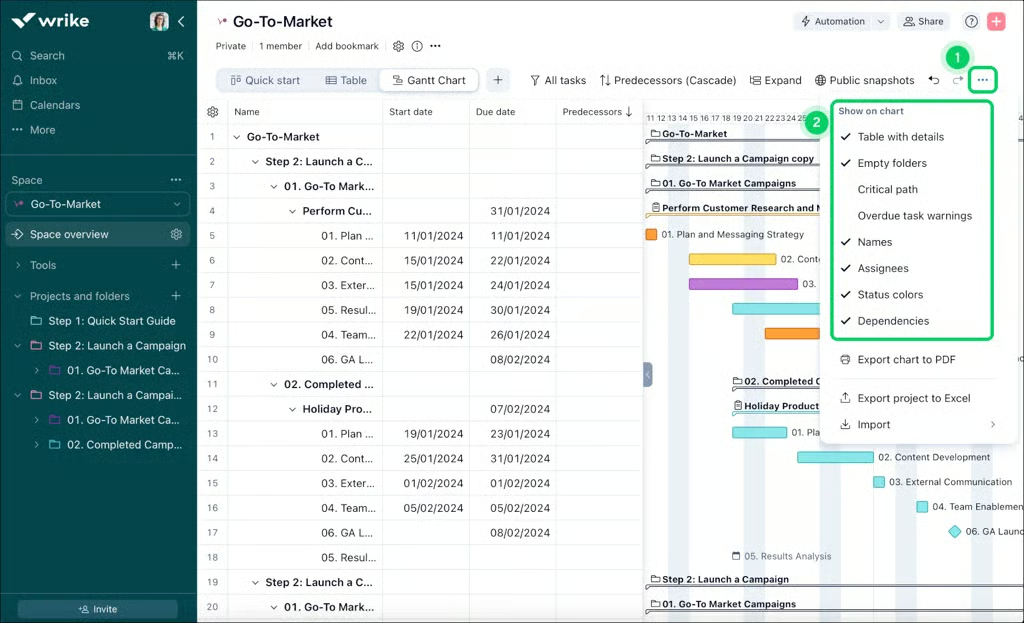
Why I chose Wrike
If you manage projects with tightly connected schedules, Wrike automatically adjusts downstream tasks when dependency dates change. This reduces the need for recreating a schedule after an initial task is delayed while preserving the sequence between activities.
Beyond automatic rescheduling, Wrike also provides date constraints for protecting fixed deadlines. For instance, date constraints prevent dependent tasks from moving earlier than planned, while critical path analysis identifies tasks affecting the finish date. The conflict monitor also flags scheduling conflicts between dependencies and milestones.
One consideration is that milestones do not automatically shift when dependencies are rescheduled, so projects with multiple milestone dates may require additional adjustments. Microsoft Planner may be a better choice if you prefer dependency-based scheduling with fewer settings to configure.
Pros
 AI agents complete multi-step project actions
- Partial-day capacity improves workload estimates
- Gantt tasks support custom schedule ordering
Cons
 Older tasks require advanced search filters
- Mobile app has fewer desktop capabilities
- Subscriptions use seat groups
Key features
- Dynamic request forms: Convert submitted requests into project work and route each request to the appropriate assignee.
- Gantt charts: Map task dependencies on a timeline and adjust scheduled dates as project plans change.
- Workload charts: Compare assigned work against team capacity and redistribute tasks when workloads become uneven.
- Proofing: Review file versions and place feedback on creative assets before approval.
Pricing
- Free plan: Includes basic project and task management through board and table views.
- Free trial for paid plans: 14 days.
- Team: $10/user/mo. – Includes interactive Gantt charts, shareable dashboards, and AI Essentials for teams of two to 15 users.
- Business: $25/user/mo. – Adds customizable workflows, standard integrations, initial allocation of AI Elite actions.
- Pinnacle: Custom pricing – Adds resource planning, budgeting, advanced reporting for complex projects.
- Apex: Custom pricing – Adds higher AI usage and unlimited whiteboards, Wrike Integrate, two-way synchronization.
AI pricing note: AI Essentials is included with Team, while Business and higher plans receive AI Elite actions based on plan level and can purchase additional actions at custom pricing.
2. Smartsheet – Best for tracking schedule baselines
- My rating: 4.84 out of 5
- Free trial available
- Starts at $9/user/month
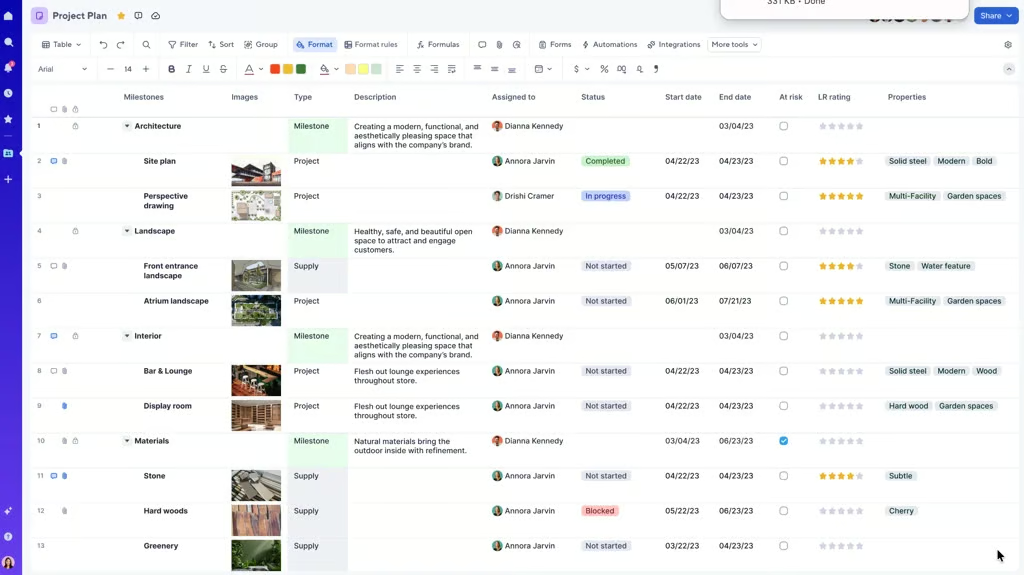
Why I chose Smartsheet
If you need to measure how far a project has moved from its original schedule, Smartsheet lets you capture planned start and finish dates as a baseline. As dates change, project managers can see how far individual tasks have shifted and determine whether delays are affecting the expected completion date. Baseline data can also appear in reports and dashboards for comparing schedule variance across projects.
Smartsheet also connects baseline tracking with dependency-based scheduling. For example, when a predecessor date or task duration changes, dependent dates adjust automatically. The critical path then highlights the tasks driving the overall project duration, providing more context when schedule variance starts to increase.
The tradeoff is that each project sheet supports only one baseline, so you cannot retain several approved baselines for comparison. If preserving multiple historical versions of a project schedule is important, Wrike may be a better alternative.
Pros
- AI flags projects with workload risks
- AI assistants can update sheet data
- Multiple path views support delay analysis
Cons
- Large project sheets can load slowly
- Cross-sheet references require complex setup
- No free plan
Key features
- Baselines: Compare current project dates against the original schedule to identify changes from the approved plan.
- Dependencies: Link predecessor tasks and recalculate downstream dates when earlier work or task durations change.
- Workload tracking: Compare scheduled assignments against team capacity and redistribute work when someone becomes overallocated.
- Control Center: Standardize project creation with reusable blueprints and consolidate project data for portfolio reporting.
Pricing
- Free plan: Not available
- Free trial for paid plans: 30 days with Business plan capabilities.
- Pro: $9/member/month; includes core project views and unlimited sheets, 250 monthly automations, conversational AI.
- Business: $19/member/month; adds workload tracking and administrative controls, unlimited automations for a minimum of three users.
- Enterprise: Custom pricing; adds portfolio planning and company-wide controls, including SAML SSO and directory integrations for 10 or more members.
- Advanced Work Management: Custom pricing; adds Control Center, Dynamic View, Data Shuttle for large-scale portfolio delivery.
AI pricing note: Conversational AI is included with Pro and higher plans.
3. Microsoft Planner – Best for Microsoft 365 scheduling
- My rating: 4.79 out of 5
- Free trial available
- Starts at $10/user/month
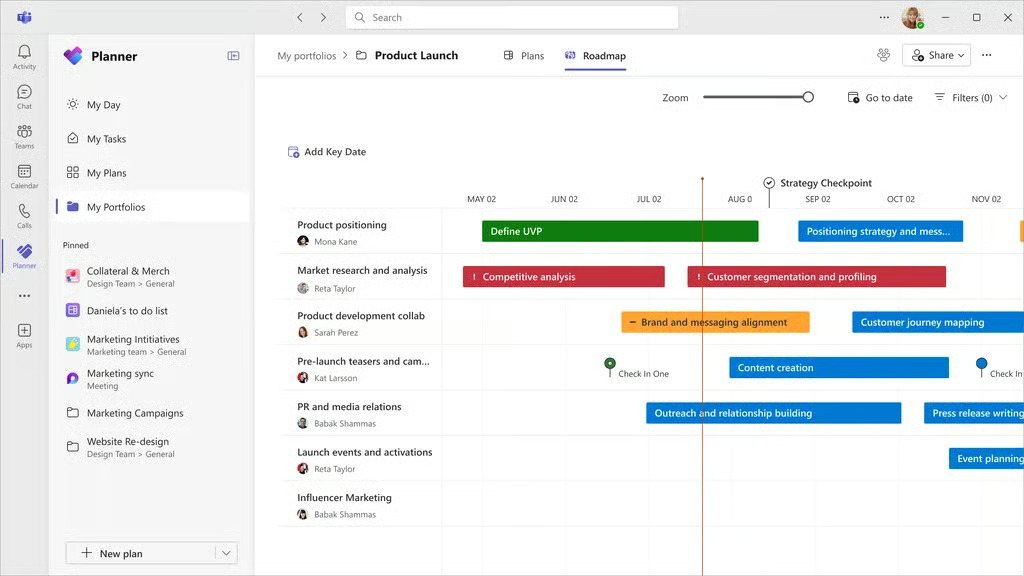
Why I chose Microsoft Planner
For teams that already use Microsoft 365, Planner offers project tools within the same ecosystem. Premium plans add a Gantt-style timeline view, where you can map dependencies and see how tasks relate across the schedule. Planner is also available within Teams, so employees can access project work alongside chat conversations and files stored across Microsoft 365.
Planner supports four dependency types, and its scheduling engine automatically updates dates based on those relationships. Project managers can also display the critical path to identify tasks that determine the project finish date. Custom calendars account for nonstandard workweeks, which is particularly useful when planned dates depend on actual working days.
However, Timeline, dependencies, and critical path are premium capabilities, so Microsoft 365 users with basic Planner access will need an additional license for these tools. Wrike is a better alternative if your projects require more Gantt chart controls for managing complex schedules.
Pros
- Planner Agent creates tasks from prompts
- Integrates with Microsoft 365 and Teams
- Simple and intuitive interface
Cons
- Progress percentages weight every task equally
- Mobile app lacks some web capabilities
- No free standalone plan
Key features
- Timeline view: Plot project tasks on a Gantt timeline to review schedules and relationships between planned work.
- Task dependencies: Link tasks that rely on one another to establish the required order of project work.
- People view: Compare assignments across team members to identify capacity before assigning additional work.
- Sprints: Divide backlog work into sprint periods for teams that manage projects through Agile methods.
Pricing
- Free plan: Included with eligible Microsoft 365 subscriptions.
- Free trial for paid plans: One month.
- Planner Plan 1: $10/user/month; includes task dependencies and Timeline Gantt charts, project goals, reporting dashboards.
- Planner and Project Plan 3: $30/user/month; adds portfolios, baselines, critical-path scheduling, financial management.
AI pricing note: Microsoft 365 Copilot costs $30/user/month, paid yearly, and provides Planner Agent, AI-generated plans, and status reporting.
4. monday.com – Best for custom project workflows
- My rating: 4.59 out of 5
- Free plan available
- Starts at $9/user/month
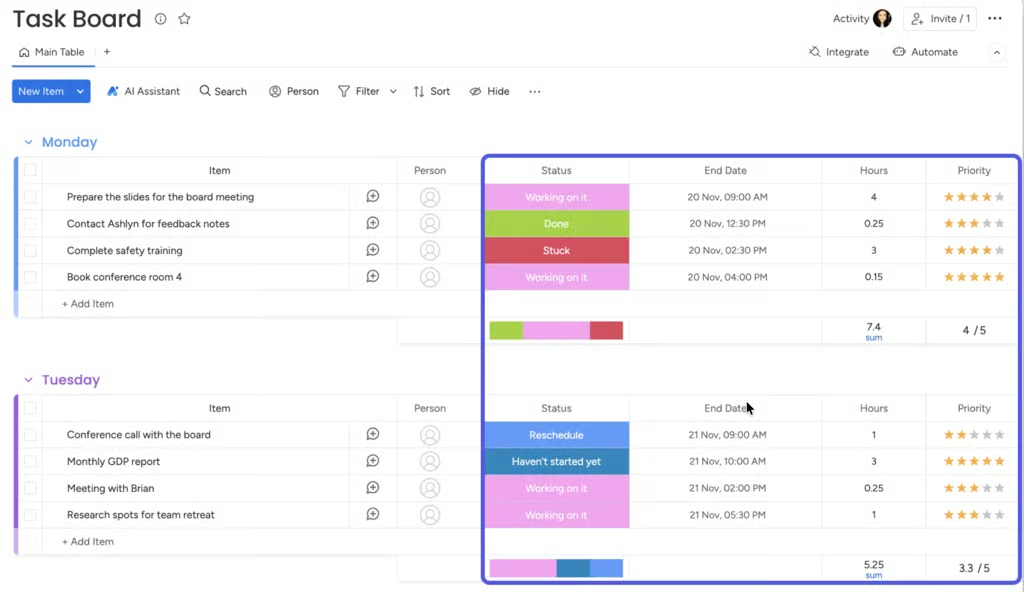
Why I chose monday.com
If your projects follow processes that change by department or project type, monday.com lets you configure what happens after each project stage. The Workflow Builder connects actions across multiple project boards and branches based on conditions. This allows project managers to control what happens when a task reaches a particular status or meets specific criteria.
For Waterfall projects, monday.com also provides more flexibility over how the schedule responds when dates change. Dependencies can adjust dates based on previous tasks, while Enterprise users can connect dependent tasks across separate projects and identify scheduling conflicts in the Gantt view. Managed templates also allow organizations to establish a standard project process and publish supported changes across projects created from the same template.
Note that some features for managing workflows across multiple projects require the Enterprise plan, including cross-project dependencies and managed templates. ClickUp may be a better alternative if your priority is customizing how different types of project work are organized and managed.
Pros
- AI flags portfolio risks each day
- AI workflows automate work across boards
- Customizable project boards
Cons
- Some column types restrict automation conditions
- Cross-project forecasting requires workarounds
- Board customization can increase setup time and admin work.
Key features
- Cross-project dependencies: Link tasks across project boards to track scheduling relationships between separate projects.
- Workload: Compare assigned effort against available capacity and redistribute work when team members become overallocated.
- All Projects Dashboard: Review task-level information across portfolio projects from a central dashboard that reflects project changes.
- Workflow builder: Route work through multi-step processes and direct subsequent actions based on predefined conditions.
Pricing
- Free plan: Includes up to two seats and three boards, collaborative documents, and over 200 templates.
- Free trial for paid plans: 14 days for the Pro plan.
- Basic: $9/seat/month; includes unlimited items and documents, a one-board dashboard, 1,000 monthly AI credits.
- Standard: $12/seat/month; adds timeline and Gantt views, guest access, 250 monthly automation actions.
- Pro: $19/seat/month; adds time tracking and private boards, 25,000 monthly automation and integration actions.
- Enterprise: Custom pricing; adds portfolio and resource management, enterprise security, 250,000 monthly automation and integration actions.
AI pricing note: Basic includes 1,000 monthly credits, Standard includes 2,000, and Pro includes 3,000, with additional credits available from $10 per 1,000 credits.
5. ClickUp – Best for detailed task hierarchies
- My rating: 4.57 out of 5
- Free plan available
- Starts at $7/user/month
Why I chose ClickUp
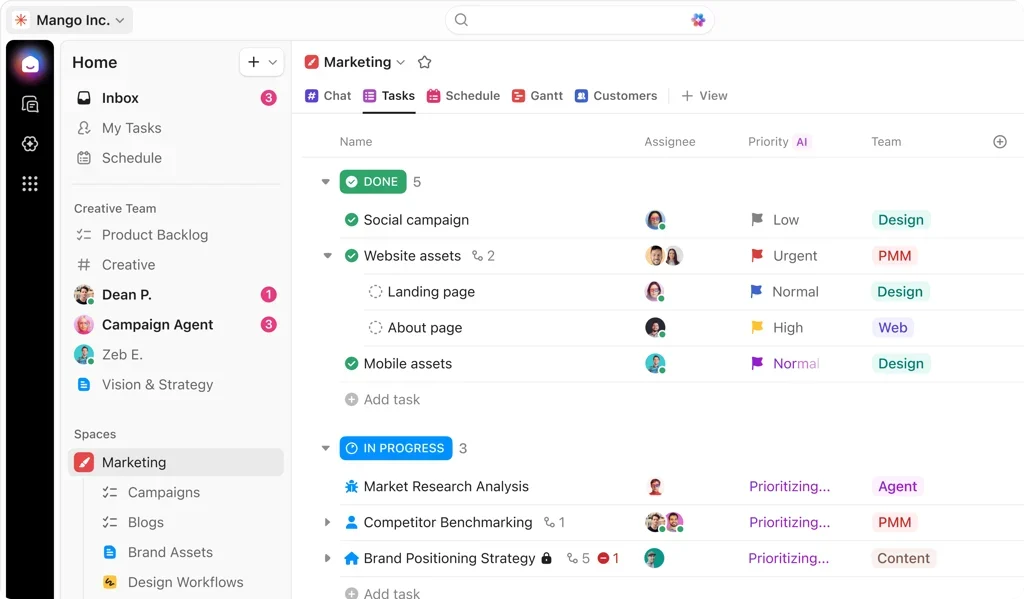
ClickUp uses a hierarchy system that suits Waterfall projects with detailed work breakdowns. Spaces, folders, and lists organize project work at different levels, while tasks and subtasks define the specific activities required for each deliverable. For projects that require more detail, ClickUp supports up to seven levels of nested subtasks.
This approach gives project managers more room to represent complex Waterfall plans. For example, a major deliverable can contain several levels of dependent work, and each subtask can have its own assignee and due date. ClickUp also supports custom task types, allowing you to classify project items by their purpose.
ClickUp’s extensive project hierarchy also comes with a trade-off, as the number of levels and customization options require more admin work to configure and maintain. Asana may be a better alternative if you want a simpler navigation while still breaking larger deliverables into tasks and subtasks.
Pros
- Custom workflows manage large project portfolios
- AI search retrieves project data across workspaces
- Automations assign owners and due dates
Cons
- Large workspaces can load slowly
- Extensive customization requires workspace governance
- Mobile dashboards can be difficult to navigate
Key features
- Custom task types: Create distinct work types with dedicated fields for projects that require more than standard tasks.
- Dependency Relationships: Link blocking tasks and reschedule dependent work automatically when upstream project dates change.
- Workload view: Compare scheduled assignments against individual capacity across daily, weekly, or monthly periods.
- Relationships: Connect related tasks across the workspace and reference information from linked work within task fields.
Pricing
- Free plan: Includes unlimited tasks and members, Kanban boards, sprint management.
- Unlimited: $7/user/month; adds unlimited Gantt charts and integrations, time tracking, portfolio management.
- Business: $12/user/month; adds portfolio workload management, sprint reporting, 5,000 monthly automations.
- Enterprise: Custom pricing; adds SAML SSO and SCIM provisioning, audit logs, data residency options.
AI pricing note: Brain AI costs $9/user/month and Everything AI costs $28/user/month, under annual billing, while the Free plan provides trial access to selected AI capabilities.
6. Asana – Best for coordinating dependent projects
- My rating: 4.02 out of 5
- Free plan available
- Starts at $10.99/user/month
Why I chose Asana
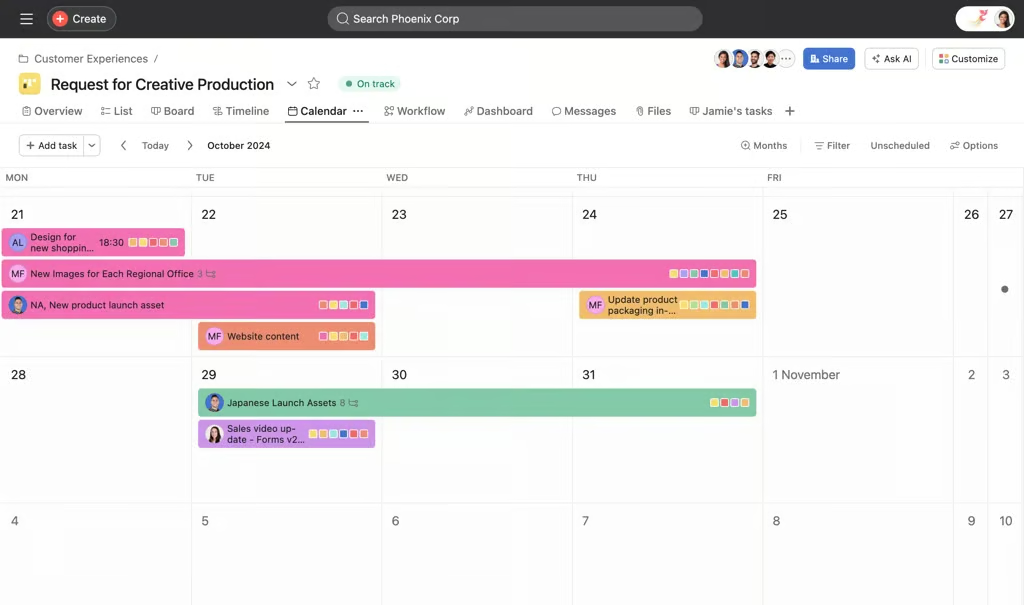
If your Waterfall projects span different departments, Asana connects dependent tasks and shows the sequence in which activities need to happen. It supports four dependency types, so you can map sequential work as well as tasks that need to start or finish at the same time.
As schedules change, Asana automatically adjusts dates across a dependency chain while either maintaining or consuming the time between tasks. You can also group related projects into portfolios to monitor their progress and deadlines in one place. Together, these capabilities are particularly helpful when one project depends on work delivered elsewhere in the organization.
One limitation is that portfolios require the Advanced plan or higher, which raises the entry point for managing related projects in a single view. monday.com may be a better alternative if your priority is more detailed Gantt scheduling and control over complex project timelines.
Pros
- Multi-homing keeps one task across projects
- Dependencies show downstream schedule effects
- Scheduled rules automate recurring project actions
Cons
- Subtask rules can produce unexpected results
- Nested subtasks lose some project functionality
- Doesn’t allow multiple assignees
Key features
- Multi-homing: Add the same task to multiple projects while keeping task updates consistent across each location.
- Portfolios: Group related projects in one view to review project health and examine individual initiatives.
- Workload: Compare assigned effort against individual capacity across projects and redistribute tasks when workloads exceed capacity.
- Dependency types: Define scheduling relationships between tasks and adjust relevant dates when changes affect dependent work.
Pricing
- Free plan: Personal supports up to two users with unlimited tasks and projects across list, board, and calendar views.
- Starter: $10.99/user/month; adds Gantt and Timeline views, reporting dashboards, unlimited automations.
- Advanced: $24.99/user/month; adds portfolios, goals, workload management, approval workflows.
- Enterprise: Custom pricing; adds SAML authentication and SCIM provisioning, admin controls for cross-department workflows.
- Enterprise+: Custom pricing; adds data residency and audit logs, SIEM integrations, managed workspaces.
AI pricing note: AI Studio Basic is included with paid plans through monthly credit allocations, while AI Studio Plus and Pro have no public price.
How to choose the best waterfall project management software
Choosing Waterfall project management software starts with understanding how much control you need over the project schedule. Since Waterfall projects typically follow a sequence, the software should make it easy to plan dependencies and track changes against the original schedule. Before comparing providers, consider these factors:
- Evaluate dependency management: Check whether the software supports multiple dependency types and automatically adjusts task dates when the schedule changes.
- Look for baseline tracking: Baselines let you compare the current schedule against the approved plan, making delays and schedule variance easier to identify.
- Check critical path capabilities: Critical path analysis identifies the tasks that affect the project completion date, helping you prioritize schedule problems.
- Consider resource planning: Review whether you can compare assignments against available capacity and identify overallocated team members.
- Assess change control: Look for approval workflows, version history, or other controls that document changes to project requirements and deliverables.
- Match reporting to project complexity: Determine whether reports can track milestones and schedule variance across the projects you manage.
- Consider setup and maintenance: More scheduling controls can require additional configuration, so weigh the level of customization against the admin work your team can manage.
FAQs
What are waterfall project management tools?
Waterfall project management tools help teams plan projects in sequential phases, with tasks completed in a defined order. Common capabilities include Gantt charts, task dependencies, milestones, baseline tracking, critical path analysis, and schedule reporting.
What features should waterfall project management software include?
Look for dependency management, Gantt scheduling, baseline tracking, and critical path analysis. Resource planning and milestone tracking are also useful for projects where delays in one phase can affect succeeding activities.
Which project management tools support the Waterfall method?
Wrike, Smartsheet, Microsoft Planner, monday.com, ClickUp, and Asana support Waterfall projects. Their scheduling capabilities differ, so compare dependency controls, baseline tracking, critical path tools, and reporting before choosing a platform.