























| Key takeaways: • Task durations, dependencies, and the critical path form the foundation of a project schedule because they determine how work progresses and how delays in one task affect others across the timeline. • Project managers rely on project scheduling tools like Gantt charts to track timeline progress and PERT charts to analyze complex task relationships and estimate durations in high-uncertainty environments. • Defining the project scope and establishing a fixed schedule baseline are essential for measuring date variances and maintaining control over changes that could disrupt project delivery. |
Creating a project schedule is rarely as simple as listing tasks and assigning dates. Project managers often struggle to balance shifting priorities and changing stakeholder expectations while building a timeline the team can realistically follow. To help you address these challenges, this article explains how to create a project schedule using industry-standard techniques and evaluates modern tools that support accurate forecasting and time management.
Featured Partners: Project Management Software
Project-Management.com may receive a commission from merchants for referrals from this website
What is a project schedule?
A project schedule defines the timeline for completing project work by mapping activities to specific start and finish dates based on estimated durations, while accounting for dependencies. It also identifies constraints such as fixed deadlines or resource availability, then highlights the critical path, which is the longest sequence of dependent tasks that determines the shortest possible time to complete the project.
Project managers rely on a project schedule to track progress against baseline dates and adjust timelines when work takes longer than expected. Still, only 38% of organizations mostly or always complete projects on time, underscoring the value of a project schedule to improve delivery performance.
Key components of a project schedule
The following are the components present in a project schedule:
- Critical path: Highlight the longest chain of dependent tasks that determines the shortest possible timeline
- Tasks and activities: Represent the individual work items required to complete
- Durations: Estimated time needed to complete each activity
- Dependencies: Logical relationships that define the required order of work
- Milestones: Mark significant events or achievements that indicate progress or phase completion.
- Resources: Specify the people, equipment, or materials needed to execute each task.
- Deliverables: List the outputs that result from completing groups of tasks or project phases.
Project plan vs. project schedule: key differences
A project plan outlines what the project aims to achieve and the approach for reaching those objectives, while a project schedule organizes when each activity will occur and who will complete it.
The project plan defines what work will be delivered and establishes how responsibilities and changes will be managed during execution. The project schedule then translates that plan into a timeline by sequencing activities and calculating start and finish dates based on dependencies.
How to create a project schedule
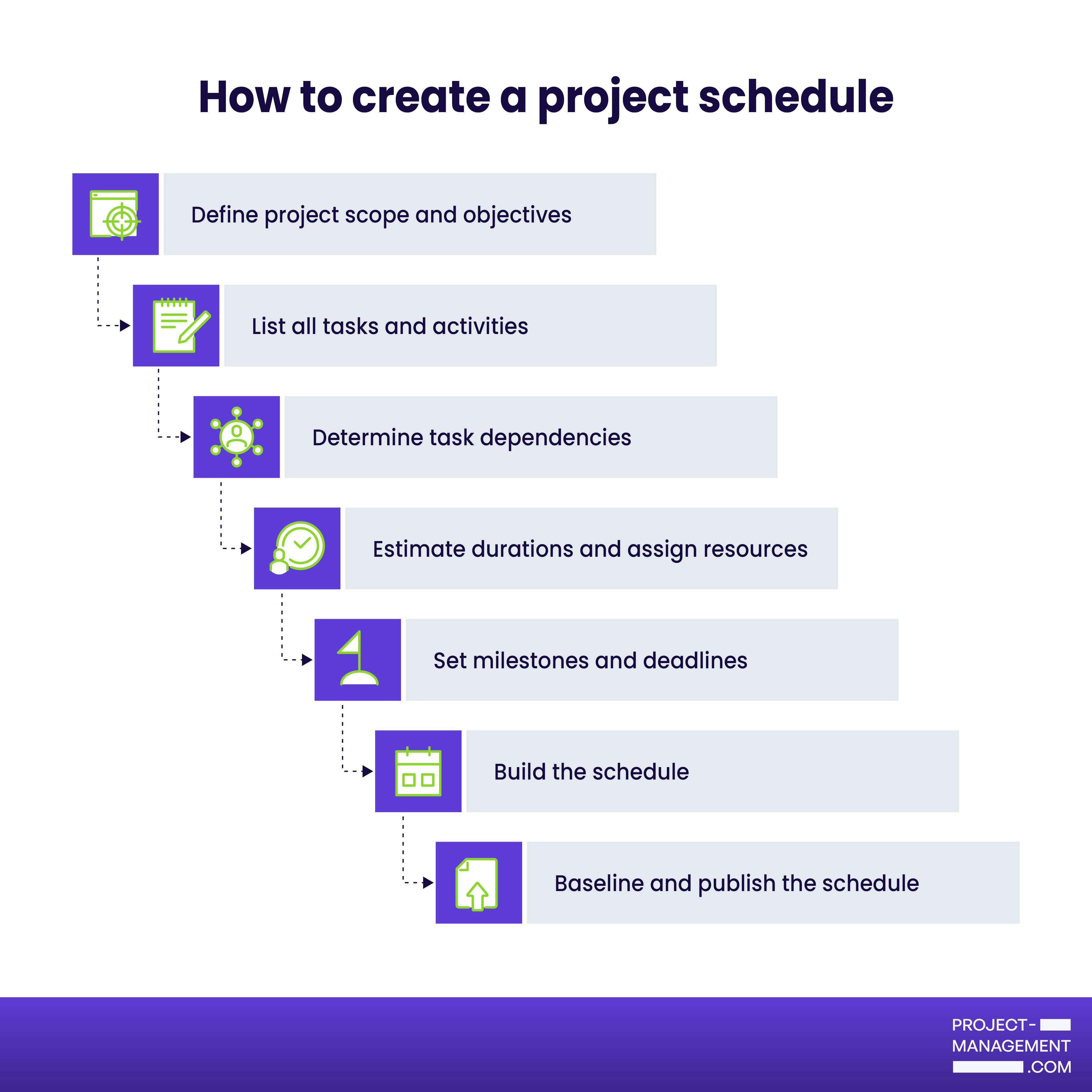
Creating a project schedule starts with defining the project scope and developing a work breakdown structure (WBS) to break the work into manageable components. From the WBS, you identify all required tasks and determine how those tasks depend on one another. You then estimate durations, set milestones, and build the timeline using a scheduling tool.
While creating one from scratch may vary depending on the project’s complexity and your chosen methodology, below is a standard process you can follow to build an effective project schedule.
1. Define project scope and objectives
Begin by outlining what the project will deliver and its intended purpose. Establishing scope and objectives allows project managers to link every activity to a specific business outcome or stakeholder requirement.
Example: For a website redesign, define the scope to include updating brand visuals, migrating all existing content, and improving mobile responsiveness to enhance user engagement.
2. List all tasks and activities
Break the project into smaller tasks using a work breakdown structure (WBS). This approach helps project managers grasp the full extent of the work and reduces the risk of overlooked activities.
Example: A marketing team launching a new website divides the project into high-level categories like “Design” and “Development,” then further breaks the “Content” category into specific tasks such as “Write homepage copy” and “Source stock images.”
3. Determine task dependencies
Identify which tasks rely on others to start or finish, then document those relationships to build a project sequence. Understanding dependencies prevents scheduling overlaps and ensures resources are used effectively.
Example: In a construction project, the site manager stipulates that the “Pour foundation” task has a mandatory finish-to-start dependency with “Erect frame,” meaning the framing crew cannot begin their work until the concrete has fully cured.
4. Estimate durations and assign resources
Calculate how long each task will take based on team capacity, skill level, and resource availability. Assign the appropriate personnel, tools, or systems to each activity, and account for scheduling factors such as lead time (overlapping tasks) or lag time (intentional delays between dependent tasks).
Example: A software development lead estimates that the “Database migration” task will take 40 hours based on the team’s previous sprint velocity, while also adding a 10% time buffer to account for unexpected data corruption issues.
5. Set milestones and deadlines
Establish checkpoints that show when critical phases are finished and connect them to the specific deliverables promised to the client. When a milestone is reached, the project manager reviews progress against expectations and adjusts task schedules or resource assignments if work is falling behind.
Example: Mark the end of the prototype testing phase as a milestone before the client review meeting and final development sprint.
6. Build the schedule
Depending on your preference, find a scheduling tool that matches your workflow and project scale, like a spreadsheet or project management software. Enter each task into the tool along with its duration, dependencies, and resources so the system can calculate dates and display the work on a timeline.
Example: Create a Gantt chart that displays task sequences, start and end dates, and overlapping activities to help stakeholders visualize the project flow.
7. Baseline and publish the schedule
Finalize the plan by saving a baseline version, which serves as a fixed reference point against which actual progress and variance will be measured during execution. This approved roadmap is then distributed to all stakeholders via a shared dashboard or Gantt chart to ensure everyone is aligned on upcoming milestones and deadlines.
Example: After receiving executive approval, the IT project manager saves the “Version 1.0” schedule for the ERP system rollout and shares a read-only view with department heads so they know exactly when to expect system downtime.
Project scheduling techniques & examples
Gantt charts, task lists, and Kanban boards are project scheduling techniques that help teams visualize dependencies and monitor progress against deadlines. Creating and managing these schedules within project management software makes the process more efficient and collaborative, which is why 82% of companies use work and project management tools to improve organizational efficiency, based on monday’s 2025 report.
If you want a tool to get started right away, below are examples of how top project management software apply these methods effectively.
1. Task list – monday work management
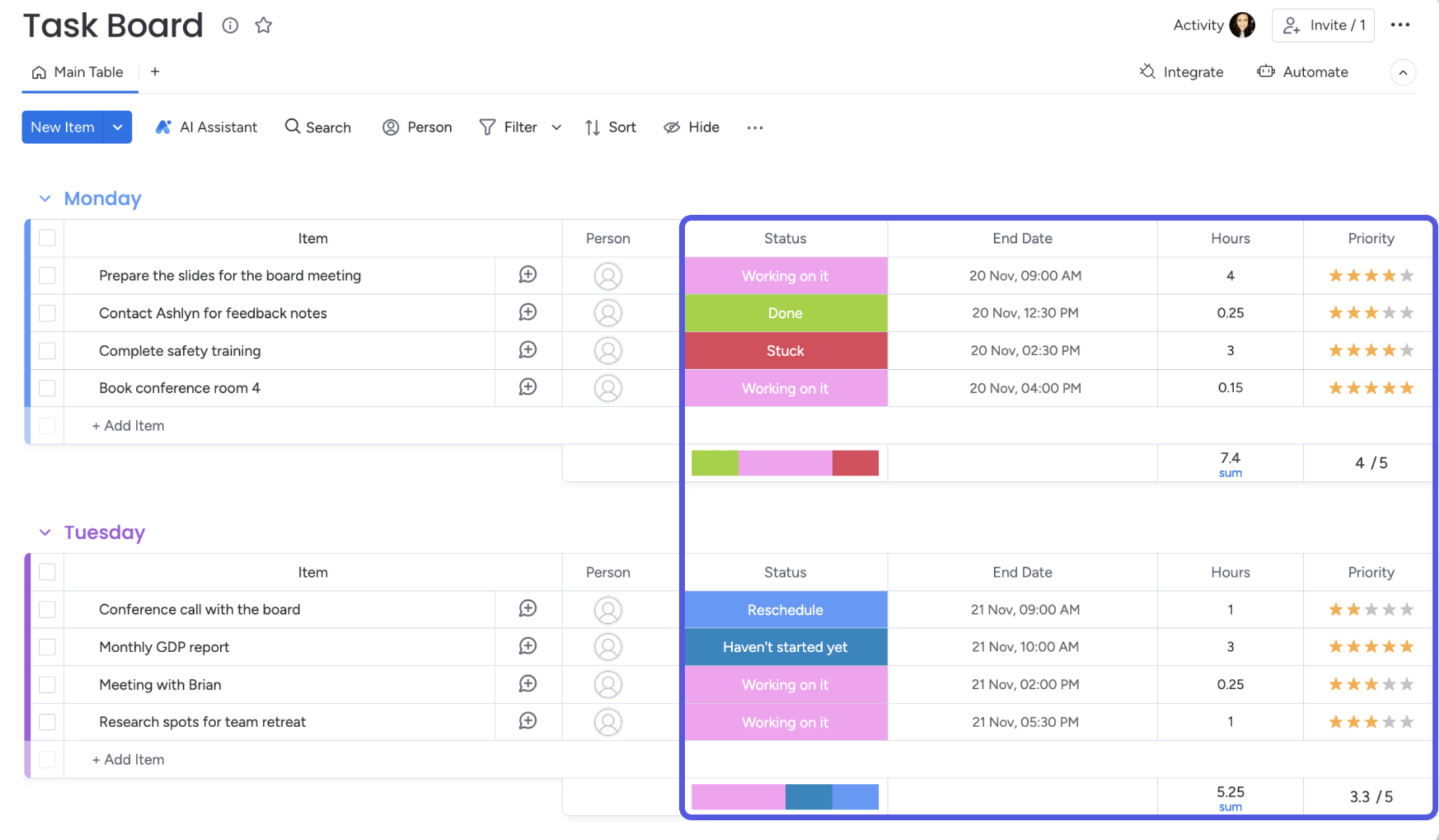
A task list is a simple yet effective scheduling technique where priorities, assignees, and due dates are tracked for each task. monday is well known for its color-coded task board, where work items are grouped by day, with columns for status, end date, effort hours, and priority.
2. Kanban boards – ClickUp
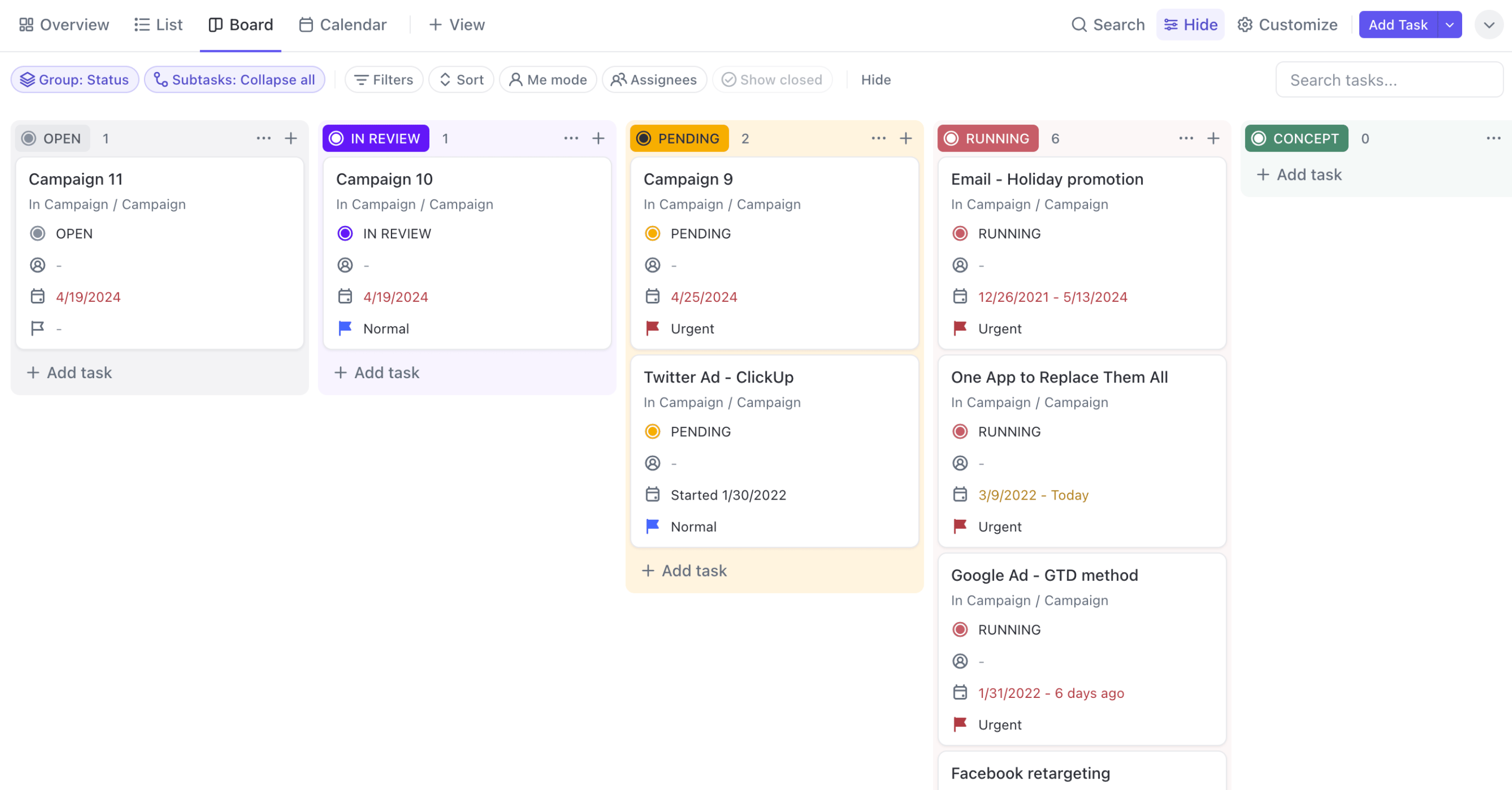
Kanban boards are ideal for teams managing unpredictable workloads and shifting priorities. Each column represents a stage (e.g., To Do, In Progress, and Done) and contains cards for individual tasks that move between columns as work advances. This layout helps teams track task volume within each stage and monitor work in progress (WIP). ClickUp offers an intuitive Kanban view that organizes tasks by status using drag-and-drop cards, with each card displaying start dates, due dates, and priority.
3. PERT chart – Miro
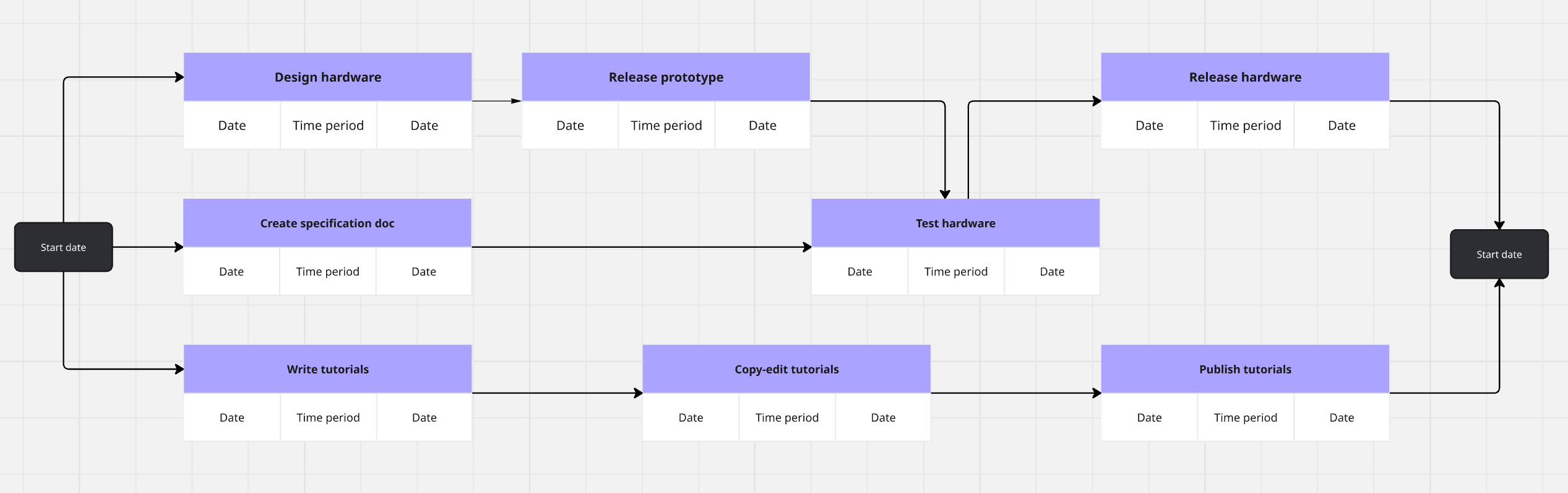
A PERT chart provides a visual network of tasks that shows how project activities connect and the sequence required to reach completion. Project managers can estimate timelines more accurately by analyzing dependencies and identifying which tasks directly influence the project’s finish date. Miro makes this process more efficient by offering a collaborative workspace where teams can map activities and adjust flow connections to model complex project schedules.
4. Gantt chart – Wrike
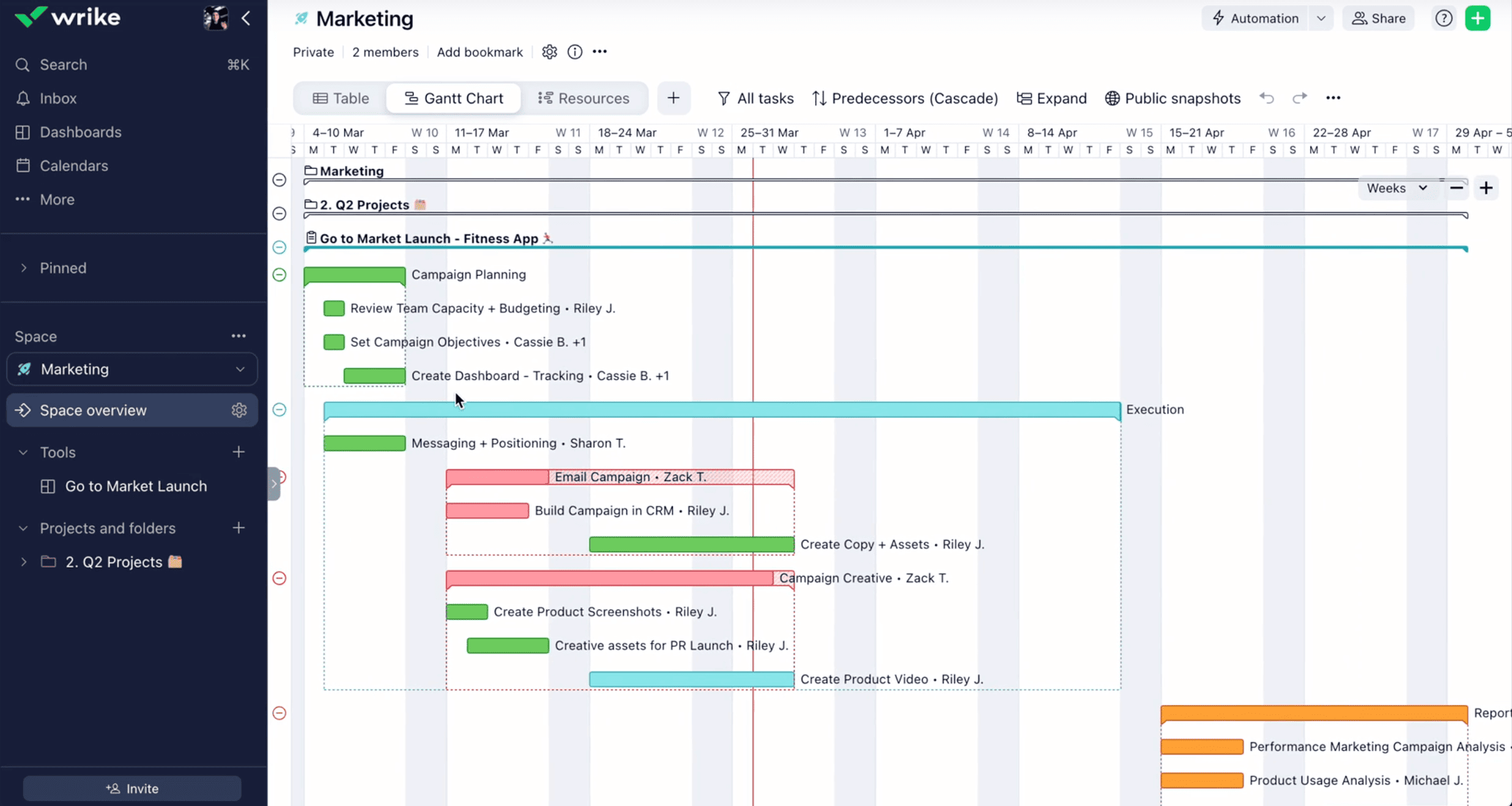
A Gantt chart illustrates a project’s timeline by mapping each task as a horizontal bar, allowing teams to see the order, overlap, and duration of work at a glance. By visually linking tasks, project managers can anticipate scheduling conflicts before they occur. Wrike supports this approach with dynamic Gantt charts that automatically update the schedule when deadlines change. When you reschedule a task with dependencies, all active tasks are rescheduled instantly on the timeline.
5. Timeline view – Jira
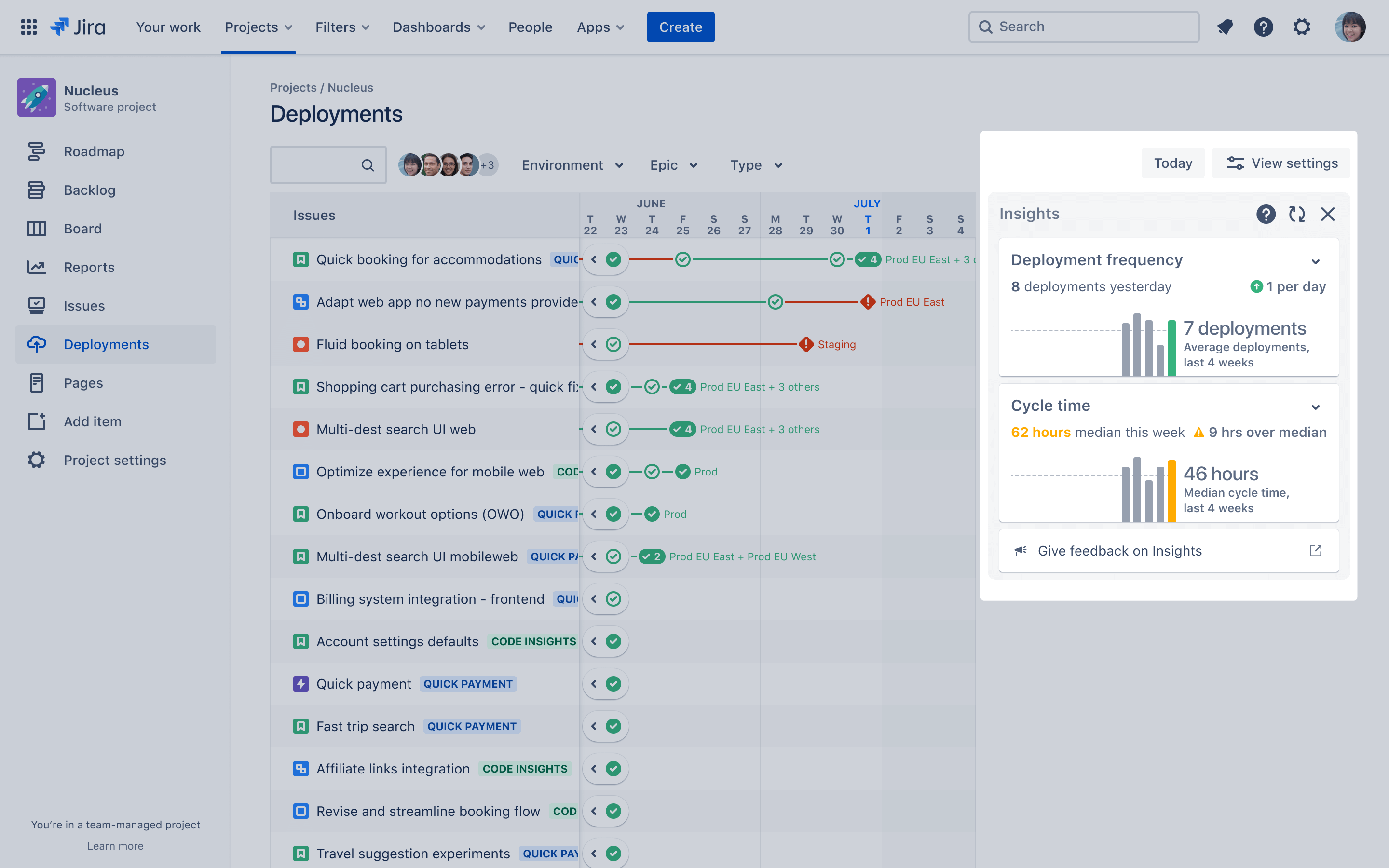
A timeline view displays work items across a horizontal axis to show when tasks start, progress, and finish over a given period. It emphasizes time-based relationships between work items rather than task hierarchy, making it useful for tracking progress across iterations or agile environments.
Jira serves as an effective timeline tool for dev teams that integrate it with deployment platforms like GitHub. Team members can follow work items as they progress through the deployment pipeline and identify which features have been released to specific environments.
6. Calendar – Motion
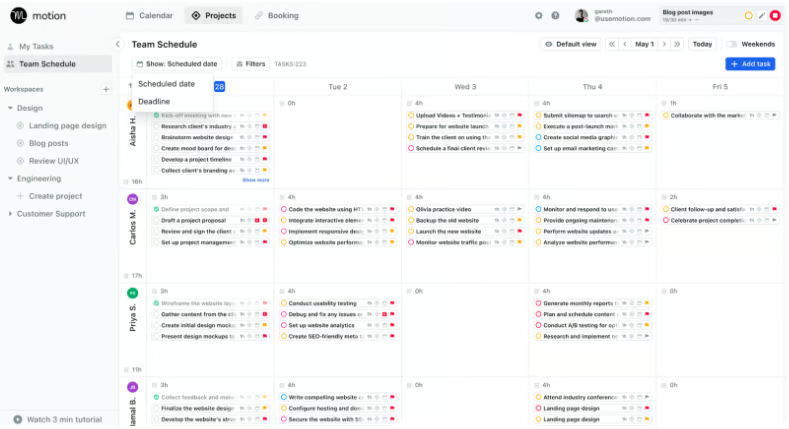
A calendar view supports project scheduling by assigning work to specific dates and time slots, which forces scheduling decisions to account for a person’s working hours, meetings, and deadlines. Motion uses AI to automate this process by rescheduling activities when timelines shift or a new task appears. It also automatically inserts tasks into open calendar slots based on priority, removing the need for manual time-blocking.
Common project scheduling mistakes to avoid + tips
Even a carefully built schedule can fail due to poor time estimates, unclear dependencies, or resource conflicts, but identifying these issues early enables project managers to apply corrective measures that keep the project on track.
- Building the schedule before the scope is defined: Creating dates before deliverables are approved leads to missing tasks and inaccurate timelines that require constant revision. Define the scope first so every scheduled activity traces back to an agreed outcome.
- Ignoring task dependencies: Scheduling tasks as if they can all start independently causes downstream delays when prerequisite work finishes late. Identify which activities must finish before others begin and reflect those relationships in the schedule.
- Misusing or ignoring lead and lag time: Failing to account for lead time or lag time can create unrealistic timelines. Use lag to allow for review periods, approvals, or stabilization windows, and use lead cautiously to accelerate work without introducing risk.
- Underestimating task durations: Assigning optimistic time estimates shortens the schedule on paper but often leads to a domino effect of staff burnout and lower quality of work. Base durations on historical data or previous projects to reflect how long similar work actually took.
- Overloading resources: Assigning multiple concurrent tasks to the same person may seem productive initially, but it often leads to delays when work is interrupted by shifting priority requests. Review resource assignments to confirm that no individual is scheduled for overlapping work beyond their capacity.
- Failing to baseline the schedule: Assigning dates without an approved baseline removes the ability to compare planned versus actual performance. Baseline the schedule once it is approved, so changes can be evaluated against original commitments.
- Not updating the schedule during execution: Treating the schedule as a static document causes forecasts to become inaccurate as soon as work deviates from plan. Update task progress and dates regularly so the schedule reflects current conditions and supports informed decisions.
A project schedule gives teams the foresight to manage deadlines effectively and respond to risks before they escalate. Best results come from anchoring schedules in the approved scope, updating them with progress data, and treating the baseline as a performance benchmark instead of a fixed document. As scheduling tools continue to evolve, taking advantage of AI-powered features can help you generate faster forecasts and optimize workloads with greater accuracy.
FAQs
Can I create a project schedule in Excel?
Yes. You can build a basic schedule in Excel using tables or Gantt chart templates. However, dedicated tools like Monday.com or Wrike offer automation and task tracking features that make scheduling easier to manage.
What is in a project schedule?
A project schedule includes tasks, deadlines, dependencies, assigned resources, and milestones. These elements work together to define the required work, timing, and ownership for each activity.
What are the five steps in project scheduling?
The main steps are defining the scope, listing tasks, determining dependencies, estimating durations, and setting milestones. These steps create a roadmap that ensures all activities are sequenced correctly and completed on time.
What tool is commonly used to create a project schedule?
A Gantt chart is a standard tool to create a project schedule by illustrating the sequence of tasks and dependencies in a horizontal bar chart. Although simple charts can be created manually, most professionals use digital tools such as spreadsheets or project management software like ClickUp to automate dependency tracking and visualize the critical path.