All good things come in trilogies. Star Wars, Lord of the Rings, Teenage Mutant Ninja Turtles, the original Super Mario games, and our video series on Monday.com Boards. And… you saw the title, so you know what this is, welcome to part 3 of How to Get the Most out of Your Monday.com Boards. In case you forgot, I’m Kyle! Hope you’ve been good and great, great and good. And if you don’t recognize me or this series, click the annotation in the top right corner of your screen for a playlist of all the previous monday.com tutorial vids we’ve done.
Otherwise, let’s kick this off! Today we’ll be focusing a bit more on editing the board and the items within. The part of your boards that you’ll likely be customizing the most are your columns: specifically, deciding what kind of columns are relevant for your work. When you click on this plus sign over here, you’ll see a handful of what Monday.com calls ‘the essentials’ pop up, which are just the options that are used most often. Status will let you choose from pre-set statuses to quickly show off how far along this item is.
Those statuses can be customized with your own thrown in as well so you can tailor it to your business’ needs. Dropdown gives you a dropdown list where you can choose from several other variables, again this is customizable. Text, Date, and numbers all function as you’d expect. You can put in text, or a date, or numbers into those columns if you choose those options. People is important, this is where you go to assign members of your team to each particular item.
If those don’t fit your needs, you can click on ‘more columns’ down here, and shazam, look at all these things. There’s a LOT here to choose from and I definitely don’t have enough time or lung capacity to go over all of these in this video. However, here are a few that I like to use: Timeline is important especially for those that use the Gantt view so you can see exactly when your item is supposed to start and stop. Checkbox is super useful just so you can see at a quick glance what main repeatable items have been completed.
For instance, if you always need to get something approved by someone, having it as easy as a checkbox could help make things just a bit more efficient. Files is great if you have to attach files regularly to this document. If however, you use something like google docs or sharepoint or dropbox or something like that, you can use the ‘link’ option instead to put the direct link to your files. Alternatively, Monday.com has its own internal “monday Doc” that functions as a collaborative rich text editor.
Whichever option works for you, this is great for collaborative file sharing. Lastly, because I’m an excel nerd, formula is another cool one that you can use to manipulate data across multiple columns. If spreadsheets and geeking out over =sum(a2:b34) and other nonsense like that is your cup of tea like it is mine, you’ll probably enjoy the formula option too. Again, there’s TONS of options here and I didn’t cover most of them, so the best way to learn with some of these is to just tinker with it and see what you like and don’t like.
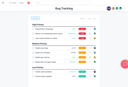
If you have specific requests on ones you want us to cover though, let me know in the comments below and we might make a follow up vid if needed. Once you’ve decided WHAT column you want to add, you can rename it by just clicking on the name to bring up a textbox. One last thing about columns, the last row of each group will show you a quick little summary of the columns within each group, so you see here under the Price column we added, it made a sum of those numbers we entered, and under Status it’s showing a bar graph made up of the different percentages of statuses contained within.
Pretty neat! Adding new columns is something you’ll be doing a lot when initially setting up your board, but this next bit you’ll be doing a LOT throughout the lifecycle of your board: updates. If you click on the button that looks like a little cartoon talk bubble with a plus inside of it, you’ll be able to start a conversation specifically on that item. You can tag people using the @ character, you can put in text, or add files, and you can check the activity log specifically on this item, as opposed to checking the activity for the board as a whole like I showed you in a previous video.
Another thing you’ll likely be doing is moving items around within your board. To do this, you can just click and drag items, groups, or columns to move them into different spots. If you want to move several items, if you click the little checkbox to the left of the item, you’ll see a new window pop up at the bottom that’ll give you a handful of options of things to do with those items. These options include duplication, exporting, archiving, deleting, or moving them.
When setting up your boards, something to keep in mind is how you decide to group your items. Sometimes it makes sense to have groups be separated like we have it here where either there are items that are lumped together based on a classification, like different items from your Portland office versus those from your New York office, or something like that. In other instances, it makes more sense to have things split up based on the actual status that they’re in, so you can just move things along based on how far it is in the process.
Play around with this and see what works best for you and your specific team. Lastly, if you look right next to the name of your board, you’ll see a circular button with an “i” in it. If you click on that, you’ll be able to enter in a description for your board that will appear as a subtitle underneath the title of your board. And next to that is the outline of a star, if you click on that, this board will be listed as one of your favorites and you’ll be able to access it from the bar on the far left when you click on the star icon there.
This might not seem useful right now as you probably have very few boards, but once you build things out and you find that you have a bajillion boards from all over your company, having a list of favorites will save you time from hunting down the boards you need. We did it! That’s the end of our trilogy of videos on Monday.com boards. Thanks for watching. If you want more info on project management options other than Monday.com, check out technologyadvice.com for our list of the top options available today, and if you want to see more of our videos on monday.com, check out our playlist! It’ll be updated as more videos are released. Thanks again for watching, and go be good and great, great and good.