





















In this comprehensive ClickUp Project Management Tutorial, learn how to streamline your workflows and boost productivity with ClickUp’s powerful features.
Read more in our list of the best PM software.
In this comprehensive ClickUp Project Management Tutorial, learn how to streamline your workflows and boost productivity with ClickUp’s powerful features. Read more in our list of the best PM software.

ClickUp calls itself ONE APP TO REPLACE THEM ALL. And… it’s got a free version. Let’s hop onto that free version and see what we can get started on for our project management needs. We’re in ClickUp’s main interface, which is browser based, so I didn’t have to download anything— I love that. The top bar has a bunch of different shortcuts and hotkeys, which you should sift through at some point, but it’s not terribly important for what we’re working on today.
Down here on the bottom left of the screen, you’ll see your spaces. In Clickup, there’s a hierarchical structure. There are Spaces & within spaces, you can have folders, lists, docs, and whiteboards. A folder is just to help you organize your lists, a doc is basically a word processing document within ClickUp akin to Microsoft Word or Google Docs, and whiteboards are visual brainstorming boards for collaboration. Let’s start by making a new list.
First we’ll name our new list, and then hit “create list.” Once it has been created, you’ll see our new list will pop up under our spaces to the left. If we hit the ellipses, or three little dots next to it, we’ll be able to pull up our list settings and make changes to things like statuses, or add in custom fields. Let's say I’m using ClickUp to manage my video production projects. I’ll change my statuses to ones that make sense for me, but since they’re custom, you can change them to whatever you want.
As mentioned, list settings is also where we go to make a custom field. For instance, let’s say there’s a unique field that you need to track for each item, like an invoice number, or a client name, or something similar. You can create it here, decide which lists need this custom field, and select from a variety of field types like checkboxes, dropdowns, emails, locations, text, and more. Now let’s make a task! Tasks are the individual items that make up your lists.
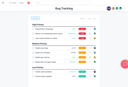
So I’ll go ahead and make my item and fill in the relevant information. When we go back to our list, you can see that task we just created, and by default they’re separated by the status they’re currently in. You can tell by the little headers here, and also the color of the circle next to the task name. Ok, I’m going to finish making a couple of dummy tasks. Please pause. Oh, real quick, ClickUp BrAIn, which is their in-product AI, can be used in a handful of ways to expand on your writing, reword stuff you’ve already wrote, or make automated updates for you based on recent actions.
So I made some changes to this item, and I made a custom field with the ‘generate AI progress’ field type, so when I use that field it’ll spit out an AI generated update based on what I’ve done recently with this item. Neat! Ok, back to fast forwarding- Ok, now that we have a handful of tasks, let’s look at the different views we can use. Other than in a list view, you can look at your tasks on a kanban board view, where each column is each of your statuses.
If you’ve got dates added to your entries, you can also use a calendar view, and if you’ve got both start and end dates added, you can use the Gantt and timeline views. Let’s go back on the left side of the screen and hit the plus sign and choose Doc. It’ll open up a basic word processing interface. Now let’s look at the whiteboards. Again, we can hit the plus sign and add a new whiteboard. There are tons of different templates you can choose from, and you and your team can all make edits to these whiteboards in real name and even take specific items from the whiteboard and convert them into a task on one of your lists.
Lastly, dashboards allow you to get some basic birds-eye views of information. There are templates that you can get going easily, and then you just choose what lists you want your dashboard to cover. You can also build these from scratch or just add extra widgets to each dashboard. Woo! That was a lot, but that’s a good overview of the basic things you can use in ClickUp. For more info on ClickUp, check out our review over on project-management.com. Good luck and happy project managing!
In this comprehensive ClickUp Project Management Tutorial, learn how to streamline your workflows and boost productivity with ClickUp’s powerful features.
Read more in our list of the best PM software.
This article was produced by the PMCom editorial team.

project-management.com is dedicated to providing modern tools, latest news, and best practice references for every project professional and business organization. The discipline of project management has continued to receive growing interest and attention over the past decades. Especially today, the importance and relevance of the project manager for any kind of undertaking is unquestionable. However, the challenges of modern society, business relationships and latest technology are also testing their competency and ability to deliver successful projects. Since its launch in 2001, PMcom has been featuring pertinent articles, management software and productivity tool reviews, books, interviews, training sites and other e-learning resources to help people be more productive and successful in their chosen path.
Property of TechnologyAdvice. © 2026 TechnologyAdvice. All Rights Reserved
Advertiser Disclosure: Some of the products that appear on this site are from companies from which TechnologyAdvice receives compensation. This compensation may impact how and where products appear on this site including, for example, the order in which they appear. TechnologyAdvice does not include all companies or all types of products available in the marketplace.